How do students manage their progress on assigned task lists?
Last updated Over 1 year ago
Instructors are able to assess students on tasks through the Student Progress Module. Students are also able to propose their grades for tasks.
1. Click Student Progress in the navigation menu.
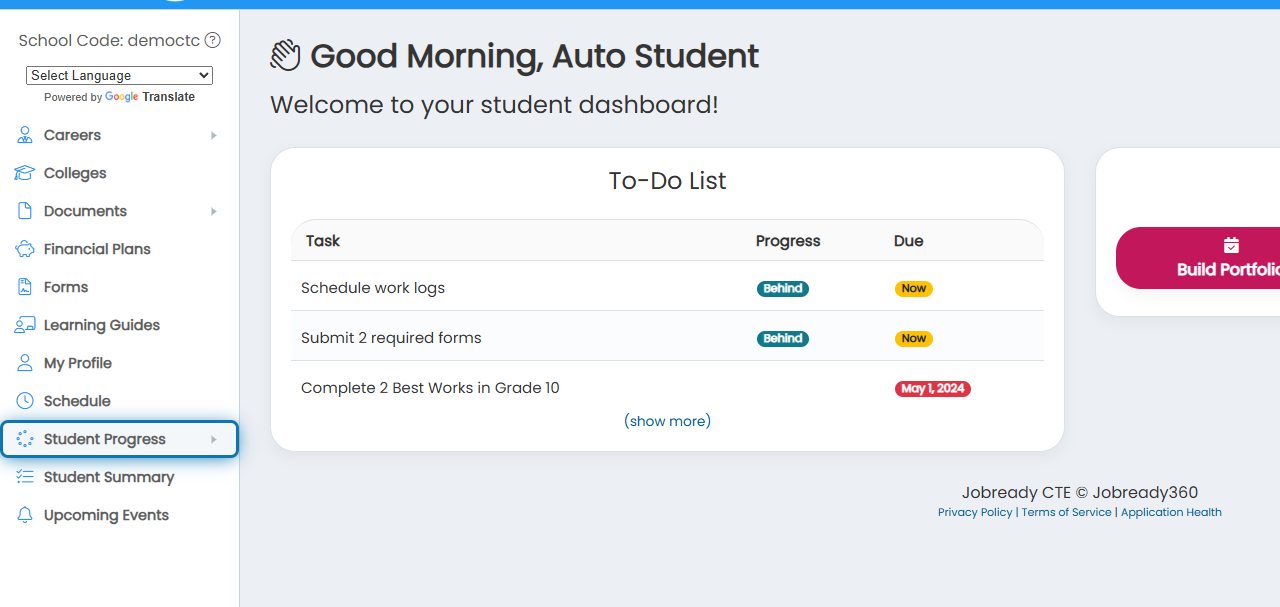
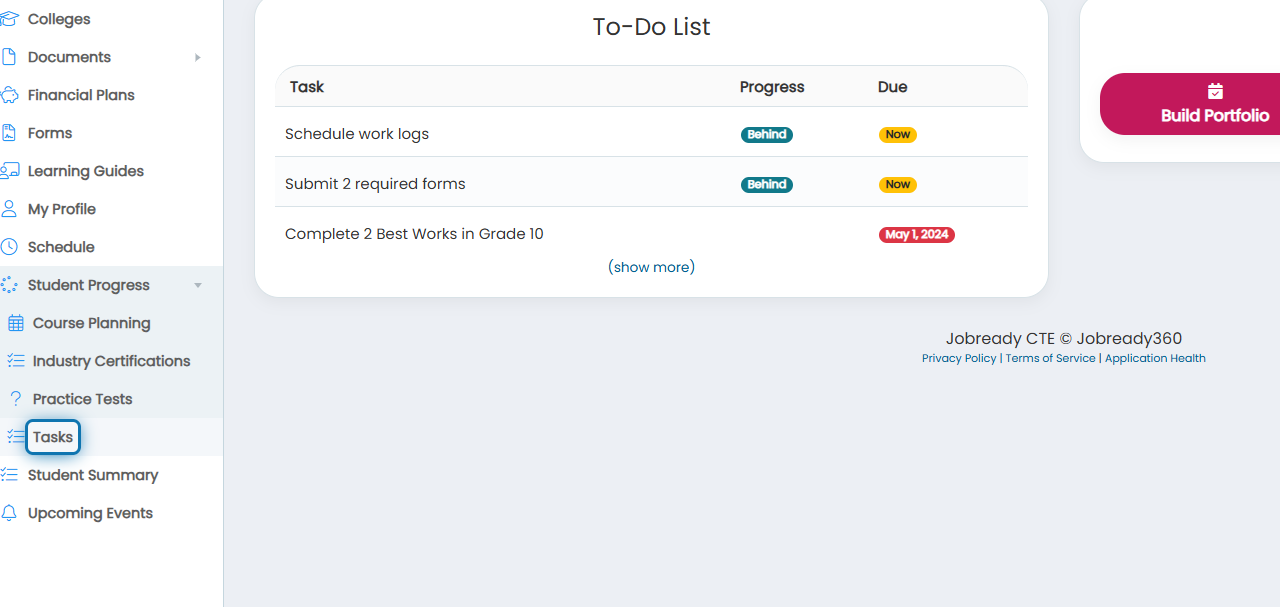
2. Click Tasks in the expanded menu.
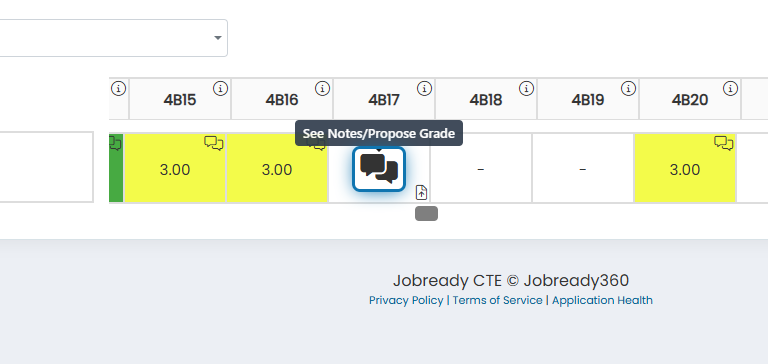
3. Click in the grid for the task you would like to propose for your grade.
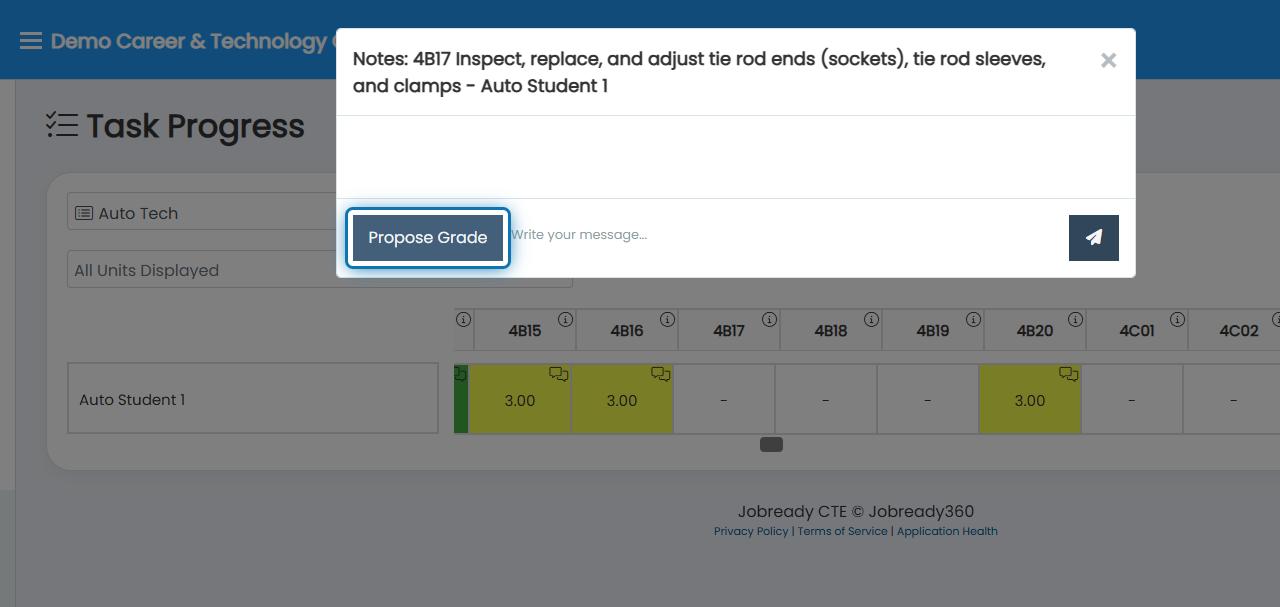
4. Click Propose Grade in the task window.
5. Click the grade you would like to propose from the dropdown.
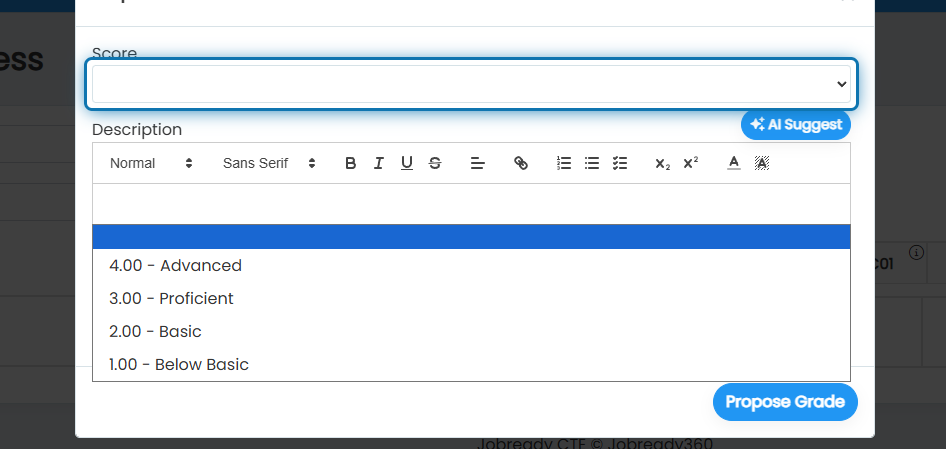
6. Add a description.
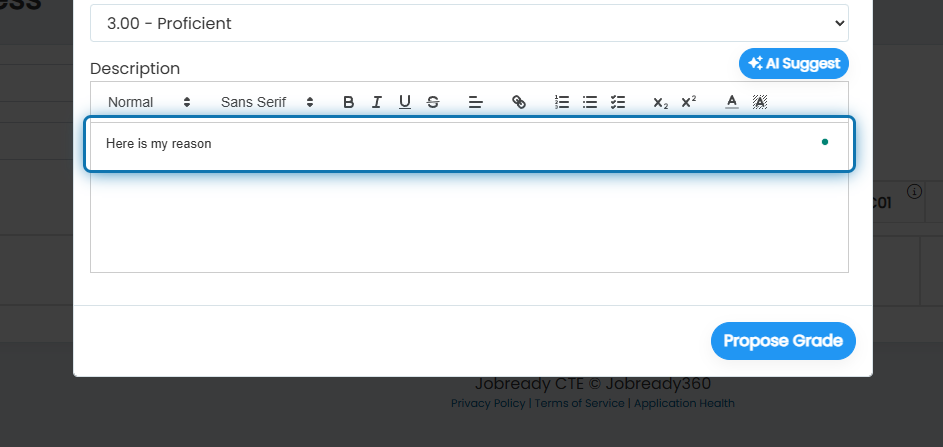
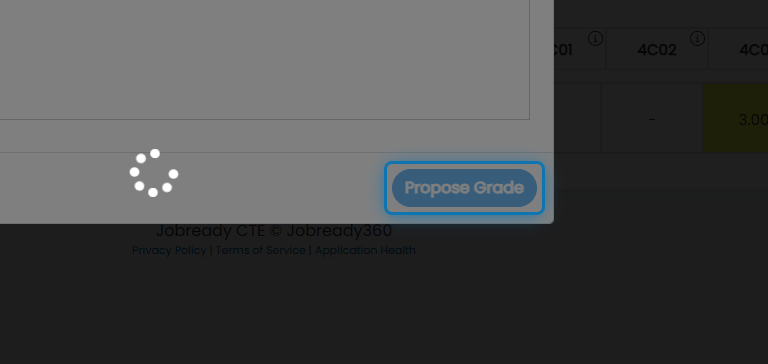
7. Click Propose Grade.
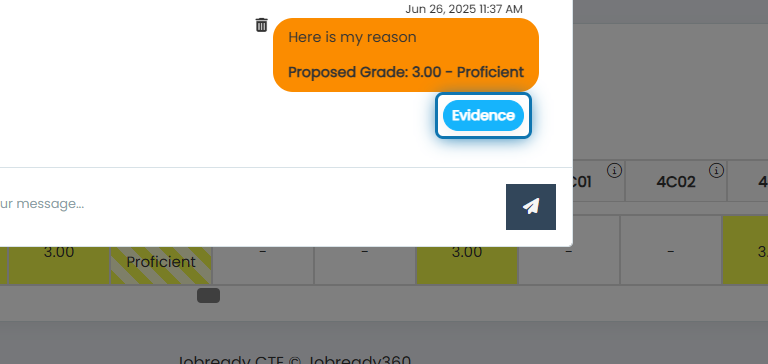
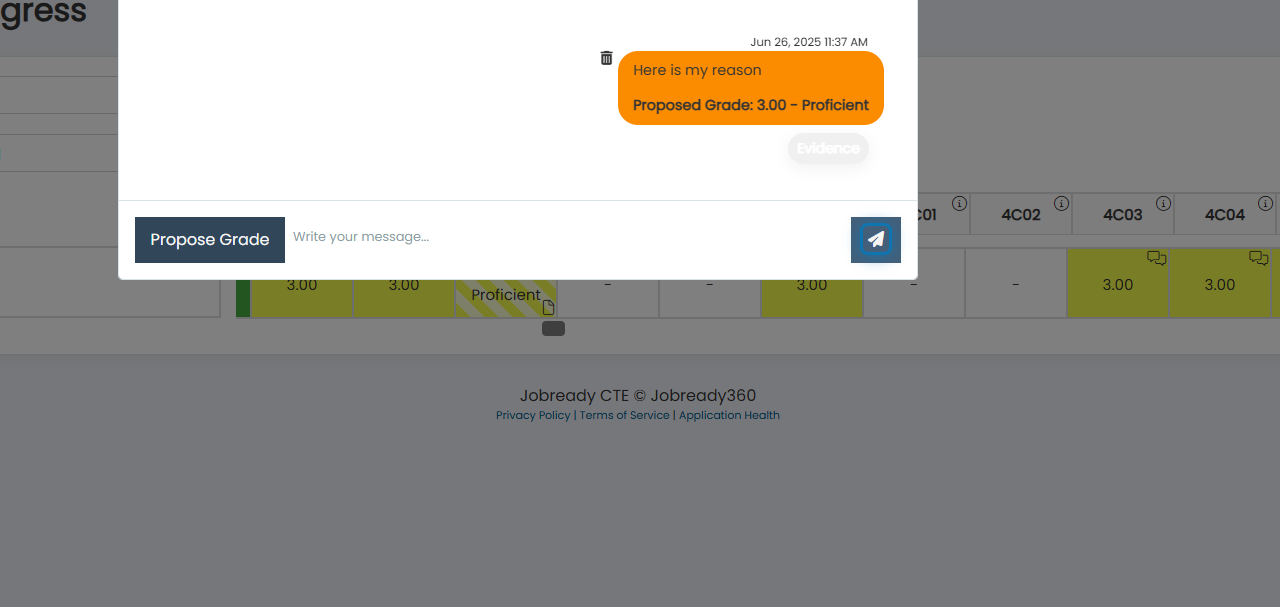
8. Click Evidence to upload additional evidence to support your proposed grade.
9. Click Drop files here to upload to add evidence.
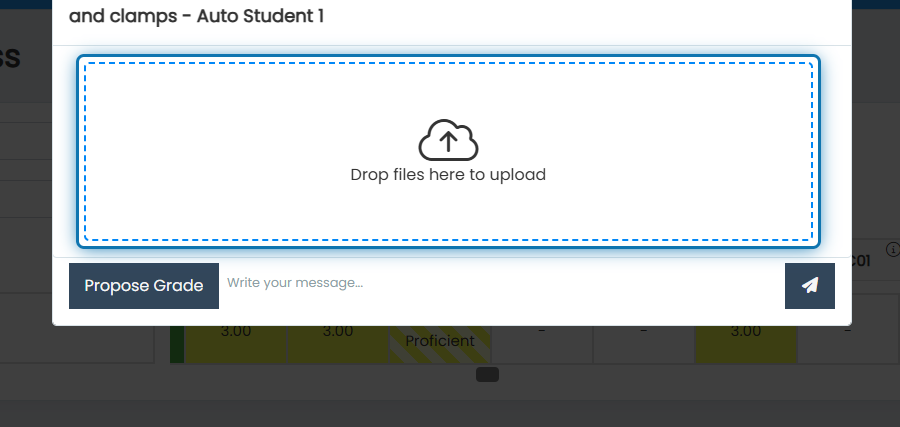
10. Click the paper plane to send your proposed grade to your instructor.
Suppose you were assigned a “Task Completion” Career Planning Activity. In that case, completion is evaluated when task scores are updated and when task score proposals are approved. All of the tasks specified on the activity must be a passing grade.
If you have been assigned a “State Task Completion Percentage” Career Planning Activity, completion is evaluated when task scores are updated and when task score proposals are approved. The percentage is calculated based on the number of days enrolled, days until graduation, and the number of tasks scored. The percentage of completion of the state task list must be greater than or equal to the percentage required by the activity.
Was this helpful?
Still need help? Ask the team