How do I take attendance for my WBL event?
Once you've created an event and added potential participants, you can follow this guide to update attendance!
Last updated 9 months ago
Method 1: Using a QR Code or Link at the event
You can have your students’ attendance automatically be recorded by having them complete an online form. This form can be posted as a QR code at the event or shared as a link.
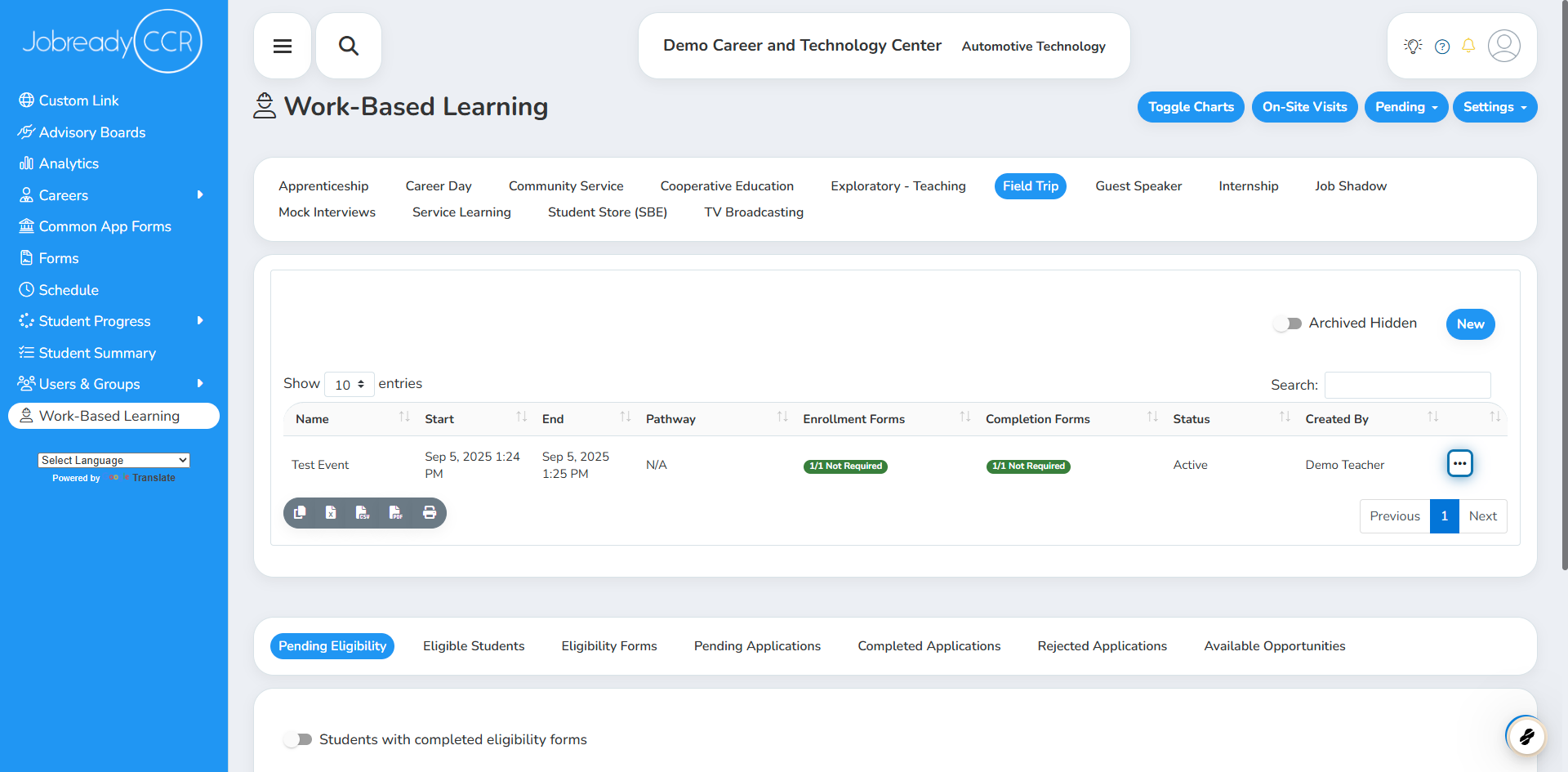
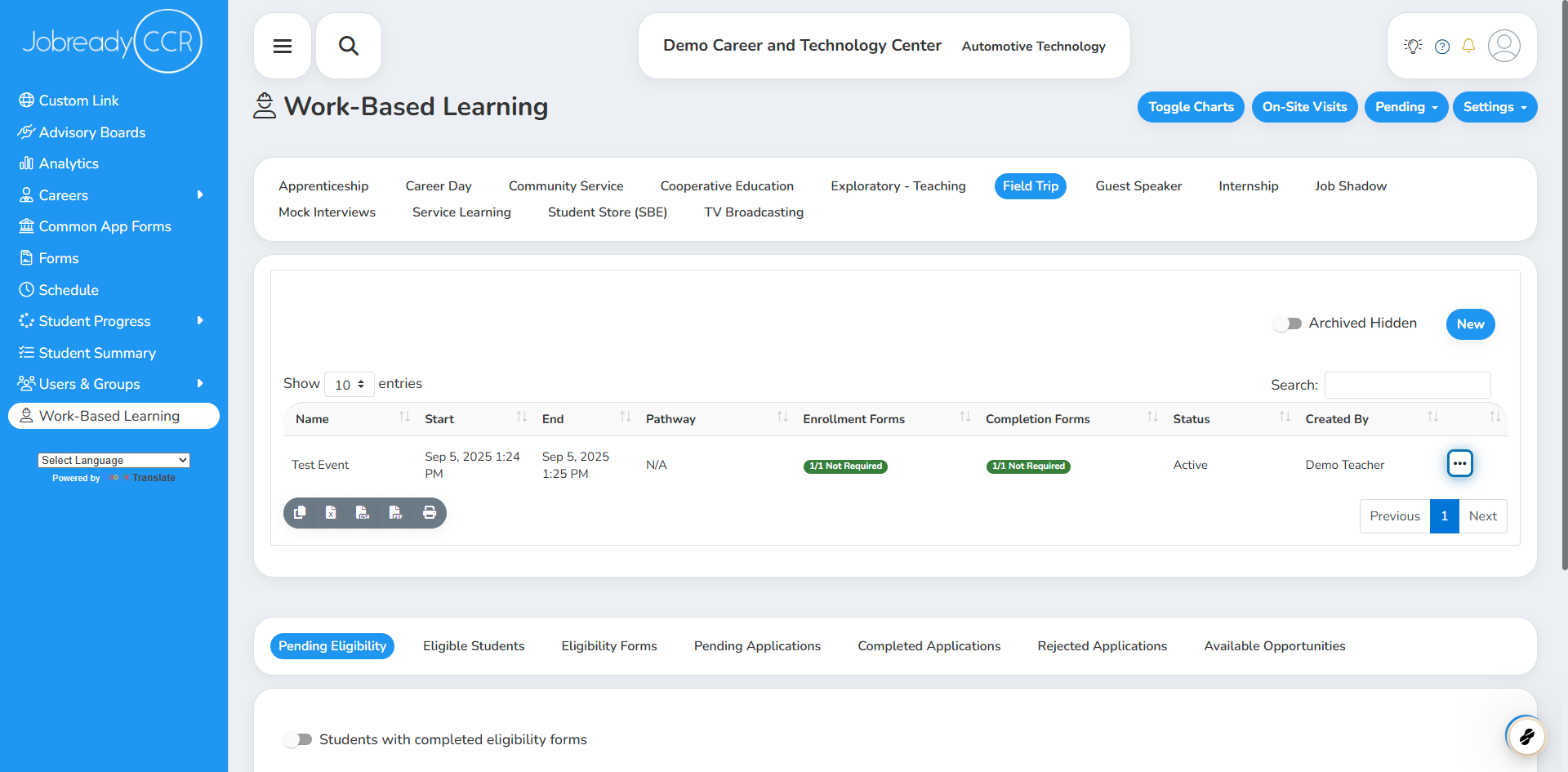
1. Click on the Action Button (3 dots) for your event
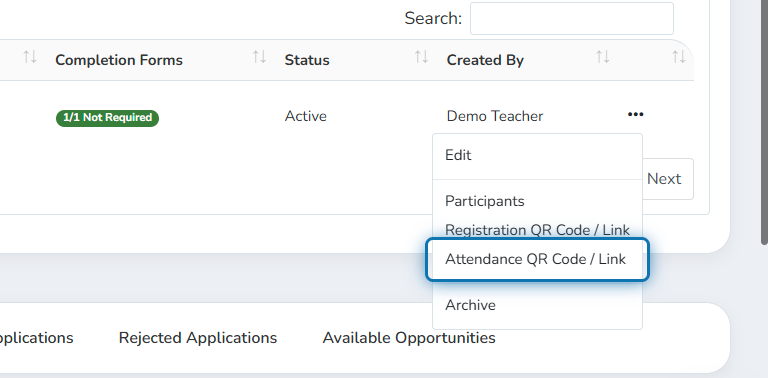
2. Click on “Attendance QR Code / Link”
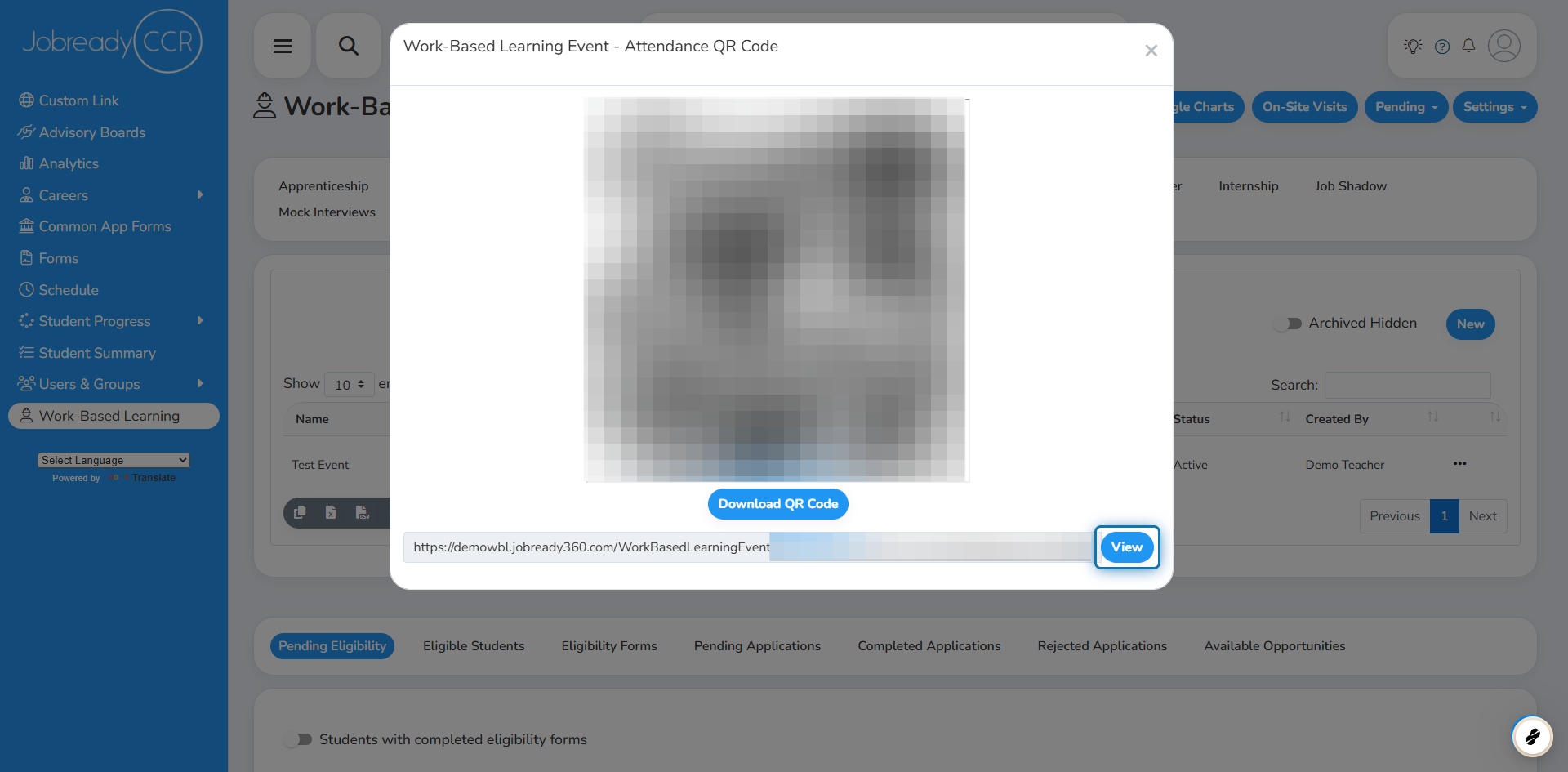
3. This will display a QR code you can have posted at the event
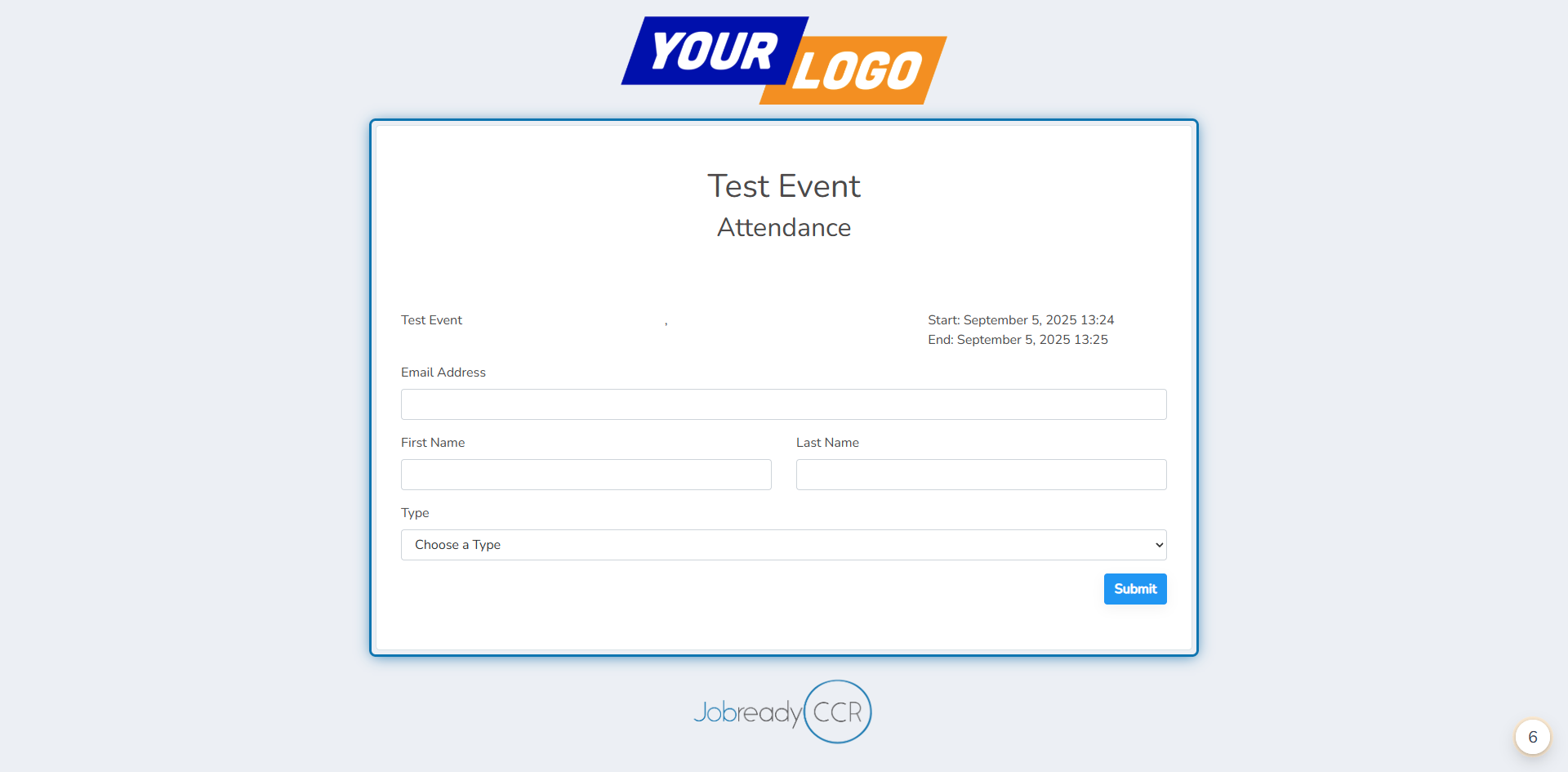
Students can scan the QR code or go to the link below to complete a short form. The form will mark them as present once they've completed it.
Method 2: Manually marking students as Present
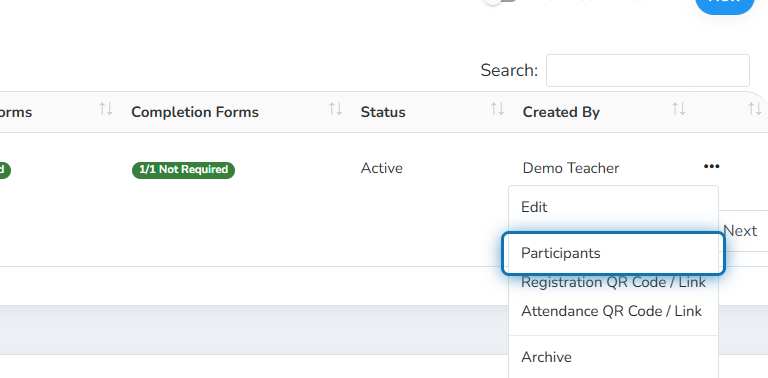
1. Click on the Action Button (3 dots) for your event
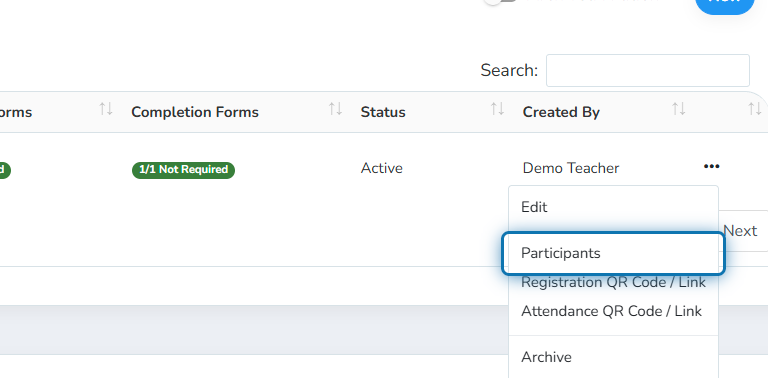
2. Click on Participants
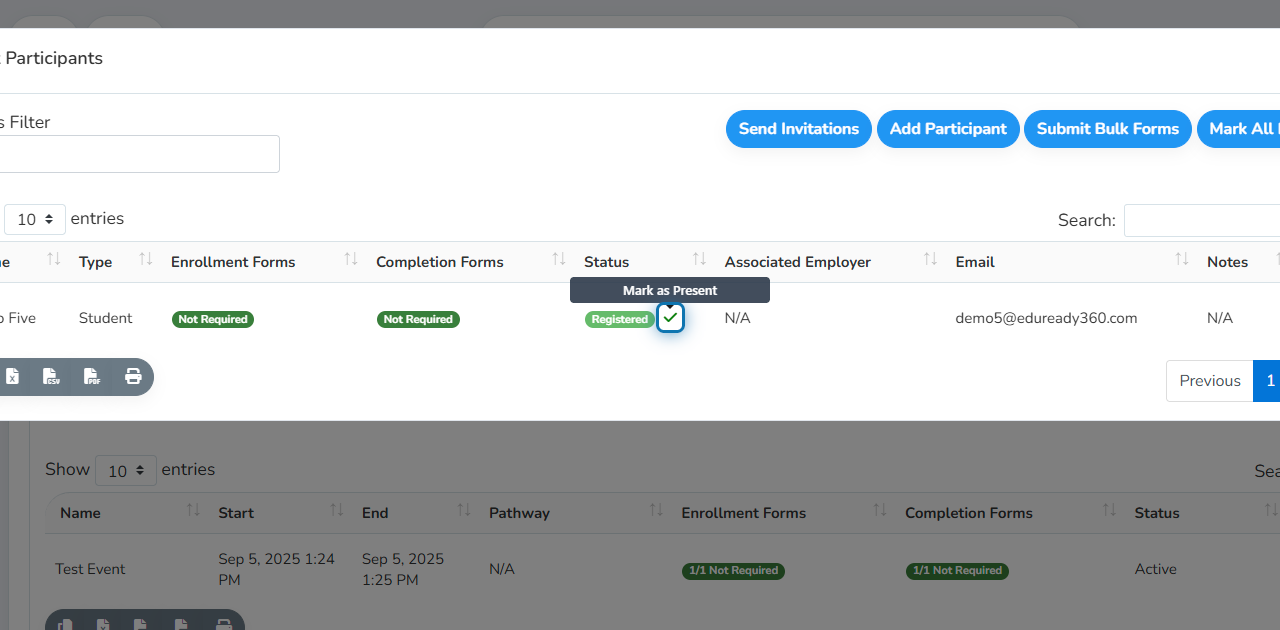
3. Click on the Green Check to mark a student as present
Manually Marking a student as absent
💡 By default, participants are considered absent unless they complete the attendance form via the link/QR code, or unless the teacher marks them as present. This step is only needed if the student is marked as present in error.
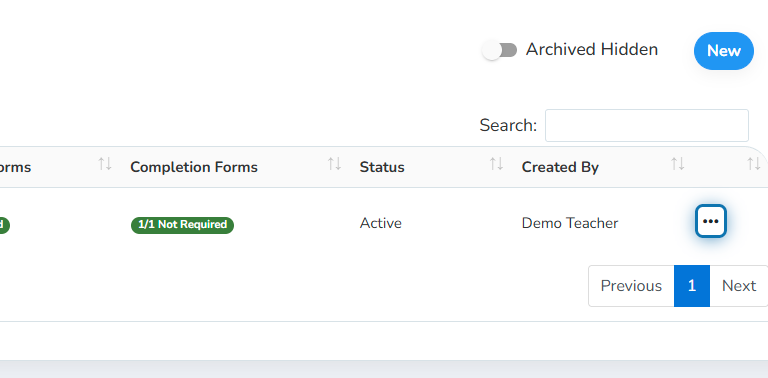
1. Click on the Action Button (3 dots) for your event
2. Click on Participants
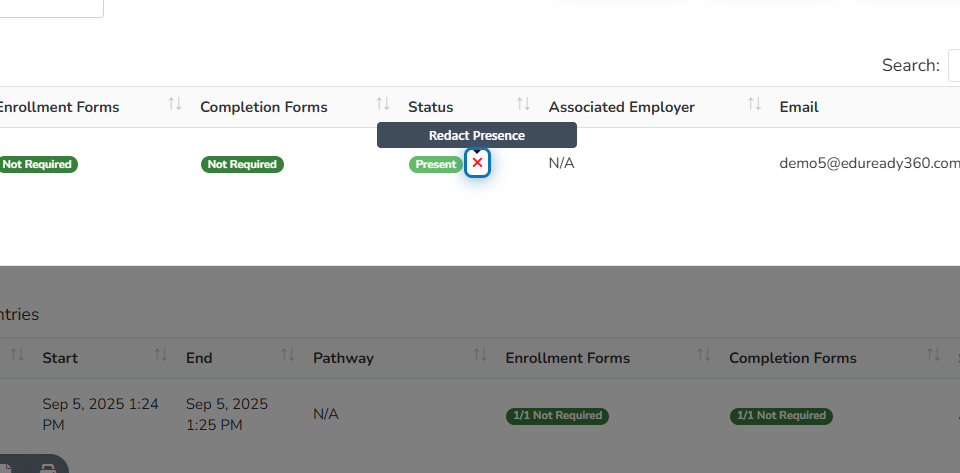
3. Click on the Red X to mark the student as Not Present
Was this helpful?
Still need help? Ask the team