How do I configure and send notifications to applicants for lottery results, acceptance, rejection, and waitlists?
Last updated 6 months ago
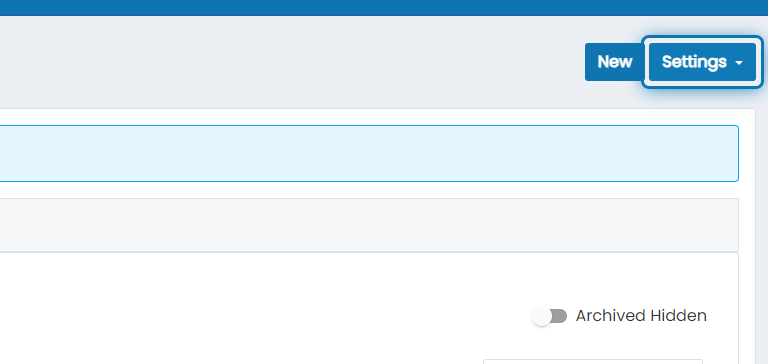
1. Click on Settings
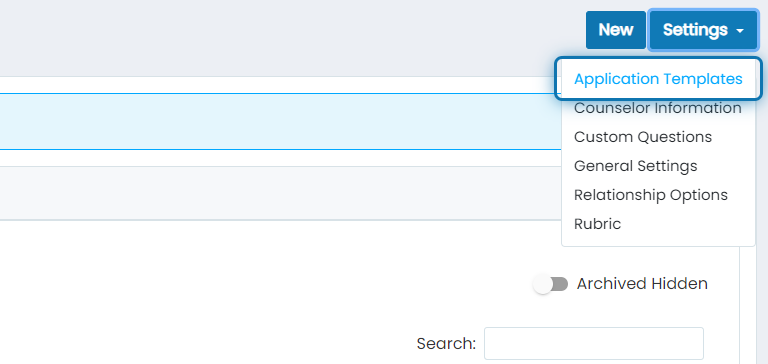
2. Click on Application Templates
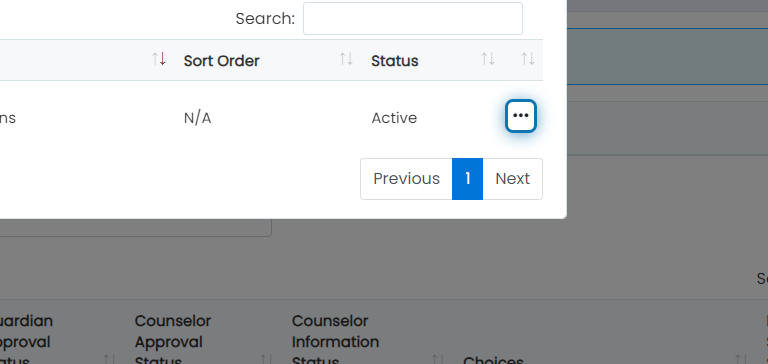
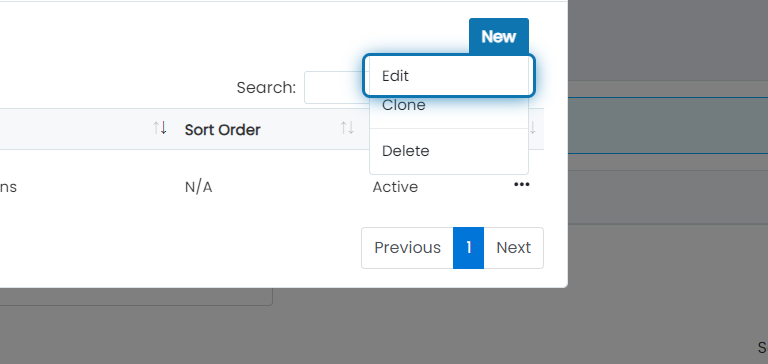
3. Click on 3 dots.
4. Click on Edit
Configure the Notification Messages
5. Use codes to include dynamic content.
You can use the following options to insert dynamic fields that will be replaced with the information specified.
%application_number% : The automatically assigned sequential application number.
%lottery_entries% : The number of entries or “weights” that an applicant was given.
%lottery_rank% : The numerical ranking of the random lottery selection.
%lottery_status% : This will show as Pending, Waitlisted, Accepted, or Declined.
%lottery_drawing_date% : The date and time of the lottery drawing.
%lottery_deadline% : The deadline the applicant must submit their lottery response by.
%lottery_placement% : This is the name of the CTE program that the applicant’s lottery results were for.
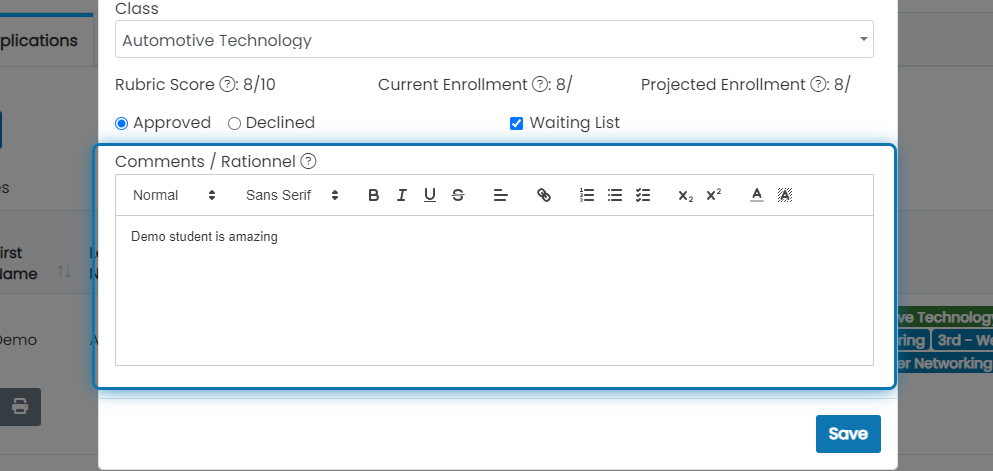
%placement_comments% : The comments adding using the steps shown below.
%school_name% : The name of the school that the applicant applied to.
%first_name% : Applicant's first name.
%last_name% : Applicant's last name.
%full_name% : Applicant's first and last name.
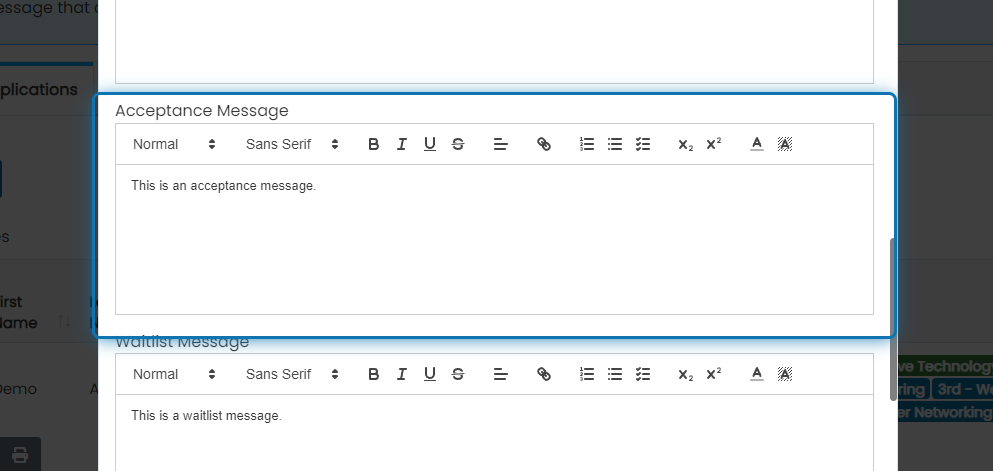
6. Enter the Acceptance Message
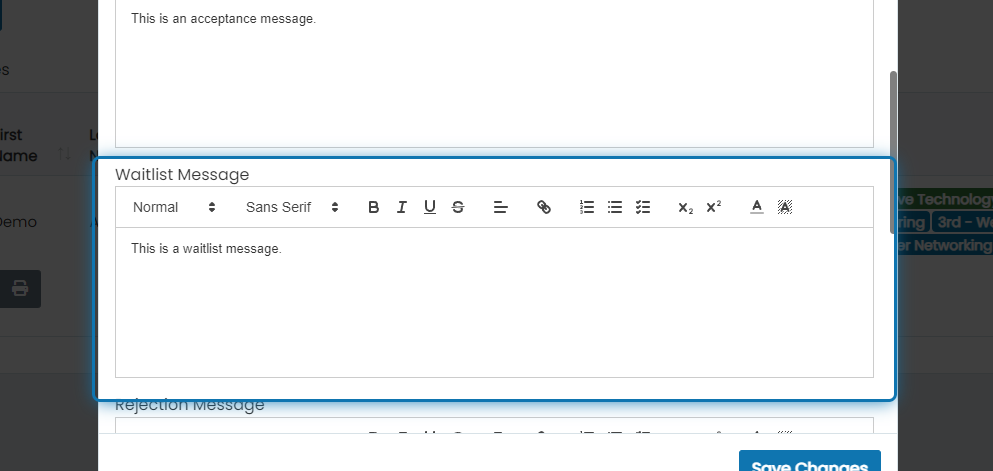
7. Enter the Waitlist Message
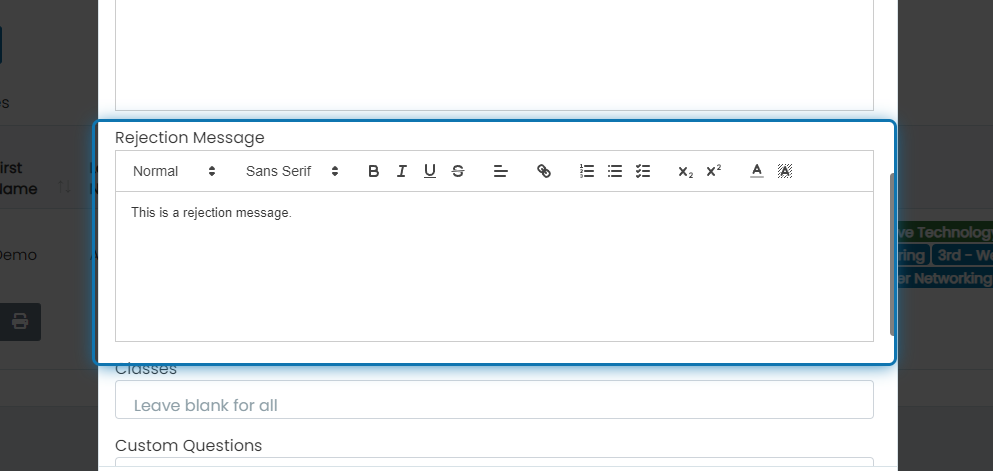
8. Enter the Rejection Message
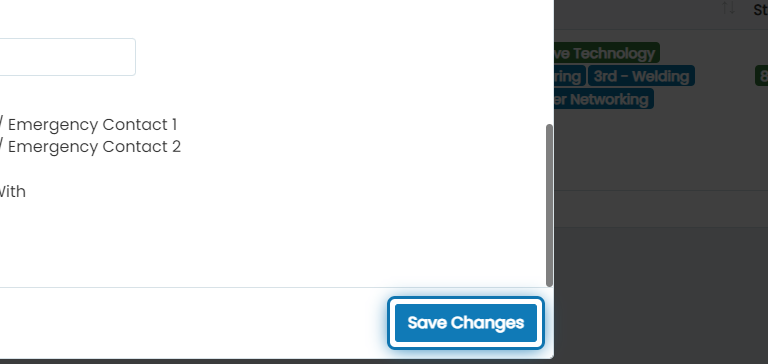
9. Click on Save Changes
Add Placement Comments
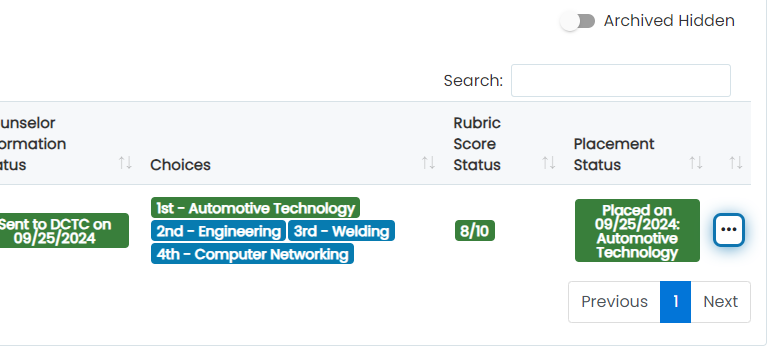
10. Click on the 3 dots
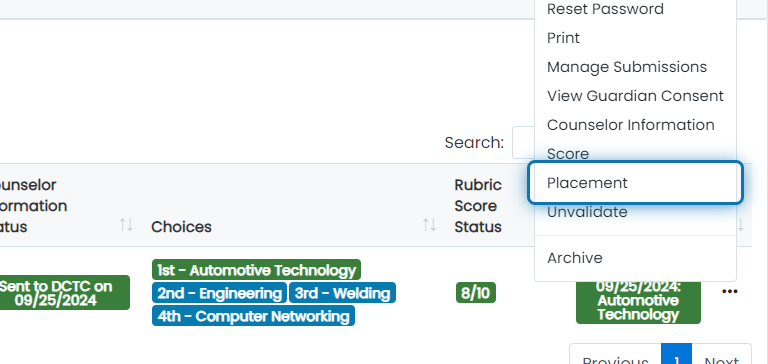
11. Click on Placement
12. Enter any Comments to show in Notifications
Send Notification Emails to Applicants
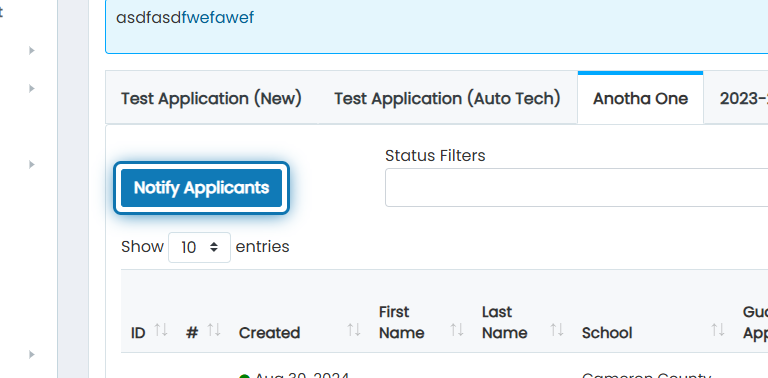
1. Click on Notify Applicants
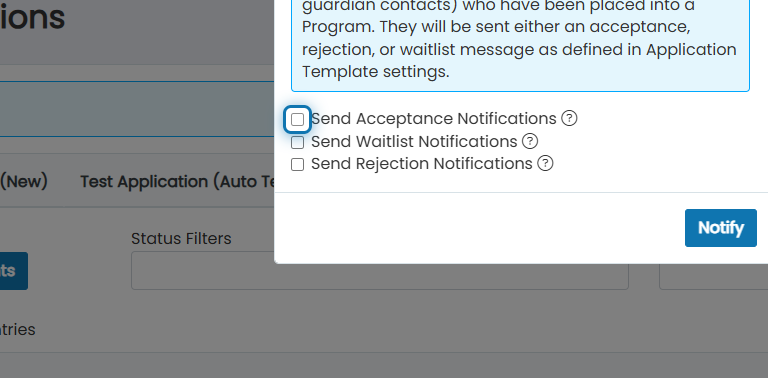
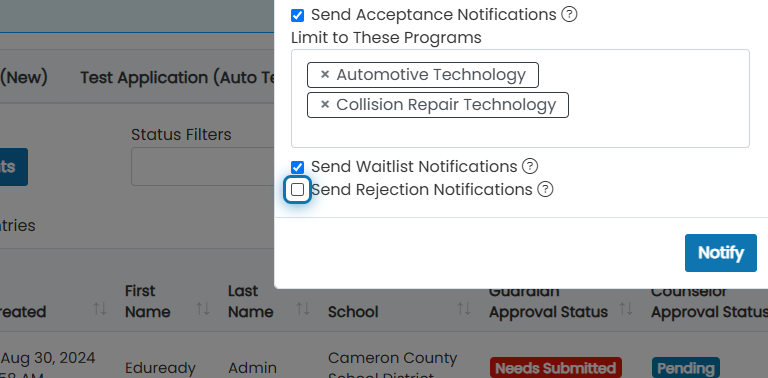
2. To send Acceptance Notifications, select this option
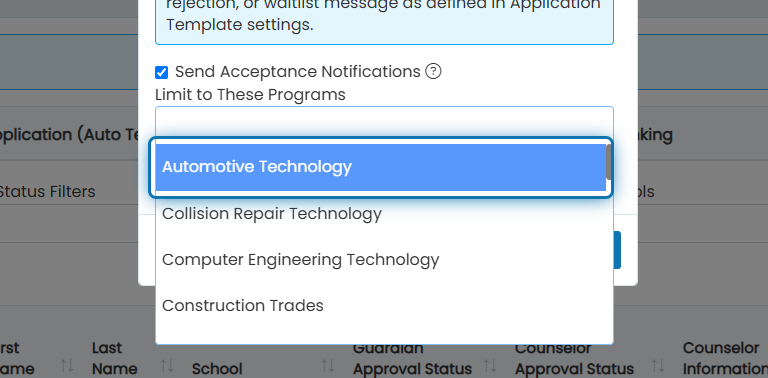
3. If would like to only send acceptance notifications for specific Programs, select those
4. To send Waitlist Notifications, select this option
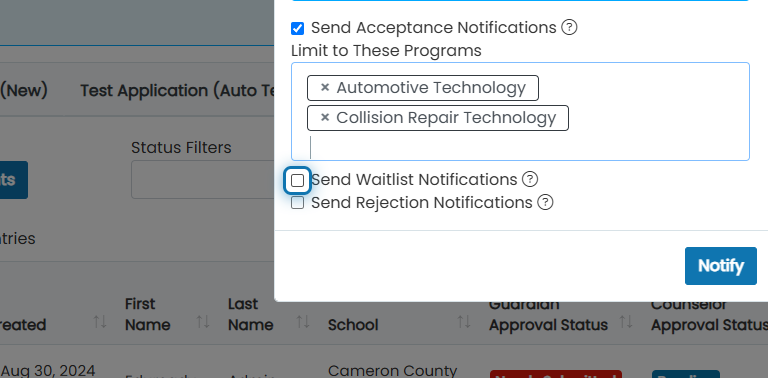
5. To send Rejection Notifications, select this option
6. Click on Notify to send Notification emails to students and primary guardians
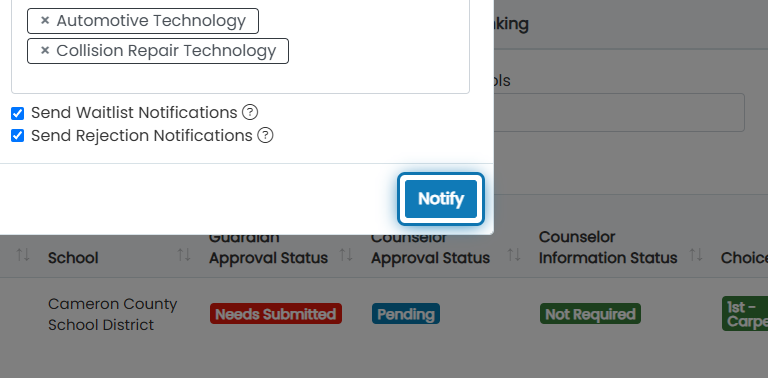
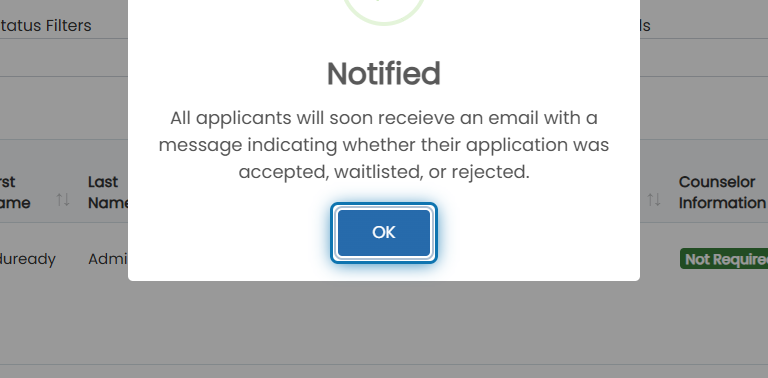
7. Notifications will be sent