How do I set up AI Scoring for Student Applications?
Last updated 9 months ago
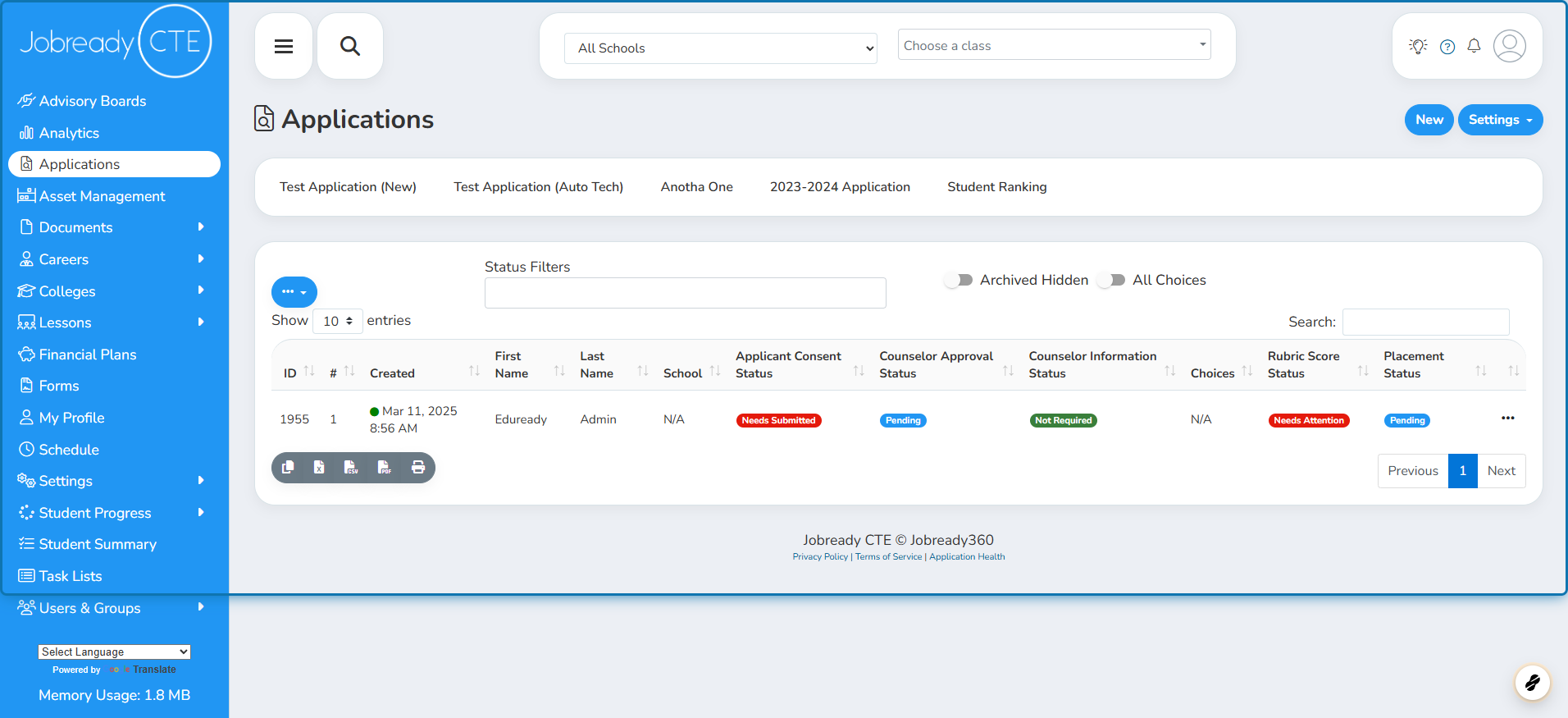
1. Navigate to the Student Applications module
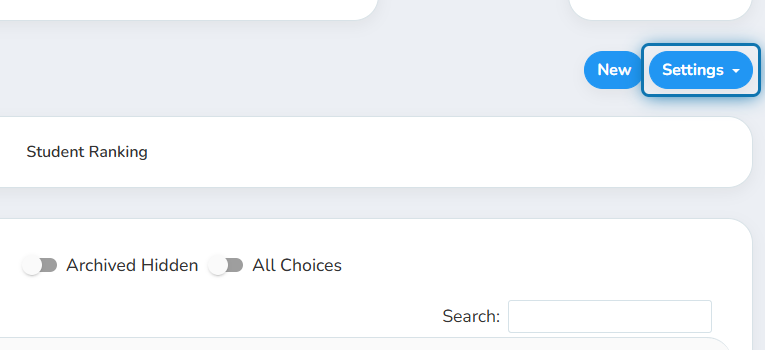
2. Click on Settings
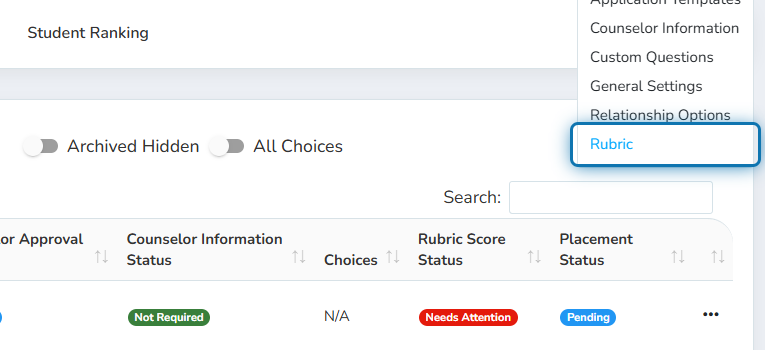
3. Click on Rubric
4. Find the rubric you'd like to turn on AI scoring for
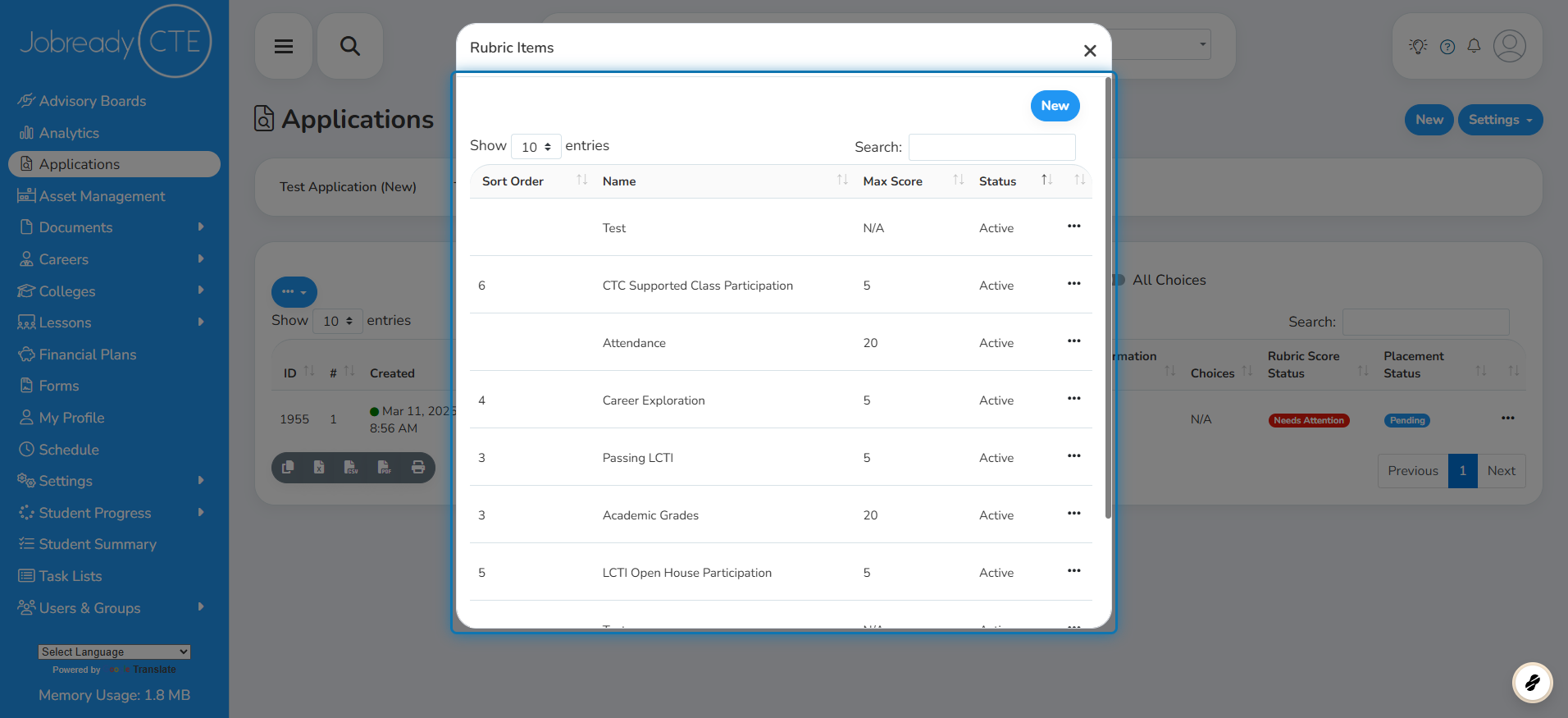
5. Click on the action button next to the rubric
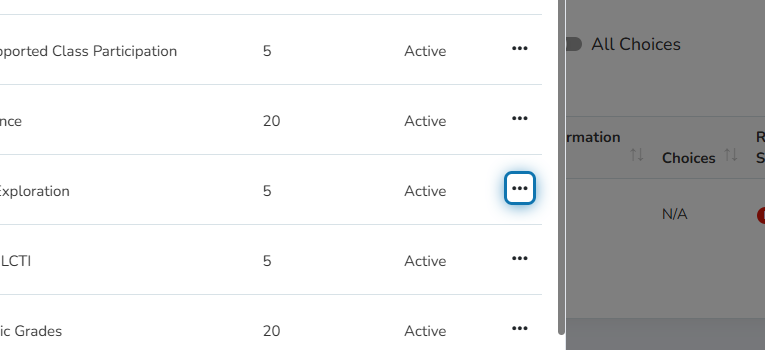
6. Click on Edit
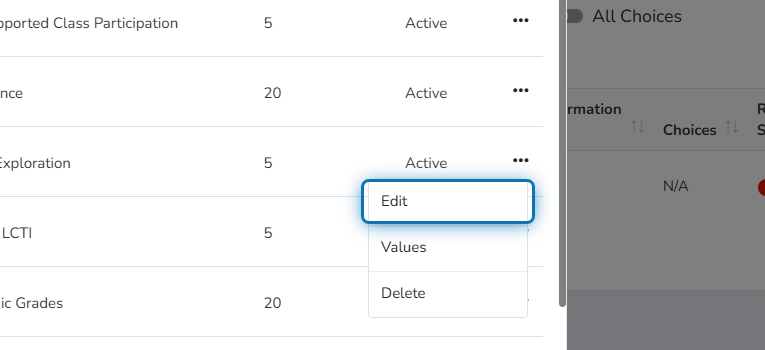
7. The rubric must be linked to a Custom Question or Counselor Information
The response to these items will be used by AI to determine the score for the rubric item.
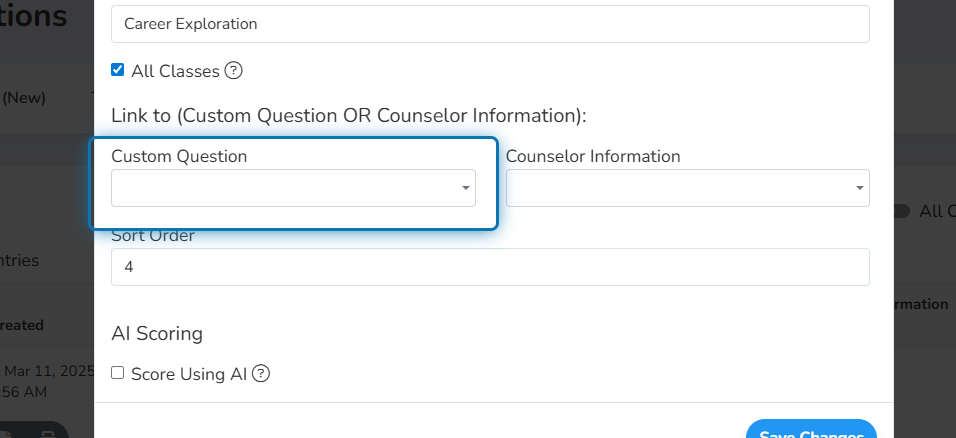
8. Check the "Score Using AI" checkbox
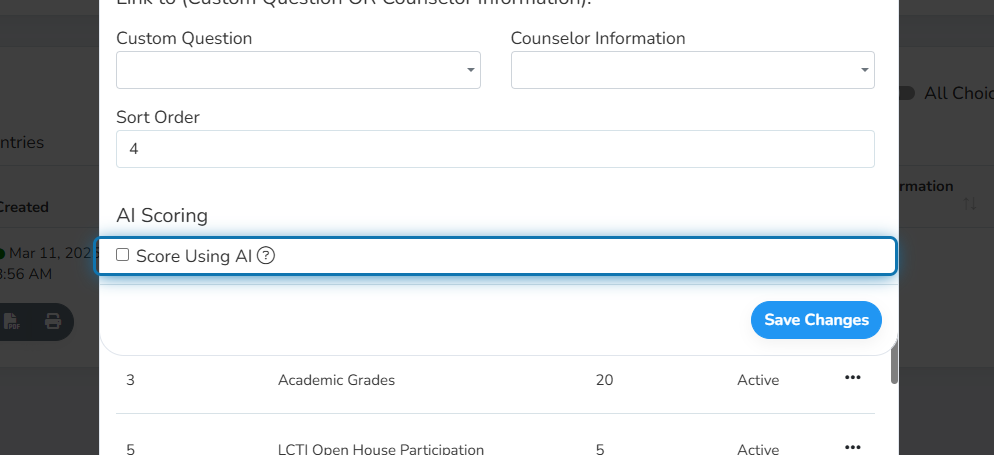
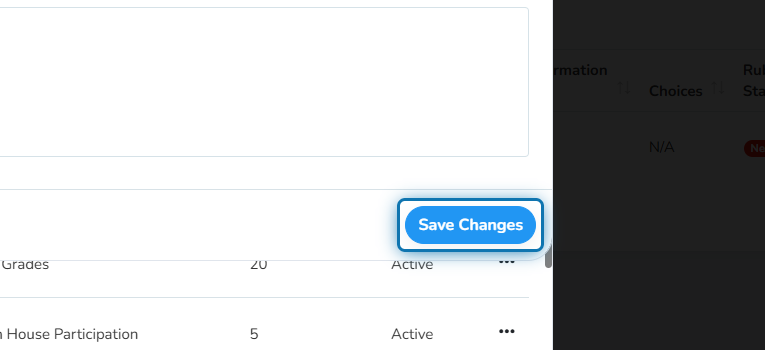
9. Click on Save Changes
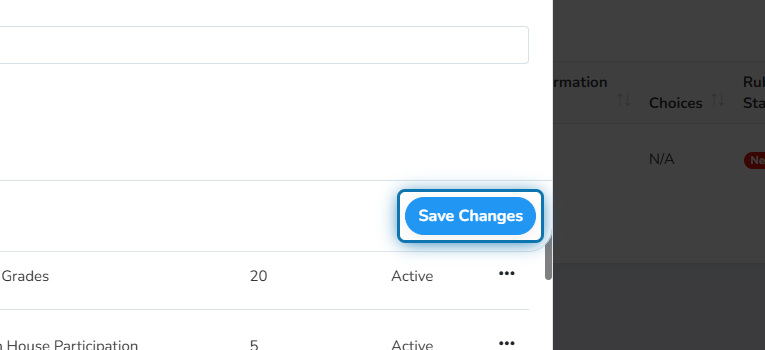
10. Click on the action button next to the rubric item again
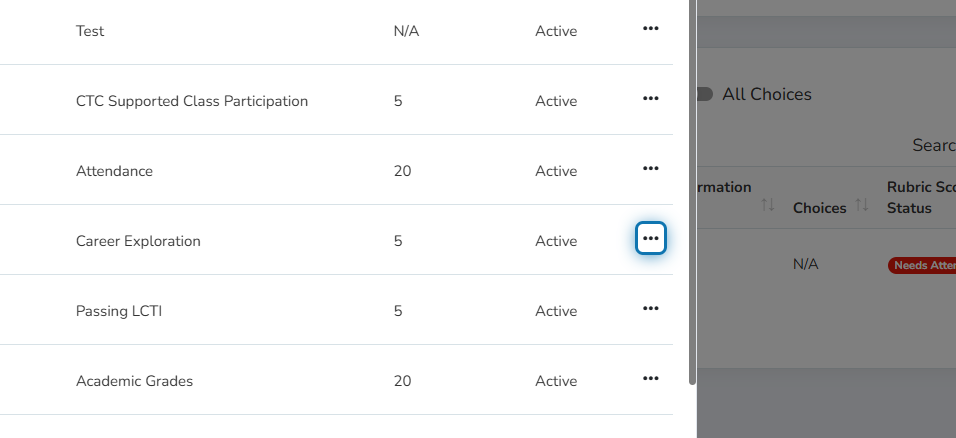
11. Click on Values
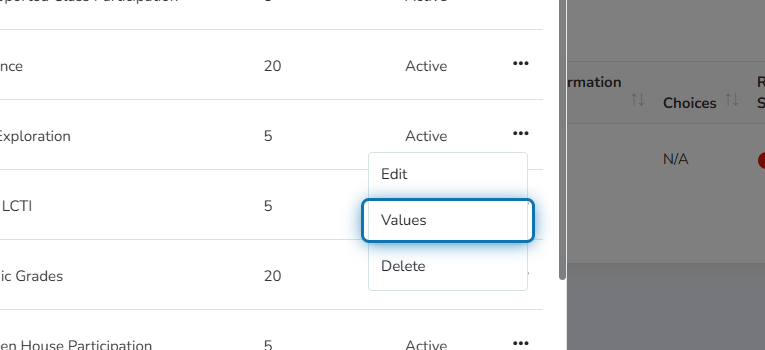
12. You will see the list of all values/scores possible for this item
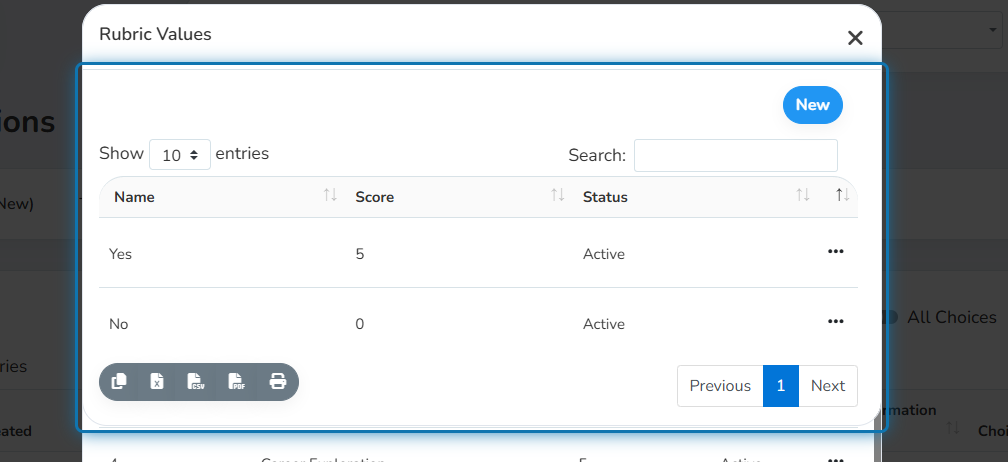
13. Click on the action button
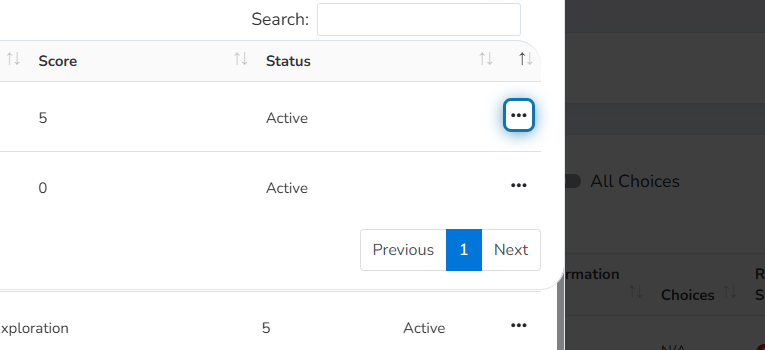
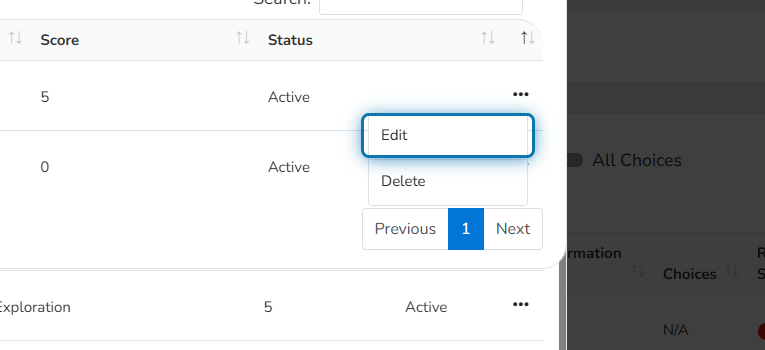
14. Click on Edit
15. Specify the criteria for this score
You must specify the criteria for ALL values associated with this rubric for the AI scoring mechanism to run. If the rubric is missing, it is assumed that you were not done setting it up and the AI scorer will not run.
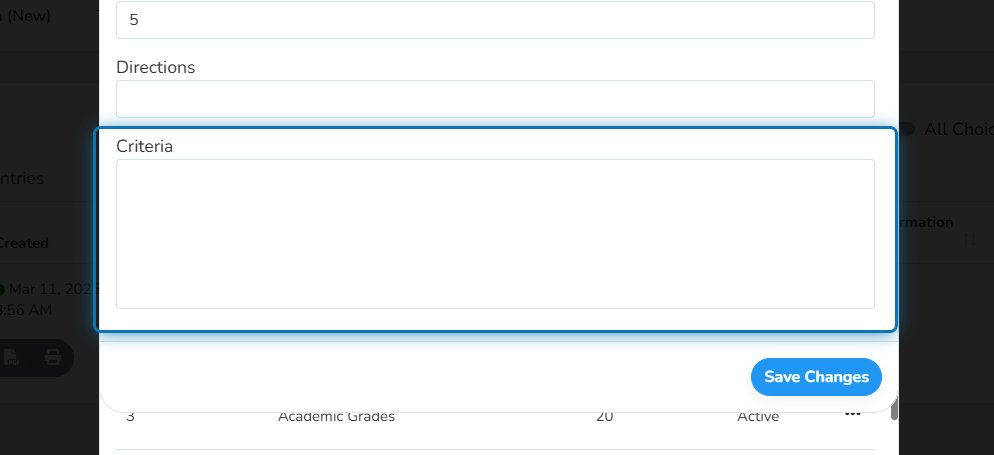
16. Click on Save Changes
Now your rubric will automatically be scored. An AI rubric submission record will be added for each application that uses this rubric item. The max score will only include rubric items that met the criteria to be scored used AI.