How Do I Promote or Demote a User Account?
Application Admins can change a user's account level between Teacher, Staff, and Application Admin. This allows you to adjust a user's access without creating a new account.
Last updated 6 months ago
Available Changes
Note: Staff and Application Admin accounts cannot be demoted to Teacher accounts. To demote a Staff or Admin to Teacher, simply delete their account and let the SIS integration reactivate their Teacher account during the next nightly sync.
What Happens to Existing Assignments
Teacher to Staff
Existing role assignments, school assignments, and program assignments are maintained.
Teacher or Staff to Application Admin
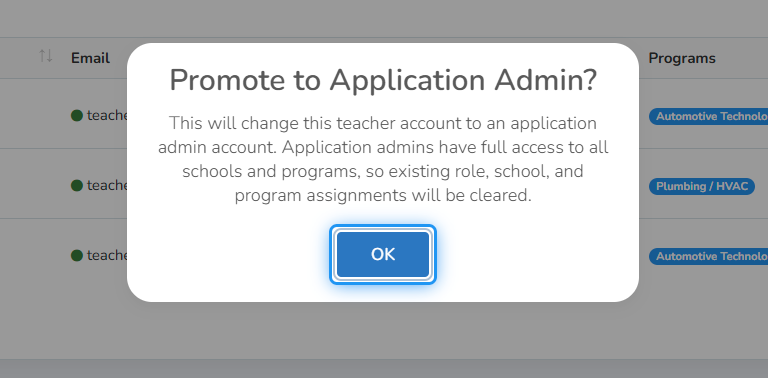
Application Admins have full access to all schools and programs by default, so existing role, school, and program assignments are cleared. Admin-specific roles can be configured from the Application Admins page after the promotion.
Application Admin to Staff
Role assignments are cleared because admin roles do not carry over to the staff level. You will need to configure the user's roles, school access, and program access from the Staff page after the demotion.
How to Promote or Demote a User
1. Click on Users & Groups
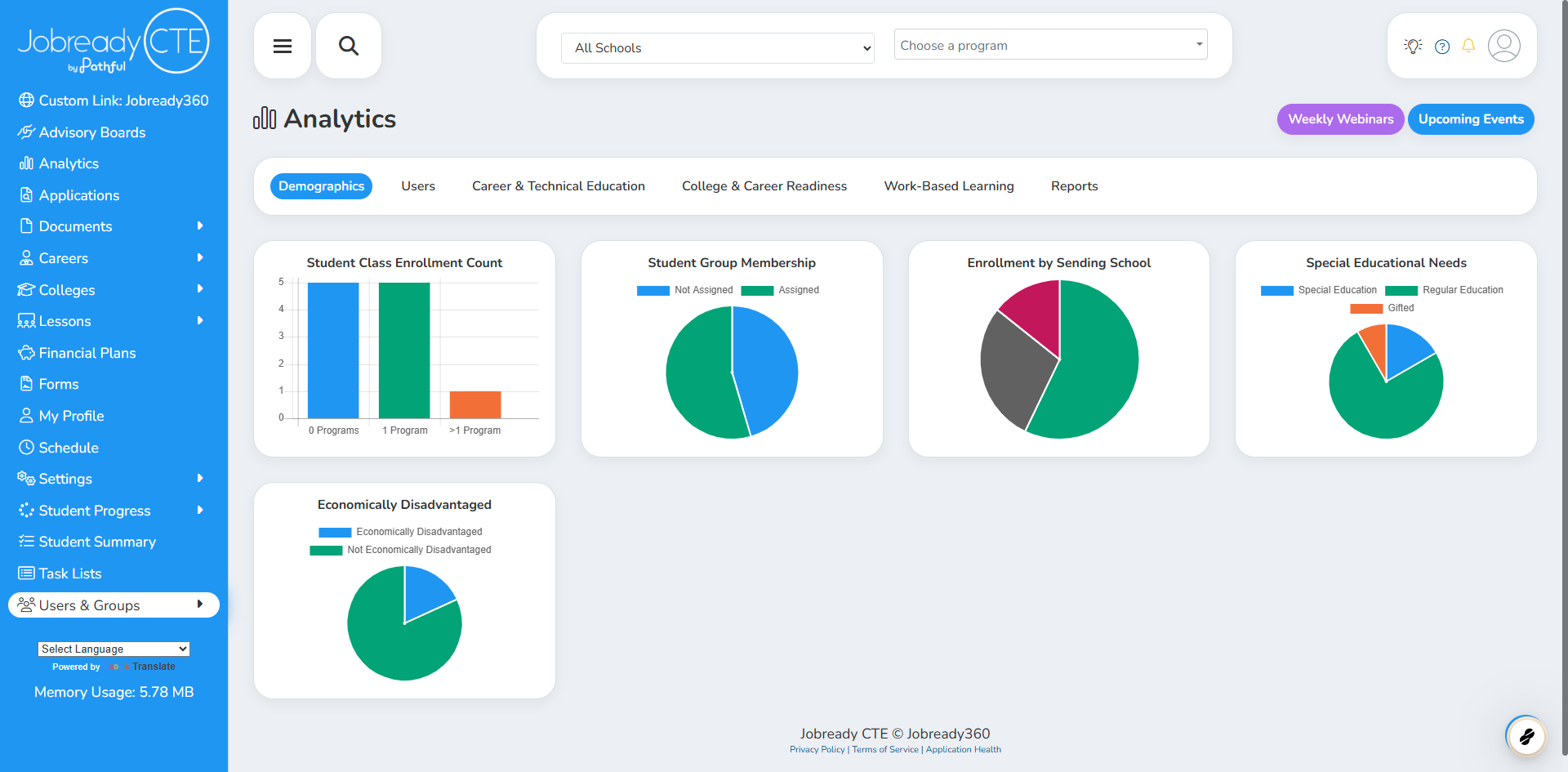
2. Select the user type of the user you'd like to promote or demote
In this example, we'll promote a Teacher.
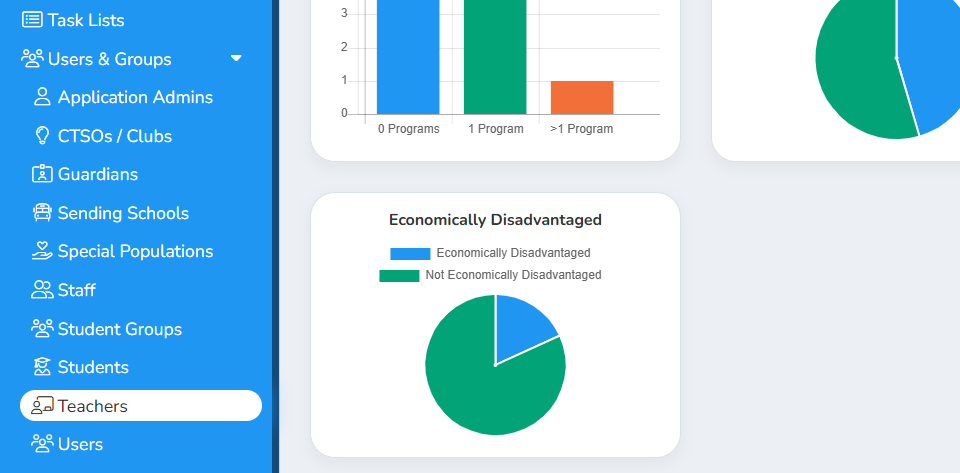
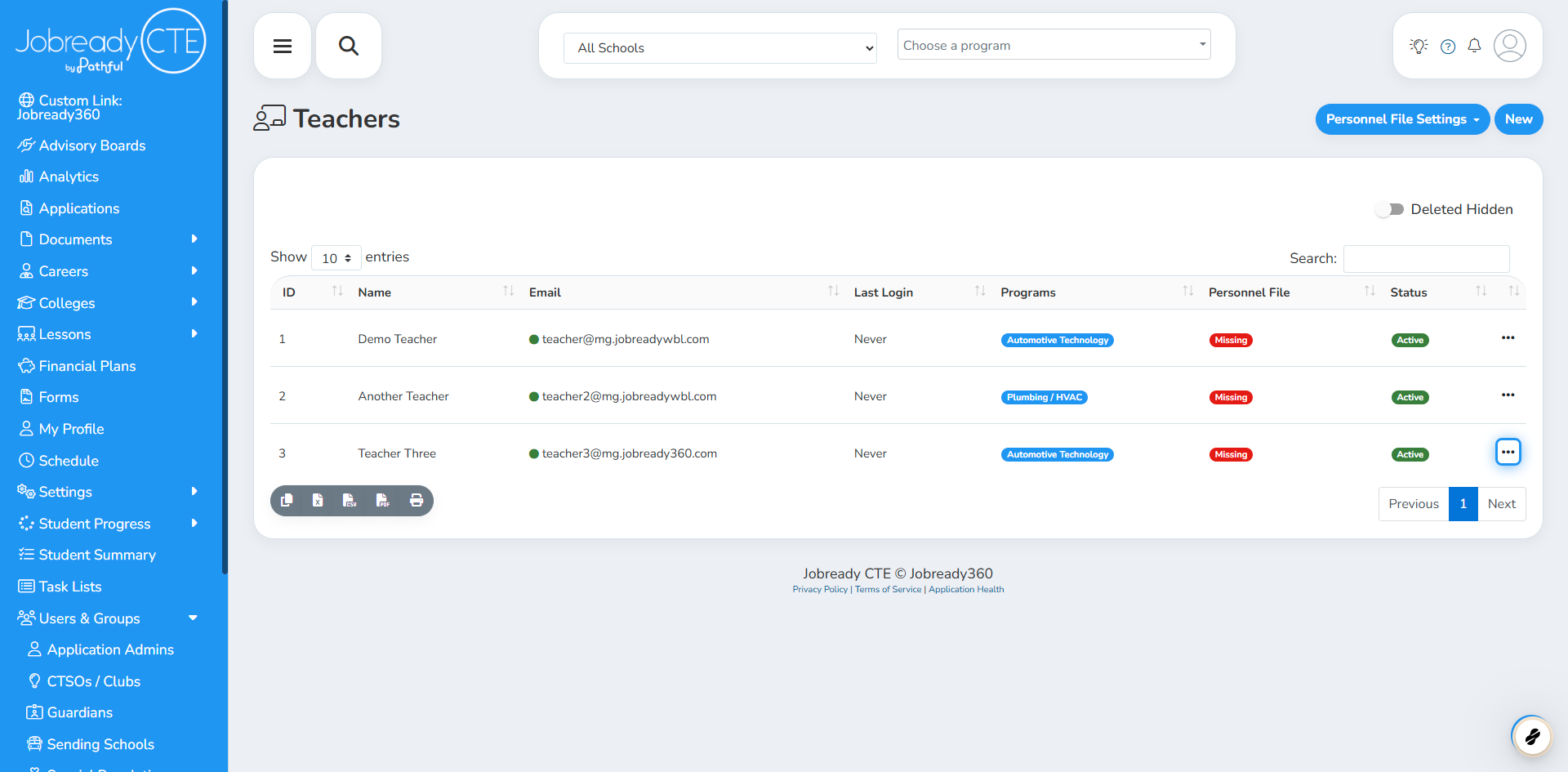
3. Find the user in the table and click the action button (three dots) on the right side of their row.
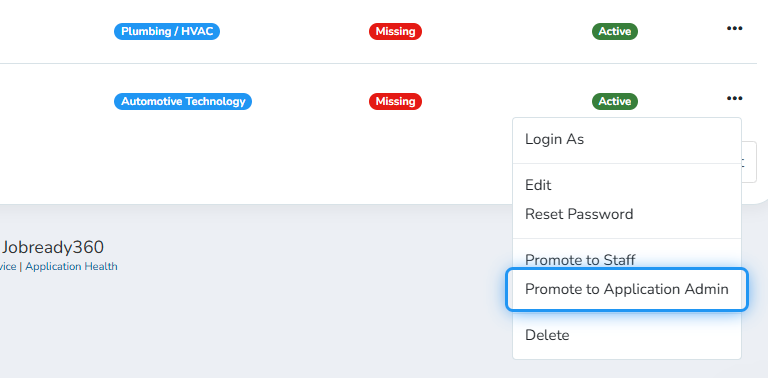
4. Select the desired promote or demote option
5. Click on OK
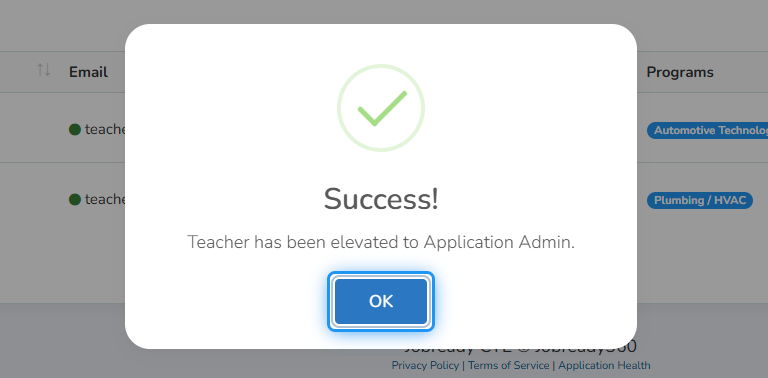
6. Success!
After the change, the user will no longer appear on the current page. They will now be listed on the page matching their new account level.
Important Notes
You cannot promote or demote your own account.
You cannot promote or demote a deleted user. Restore the account first if needed.
The user's login credentials (username and password) are not affected.
Was this helpful?
Still need help? Ask the team