How do I set up and submit on-site visit forms?
Last updated Over 1 year ago
1. Navigate to the WBL Module
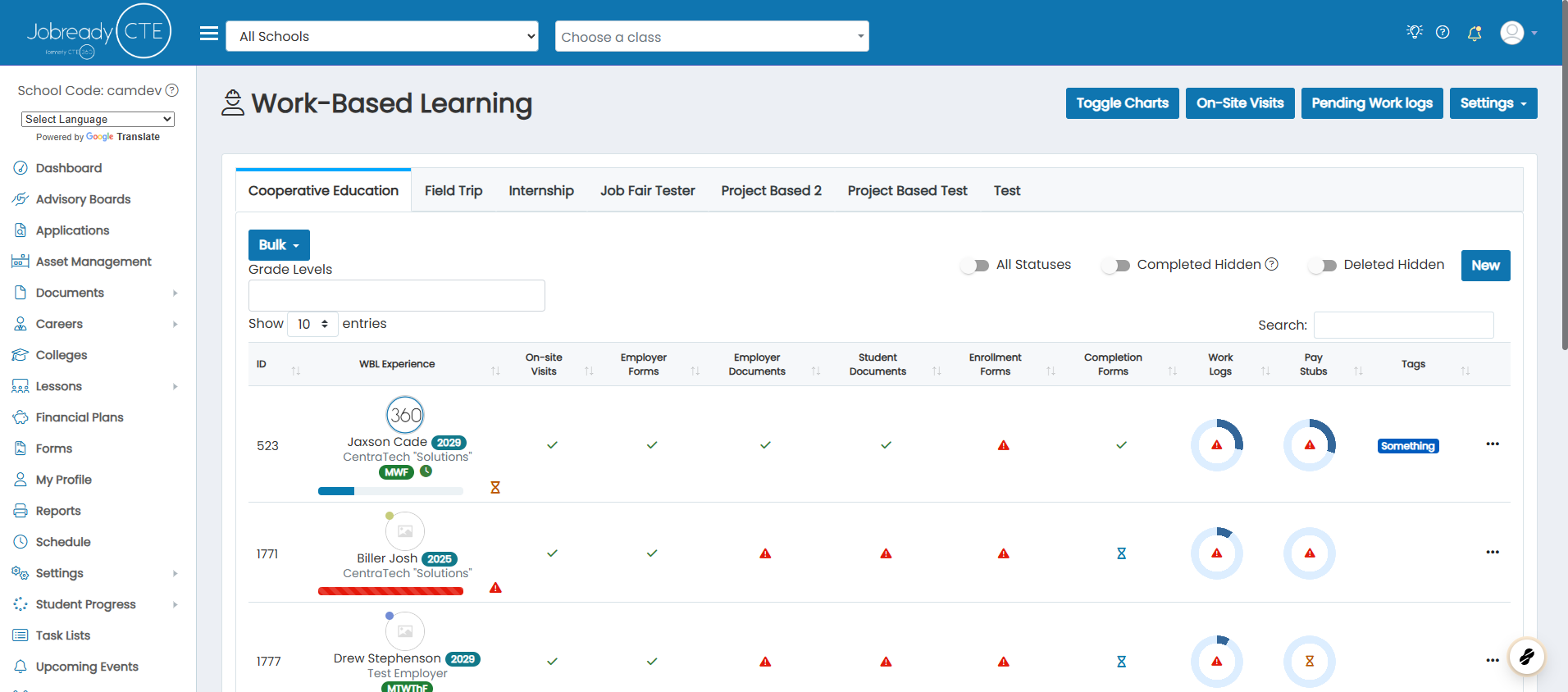
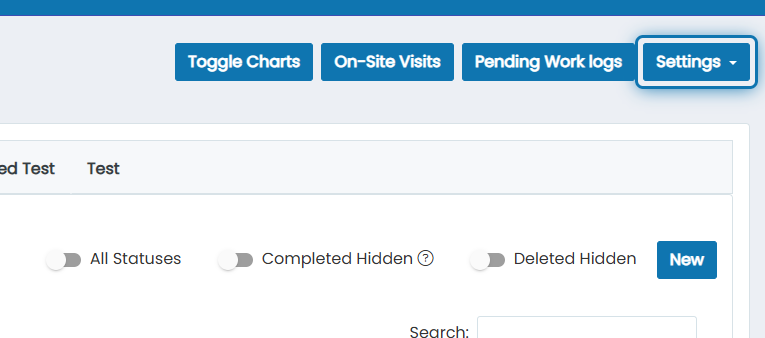
2. Click on Settings
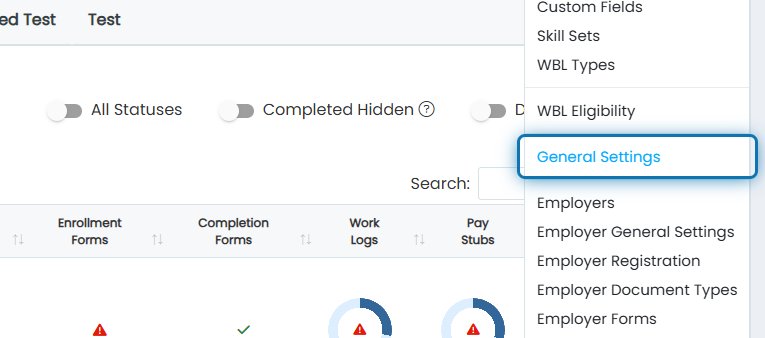
3. Click on General Settings
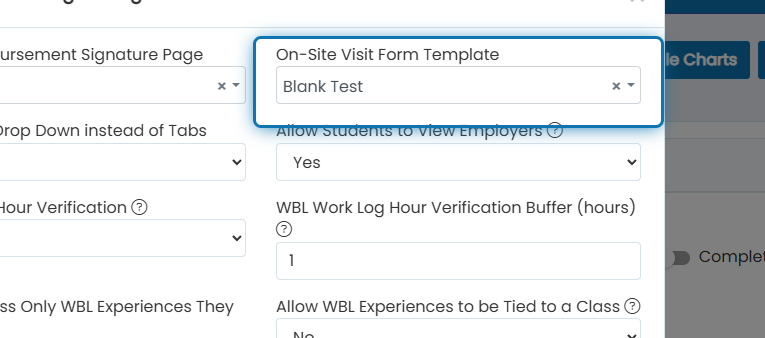
4. Choose the form template you want to use for on-site visits and save the settings
If you didn't configure a template for this, you can learn how by clicking here
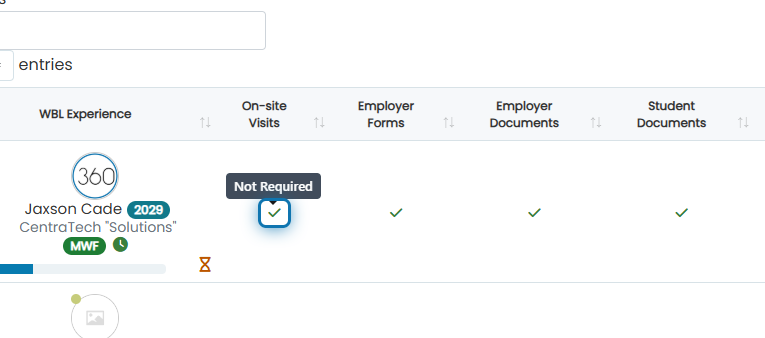
5. View on-site visits for one of your experiences by clicking on the status indicator in the on-site visit column
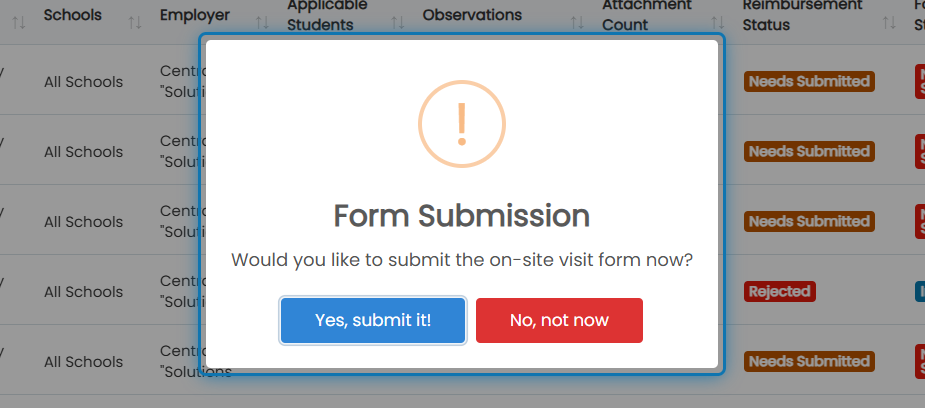
6. After adding a new on-site visit, you will be prompted to create a submission
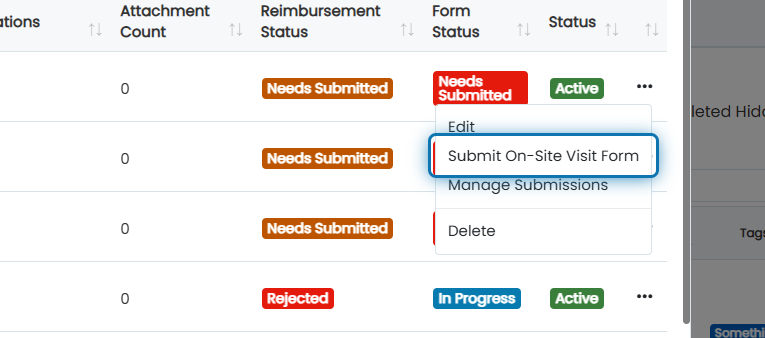
7. You can also submit an on-site visit form by clicking the action button next to the on-site visit
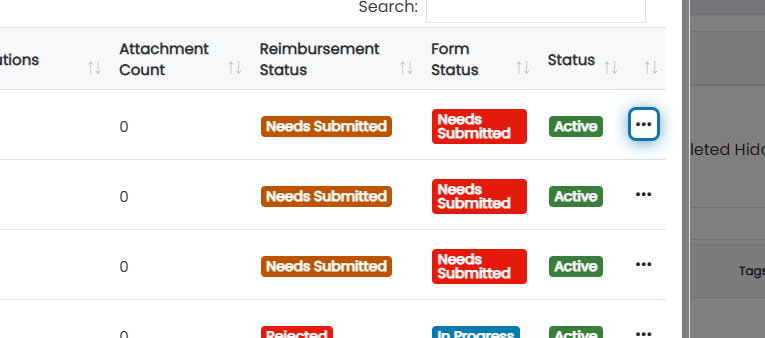
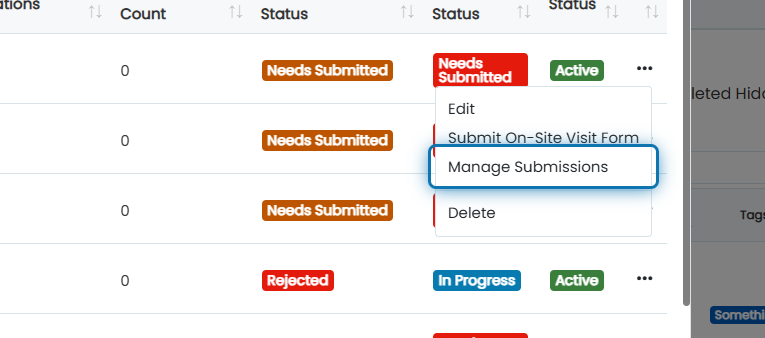
8. Click on Submit On-Site Visit Form
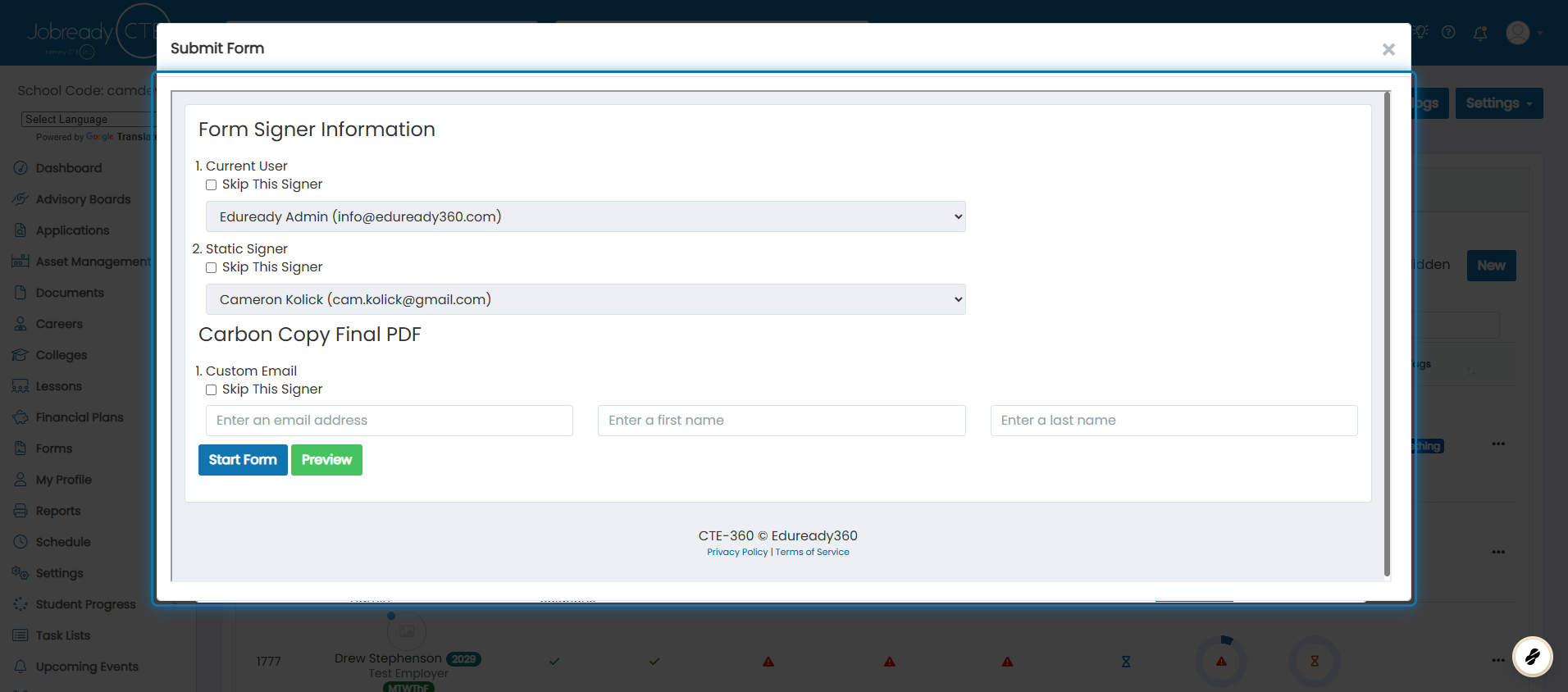
9. Fill out the required signer information and click start form.
10. You can manage all of the on-site visit submissions by clicking "Manage Submissions"