How do I initiate a new training plan?
Last updated 13 days ago
Note: Skill Tracking must be enabled on the WBL Type before following this guide. Please see How do I turn on Skill Tracking for a WBL Type? for more information.
Starting a Training Plan
Open Work-Based Learning
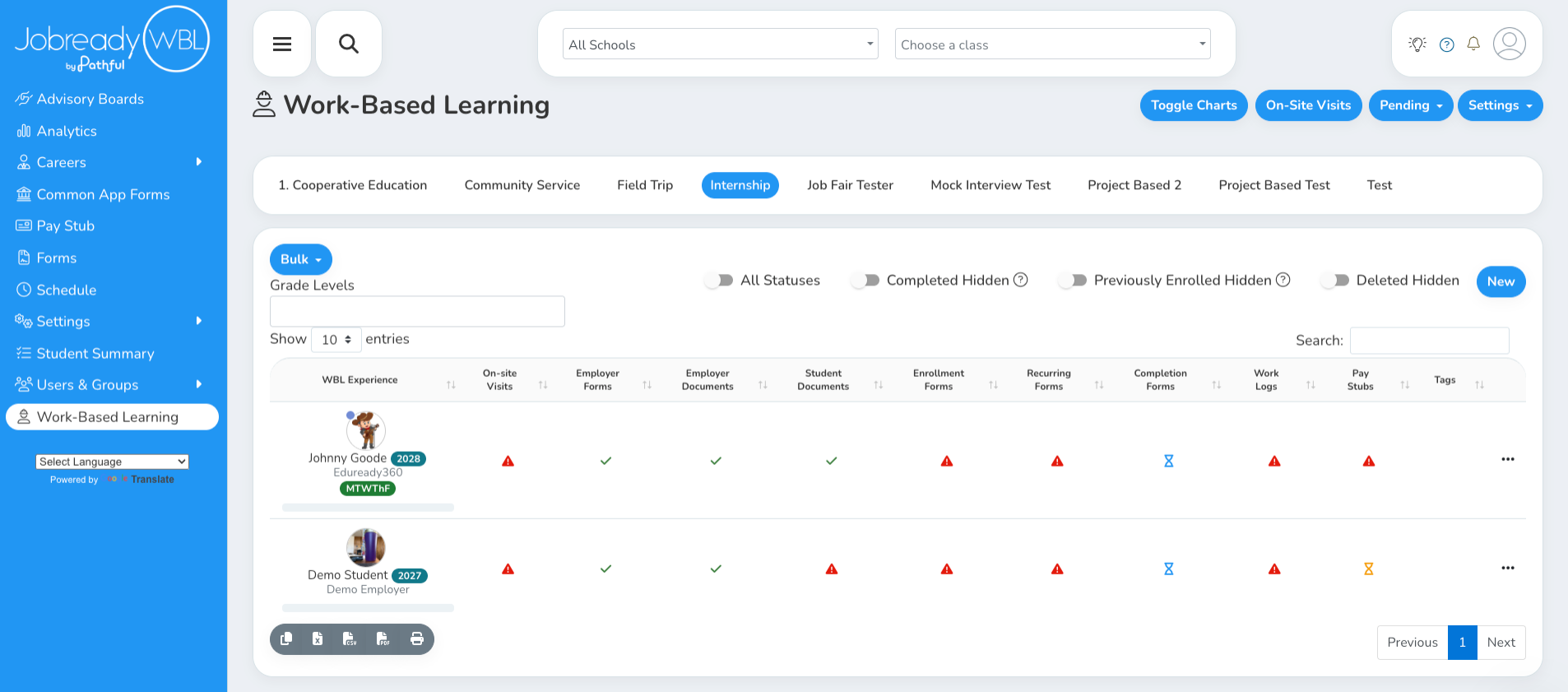
Click the Skill Progress bar under the student's name
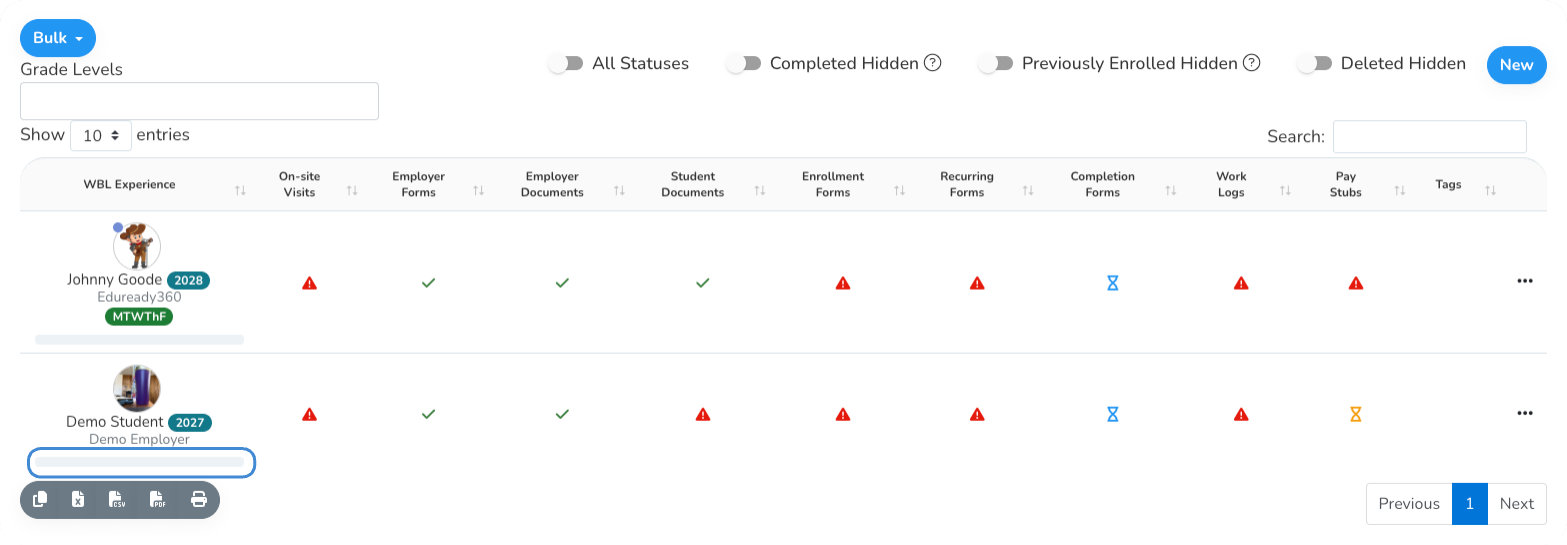
Find the Training Plans card
The Training Plans card shows every training plan for this experience. Because we store the final copy of each training plan, you can see how the student is progressing through their skills over time. If a plan covers only some of the student's skills, the skill groups and tags it includes are listed under its name.
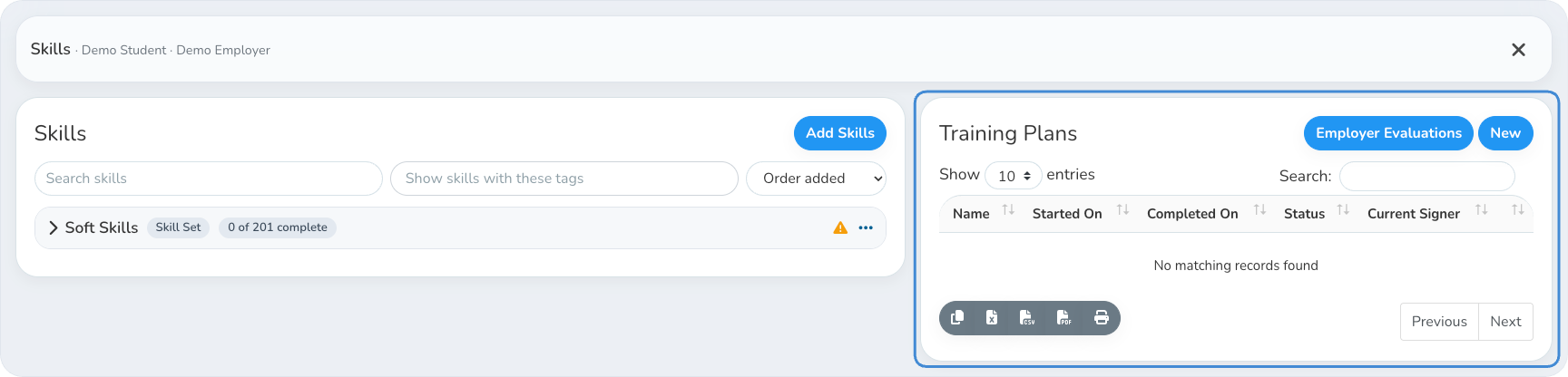
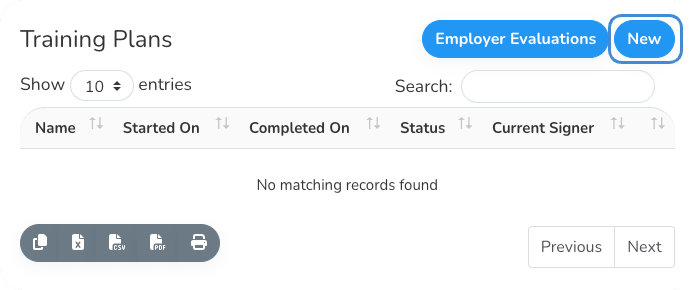
Click New
Choose the signers and the skills to include
Pick the appropriate signers for this training plan.
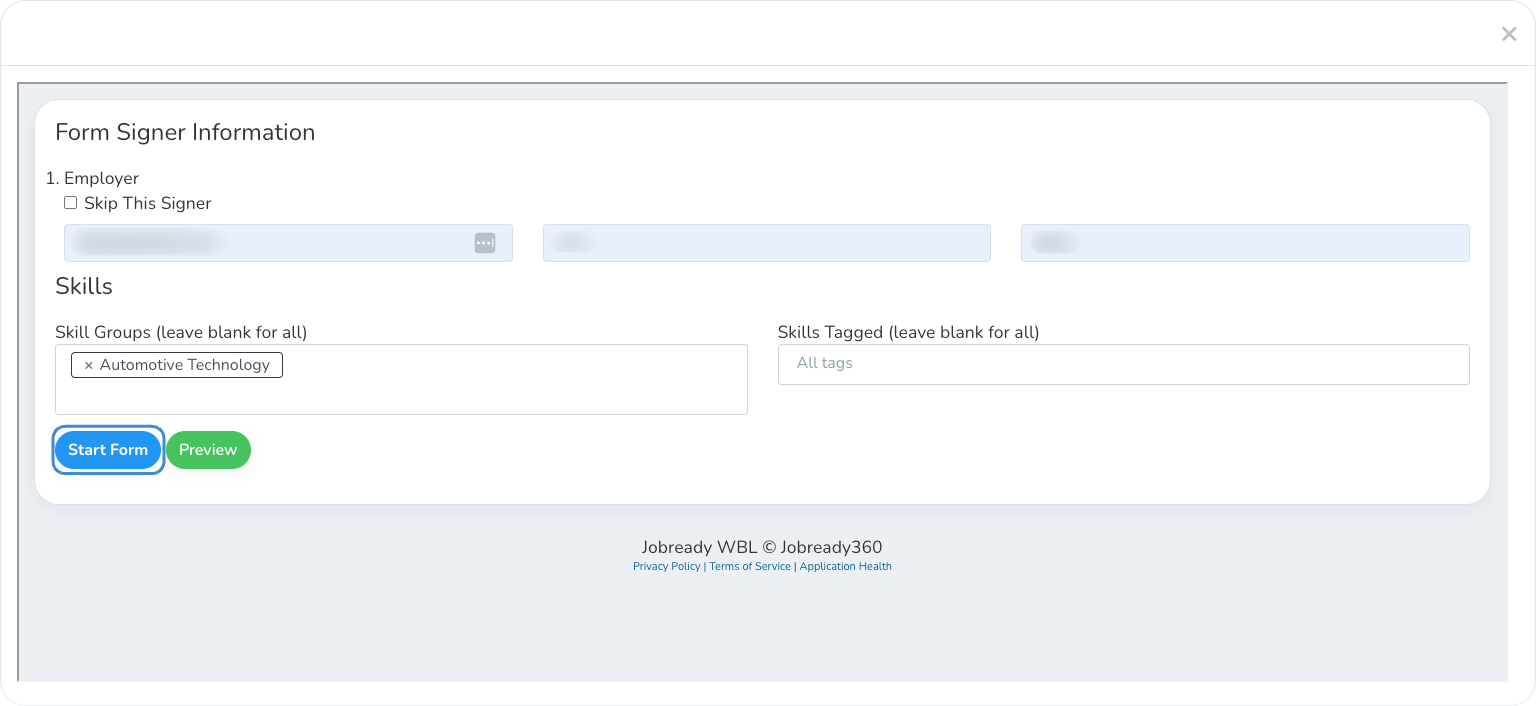
To include only some of the student's skills, use Skill Groups and Skills Tagged. Leave both blank to include every skill. If you fill in both, the plan includes the skills in the chosen groups that have at least one of the chosen tags.
Skill Groups only shows when the experience has skills from more than one source, such as two Skill Sets. Skills Tagged only shows when the skills have tags.
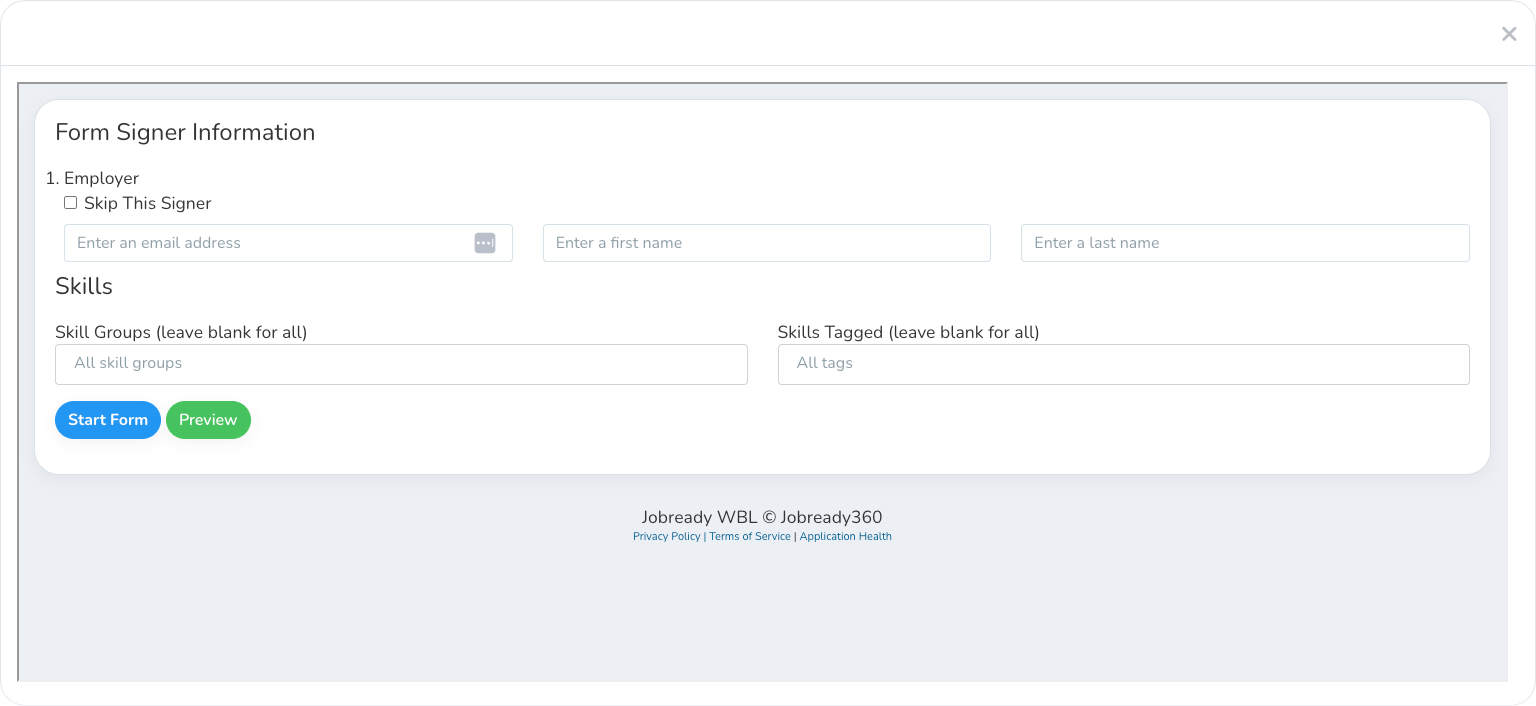
Click Start Form
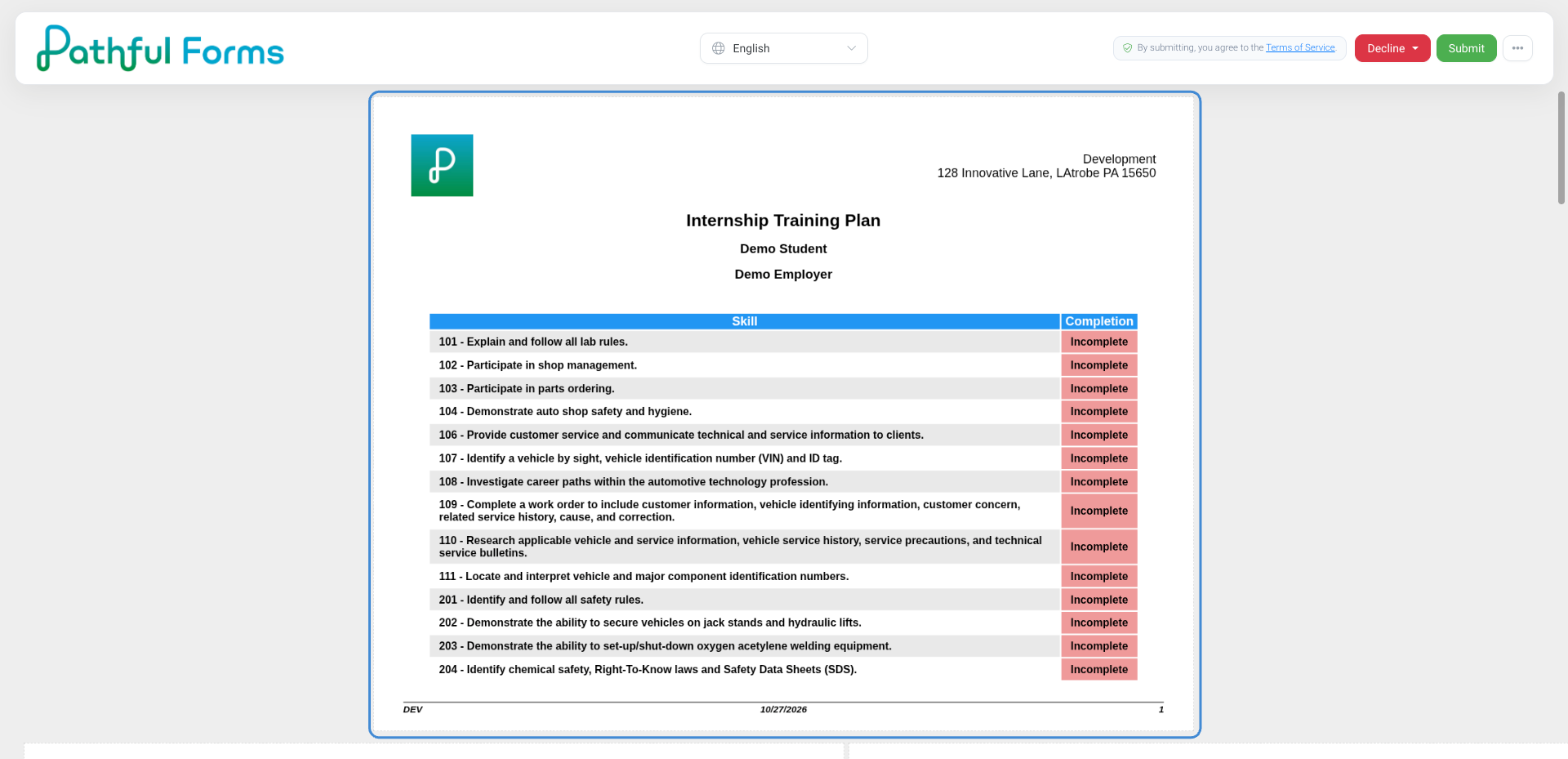
What Signers See
Signers see the skills list below, with your signature page added to the front. The list includes only the skills you chose. After the training plan is complete, the final copy is sent to everyone who signed it and can be viewed from the Training Plans card for this experience.
If the training plan is scheduled to repeat, each new plan covers the same skills.
If more than one training plan is out for signatures at the same time, the experience's skills sign-off stays In Progress until none of them are still waiting on a signature.
Was this helpful?
Still need help? Ask the team