Can I have applicants select both a district and a school when they apply?
District + School Selection lets you treat Sending Schools as either individual schools or as districts with multiple schools underneath. When scope is set to District, students and staff see separate Sending District and Sending School fields on applications instead of a single Current School dropdown.
Last updated 3 months ago
This feature affects how sending schools are configured, how applicants answer the school question on the application form, and how school information appears on admin application records and printed applications. It applies to student application templates only (not adult-education templates).
Before You Begin
Your site must have the Applications module enabled. The Settings button on Sending Schools only appears when applications are turned on for your organization.
You need access to Sending Schools to configure the scope and district school lists. This is typically available to School Administrators.
Sending School Scope defaults to School. No setup is required unless you want district-level selection.
Saving Sending School Settings takes effect immediately on the Sending Schools page. Applicants may need to refresh the application form to see updated fields.
District scope works best when each sending school record represents one district name, and individual schools are added under that district using Schools in this District.
Note: Switching between School and District scope changes labels and fields on forms. It does not automatically convert existing application answers from one format to another.
Step 1: Choose Your Sending School Scope
Use this step once per organization (or whenever you need to change how sending schools behave on applications).
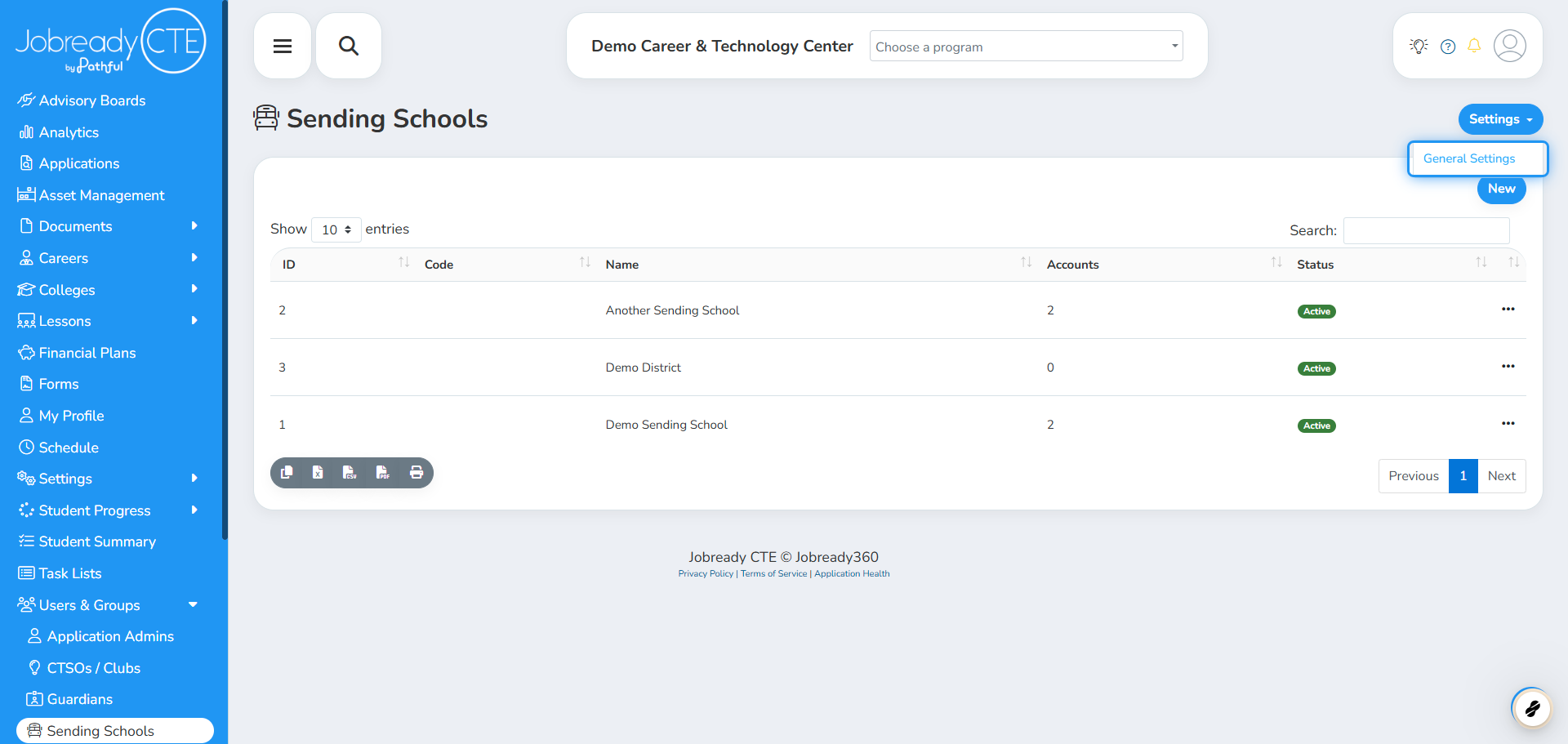
Open Sending Schools from the main navigation.
Click Settings in the upper-right corner of the page.
Click General Settings.
In the Sending School Settings modal, find Sending School Scope.
Choose one of the options below, then click Save.
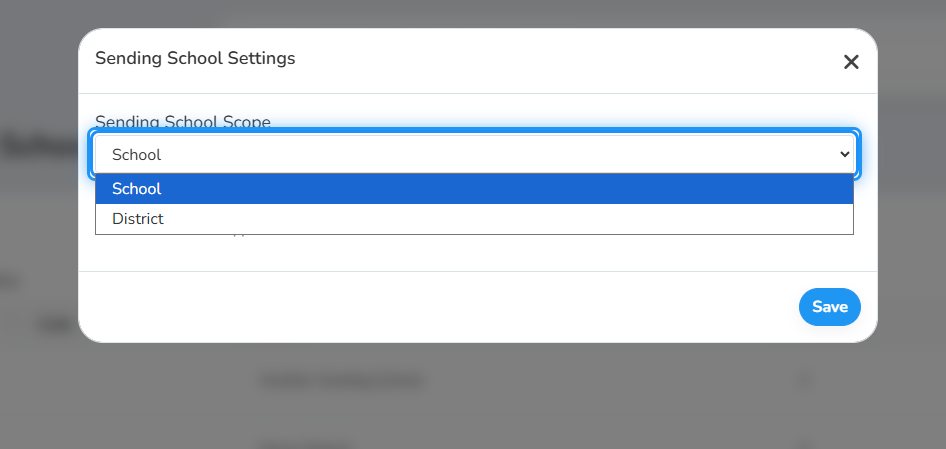
Sending School Scope options
Step 2: Set Up Districts and Schools
Creat or Edit an existing Sending School record
In this example, we’ll edit an existing record
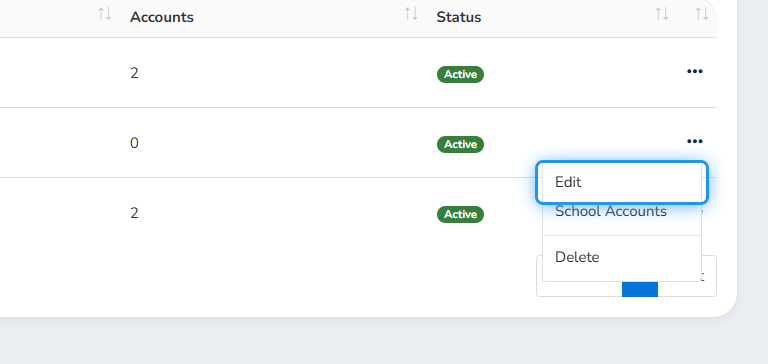
On Sending Schools, click the row action to edit the district.
Add or remove school names in Schools in this District (type a name and press Enter to add).
Click Save Changes.
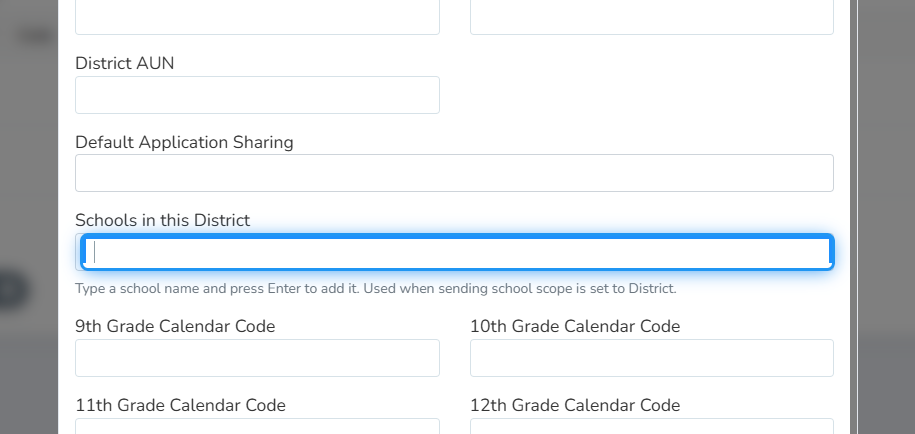
Sending School modal fields (District scope)
Fields hidden in District scope
Note: If a district has Schools in this District entries, applicants must pick a school from that list (or use an Other option if configured). Districts with no schools listed do not require a school selection.
Step 3: How Applicants Complete the Application (District Scope)
When scope is District, student applicants see two linked fields on Step 1: Student Applicant Information of the online application.
The applicant opens the application form and reaches Student Applicant Information.
They select a Sending District * from the dropdown (searchable).
After a district is selected, they select a Sending School * from the second dropdown (schools load based on the chosen district).
If the district or school is not listed, they choose the Other option and complete the text fields that appear.
They continue with Save & Next as usual.
