How do I submit a form?
Submitting forms in Jobready360 is dependent on your account type and the purpose of the form.
Last updated 41 minutes ago
For WBL, CCR and CTE Accounts:
You have access to our Work-Based Learning Forms module. Forms submitted via WBL need to be attached to a student experience or a WBL event that has already been created. In this module, forms need to be attached to your WBL Types first before they become visible at the student experience/event level. For more information on attaching forms to WBL Types, please see this article.
Once you are ready to submit a form for a WBL student experience please follow these steps:
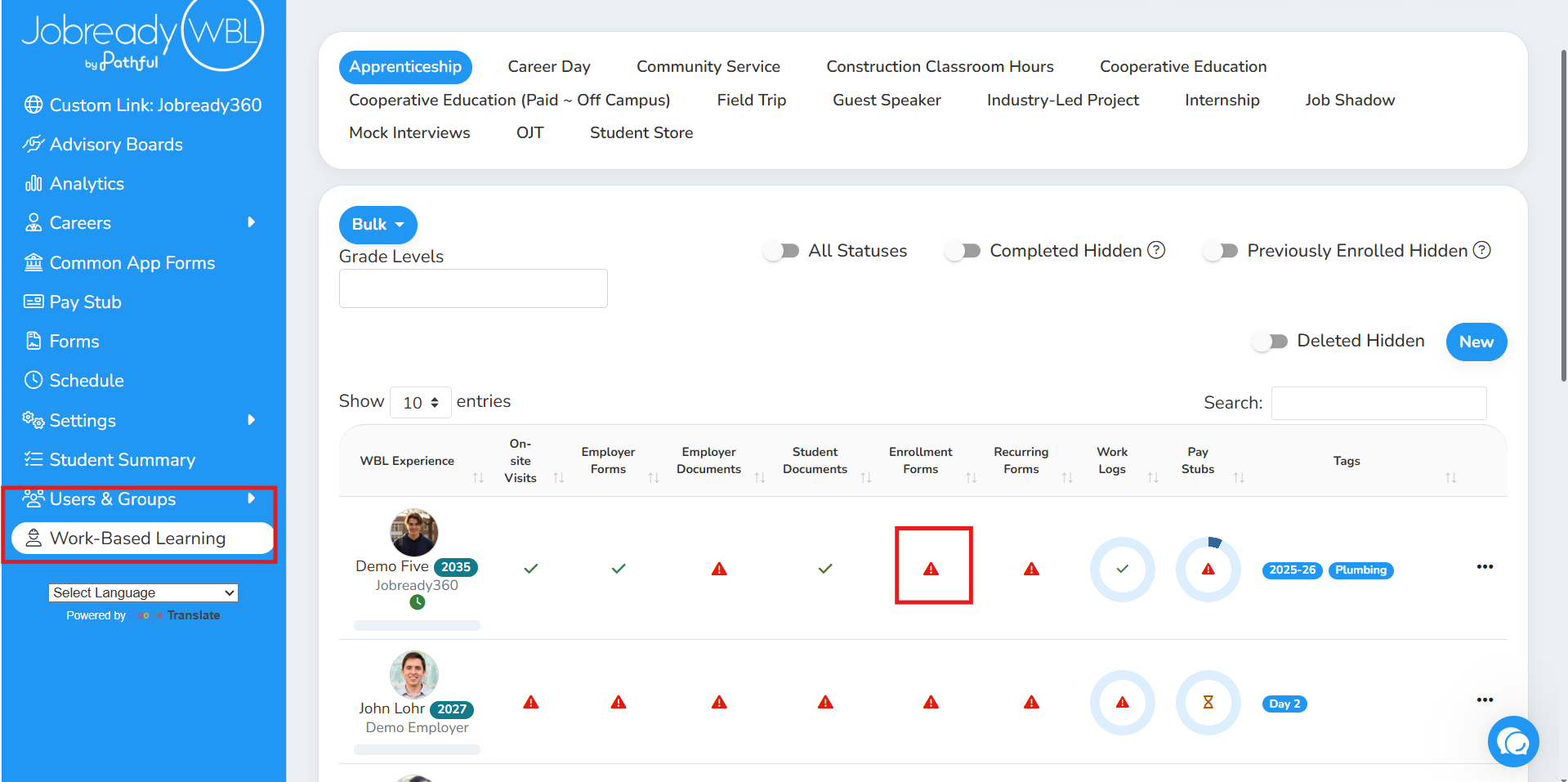
Navigate to Work-Based Learning
Locate the correct student experience
Click the icon under the corresponding form category (enrollment, recurring, etc.)
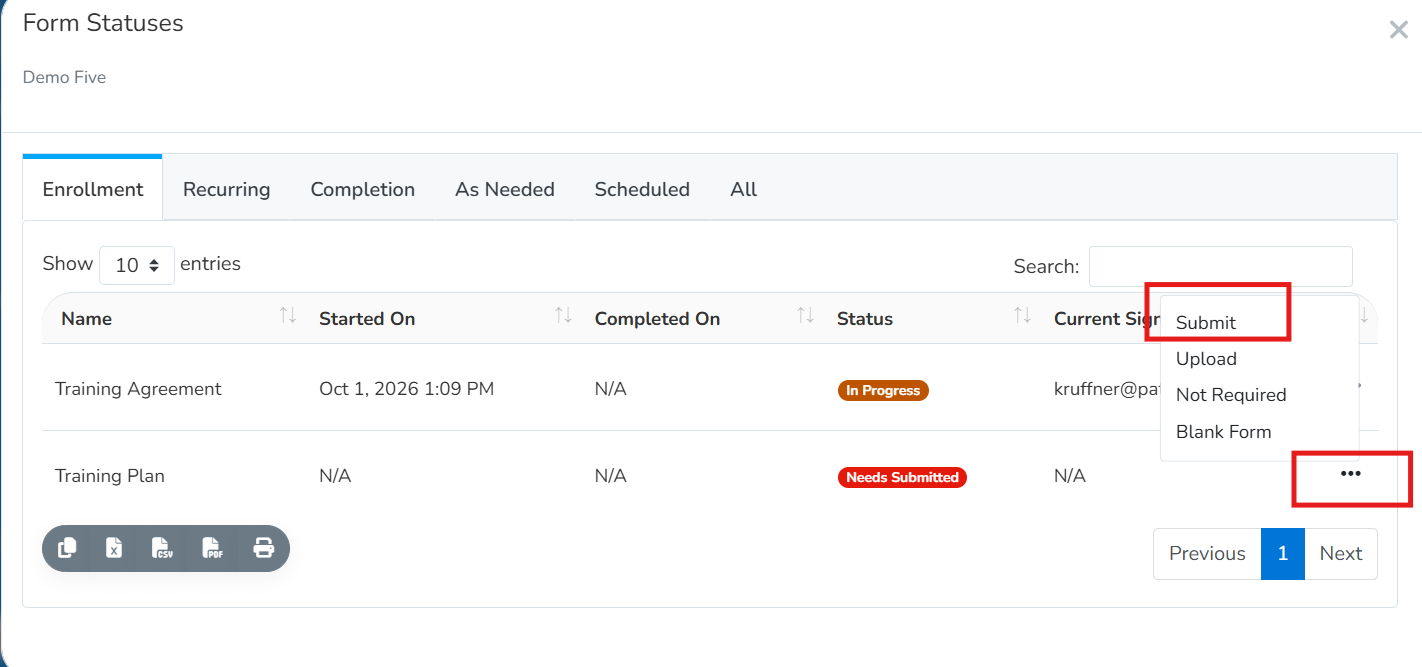
Locate the form you wish to submit and click the three dots to the right-Submit
The signer information will populate for you to review.
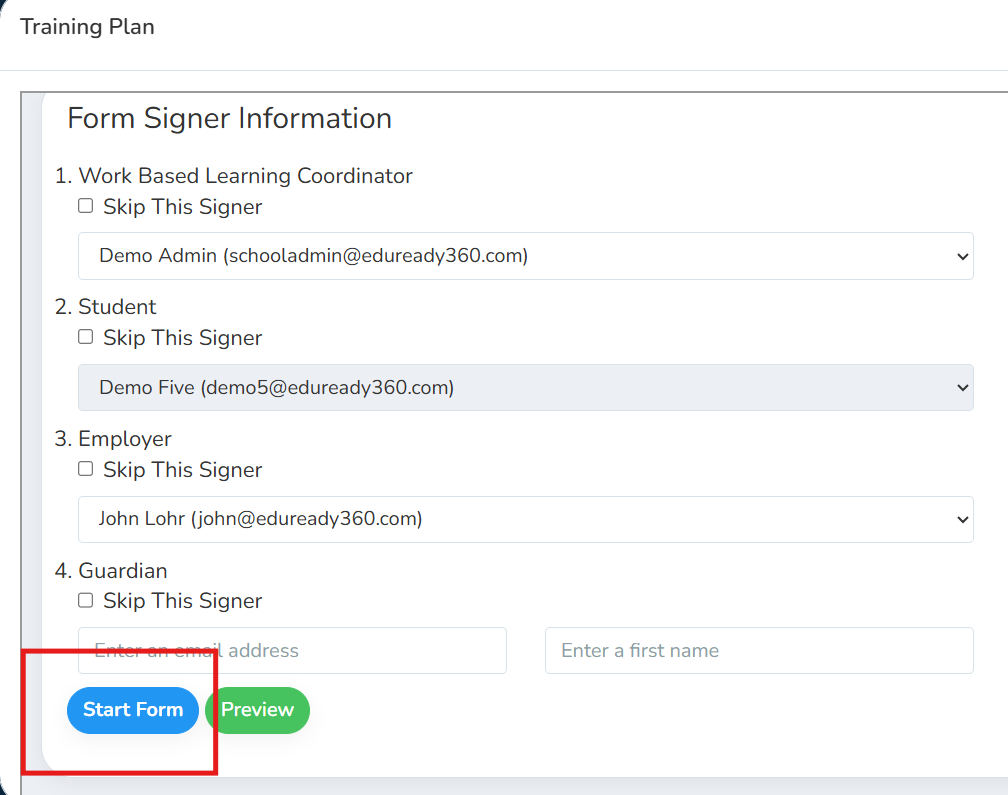
Once it looks correct, click Start Form. This sends the form to the first signer
For CTE Accounts Only:
You also have access to our General Forms module. Using the General Forms module, a form does not need to be attached to a specific student experience/event to be submitted. There are three categories: Required, As-Needed and Distributable.
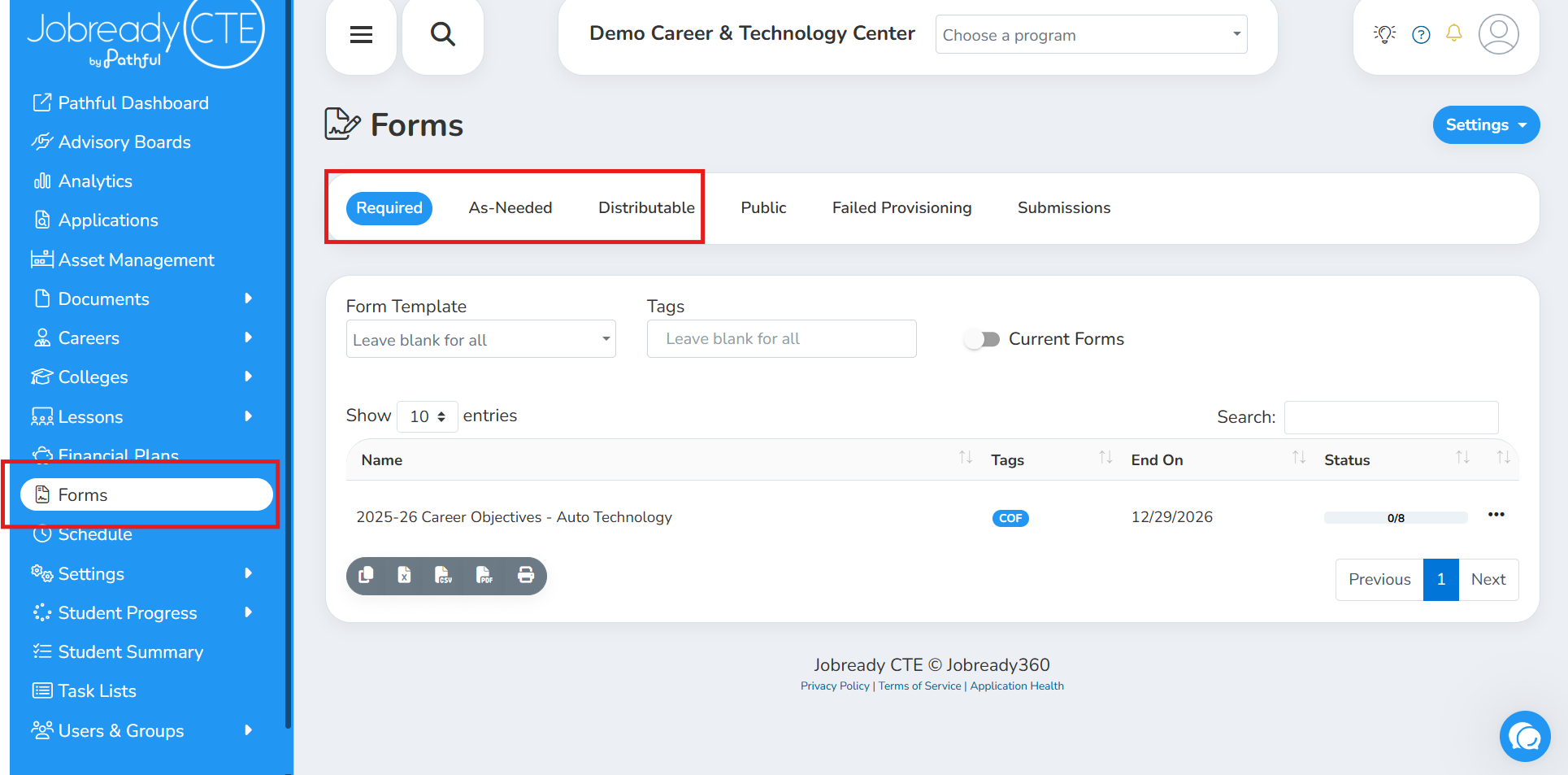
For more information regarding Required Forms, please see this article.
For information regarding how to distribute those forms, please see this article.
For information regarding As-Needed forms, please see this article.
Was this helpful?
Still need help? Ask the team