How do I add a Skill Set to a student experience?
Last updated 11 days ago
There are two ways to add skills to a student experience. You can pick a skill set when you create the experience, or add skills to an experience that already exists. Skills can come from a Skill Set, ONet, a Task List, or you can type in your own.
Note: Skill Tracking must be enabled on the WBL Type before following this guide. Please see How do I turn on Skill Tracking for a WBL Type? for more information.
Adding a Skill Set When Creating an Experience
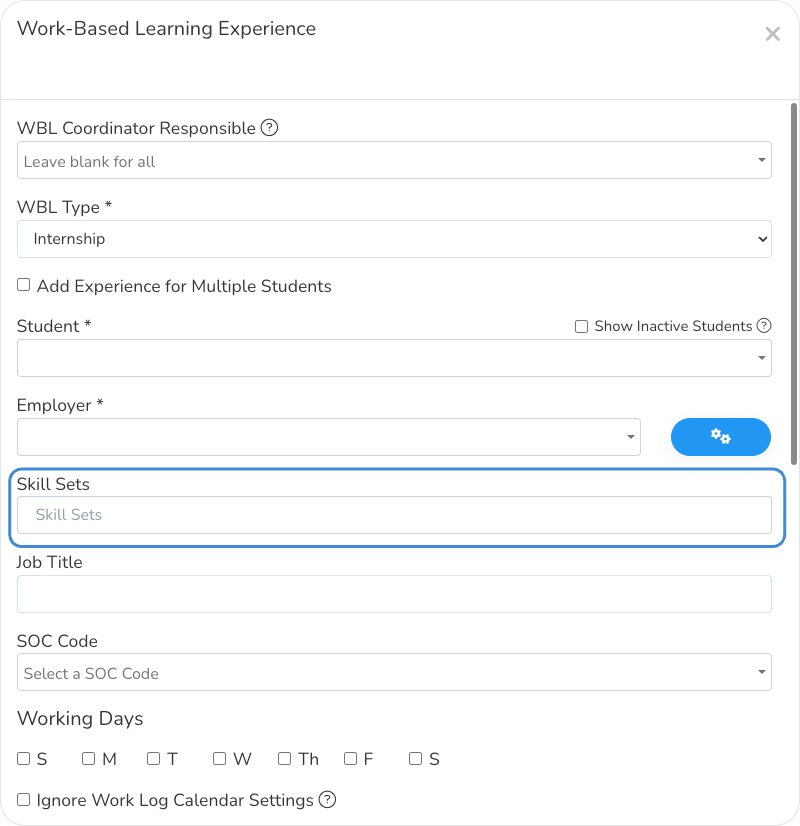
When you’re creating a new experience, you will see the option to assign skill sets under the Employer or Employer Contact field.
Adding a Skill Set to an Existing Experience
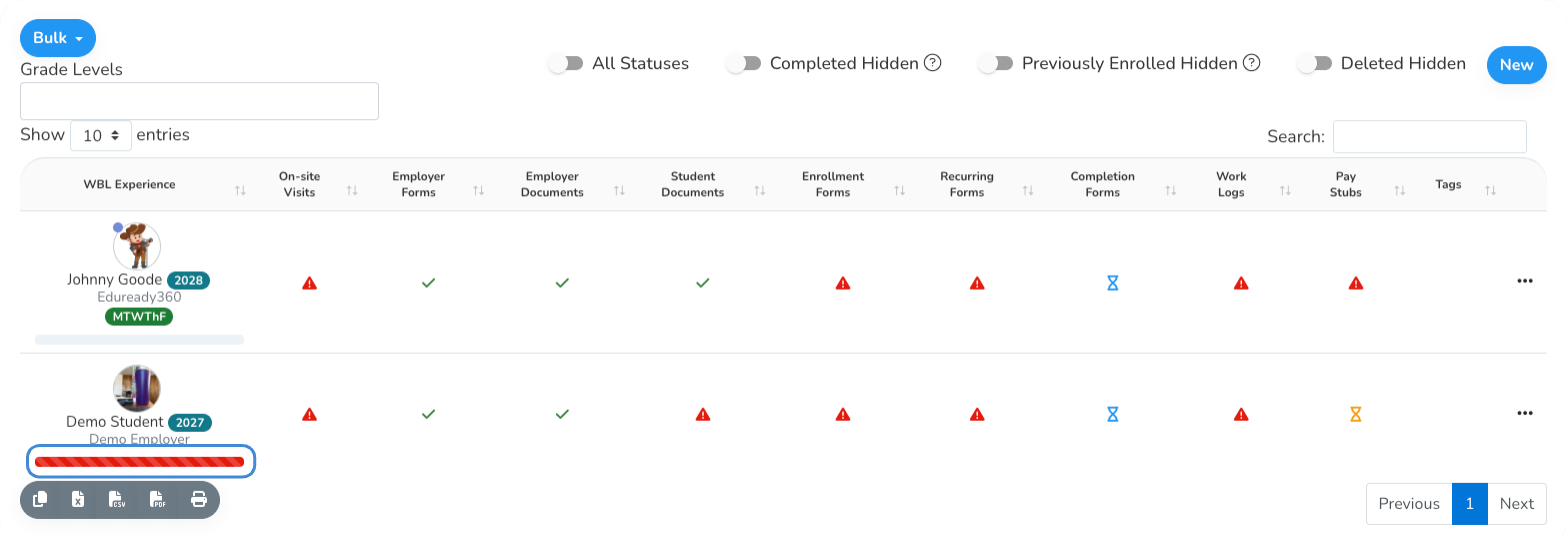
Click the Skill Progress bar under the student's name
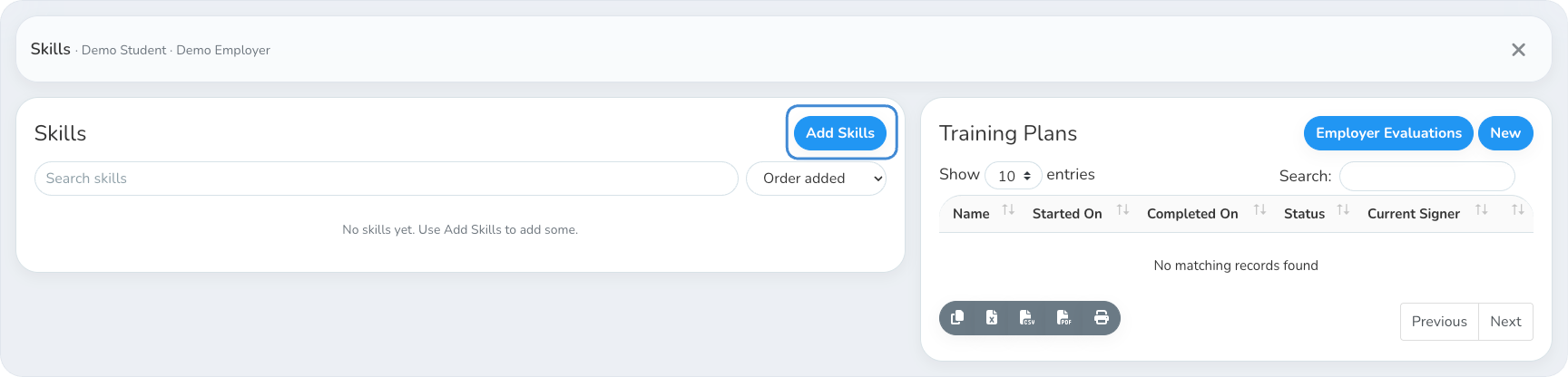
Click Add Skills
Choose a skills source
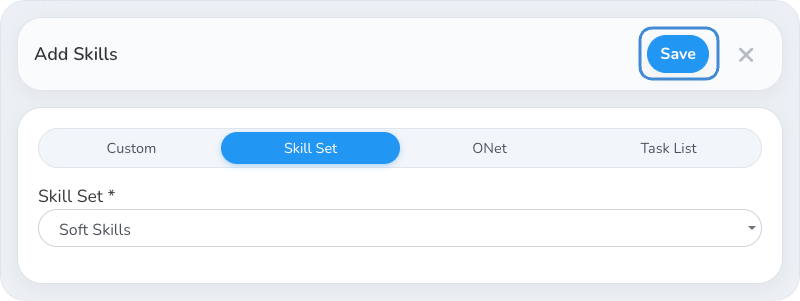
Use the tabs at the top of Add Skills to pick Custom, Skill Set, ONet or Task List, then fill in the fields for that source.
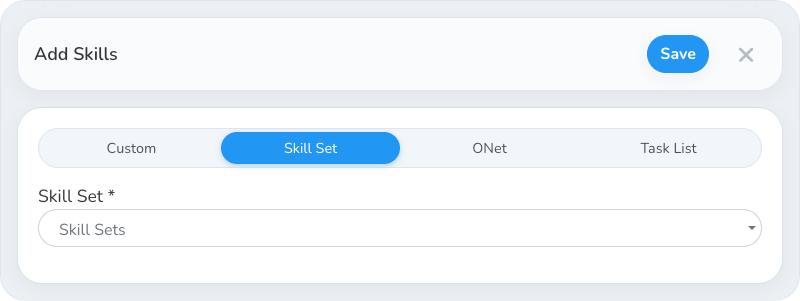
Click Save
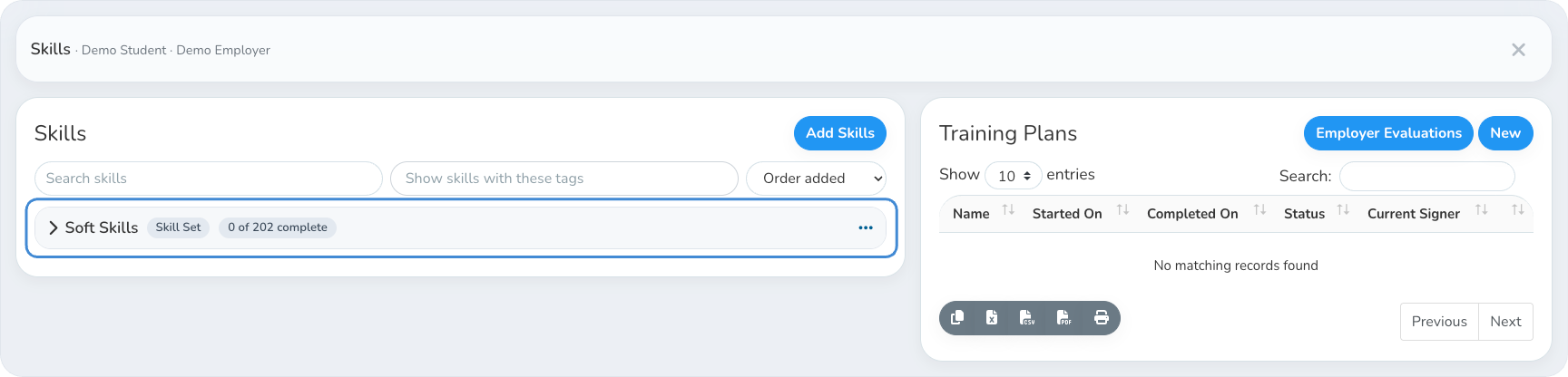
The new skills show in the Skills card, grouped by where they came from. Each group shows its type and how many of its skills are complete. Click a group to open or close it.
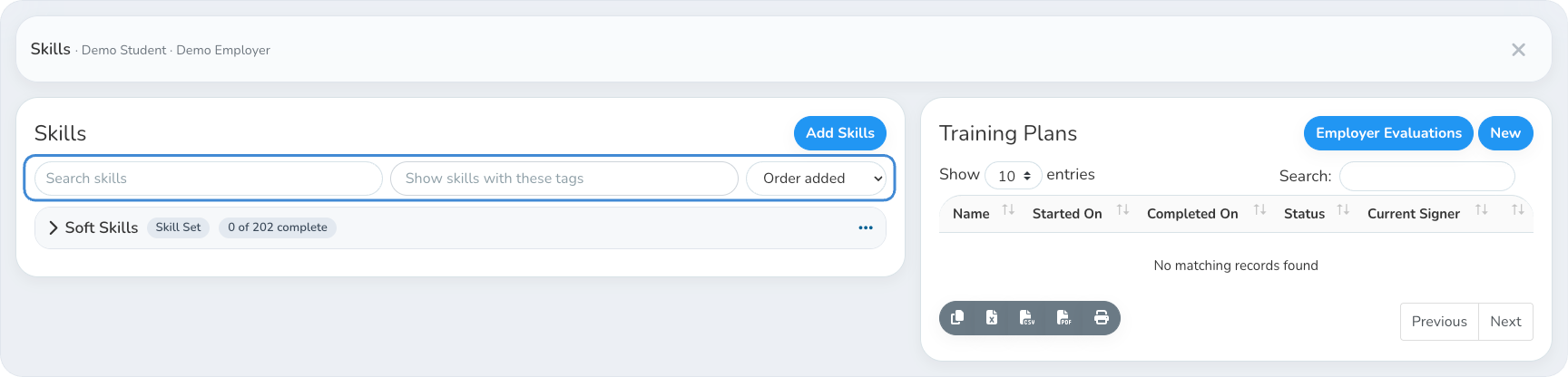
Use the search box, the tag filter and the sort menu above the list to find skills.
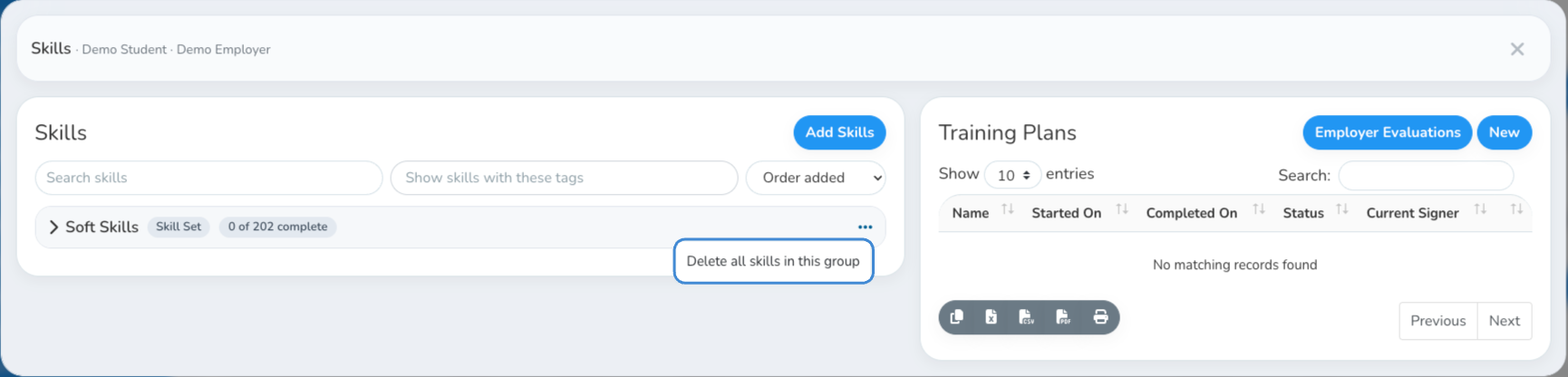
To remove a whole group, open its action menu and choose Delete all skills in this group.
If a Skill Set changes after you add it, an orange warning icon shows on its group. See How do I update experiences when a Skill Set changes?

Was this helpful?
Still need help? Ask the team