How do I turn on Skill Tracking for a WBL Type?
Turn on Skill Tracking for a Student Based WBL Type so its experiences can track skills, training plans and employer evaluations.
Last updated About 14 hours ago
Turning On Skill Tracking
Open your WBL Types
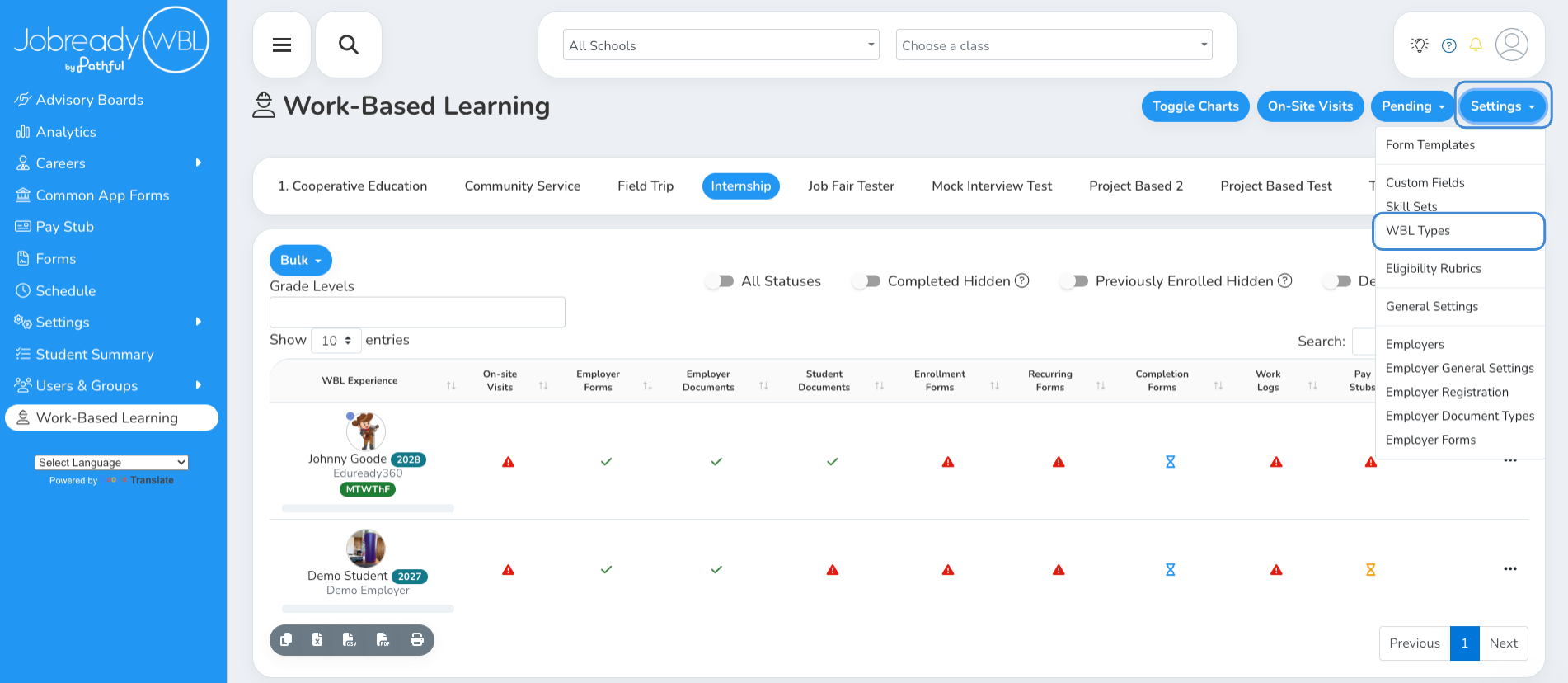
On the Work-Based Learning page, click Settings and choose WBL Types.
Add or edit a Student-Based WBL Type
Add a new WBL Type, or click the ellipsis next to an existing one and choose Edit. Skill Tracking is only available for Student Based types.
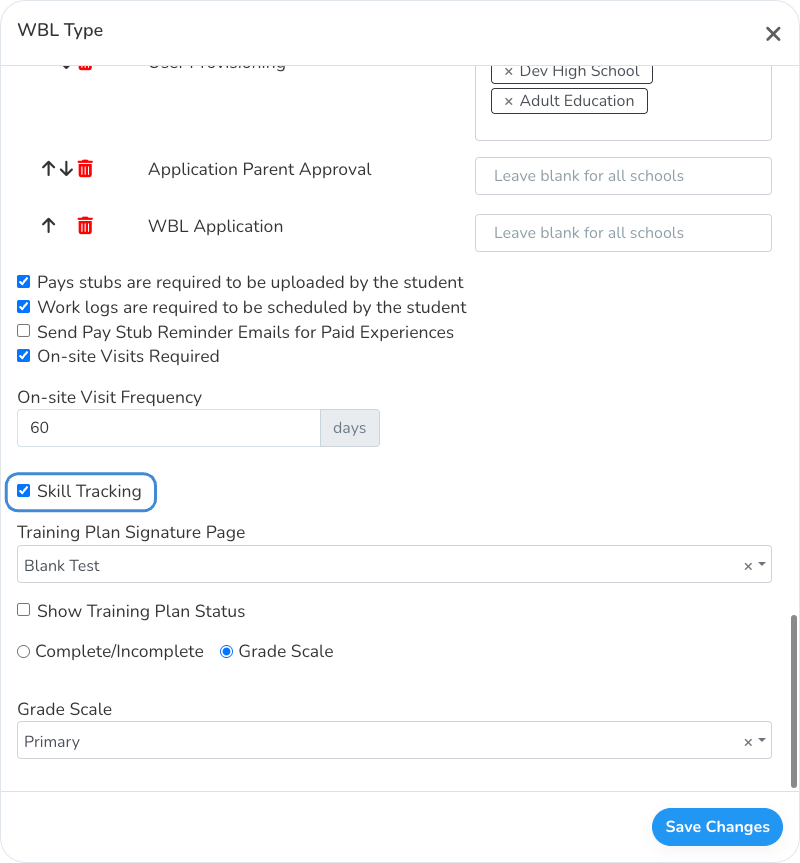
Check Skill Tracking
When Skill Tracking is checked, the settings below appear.
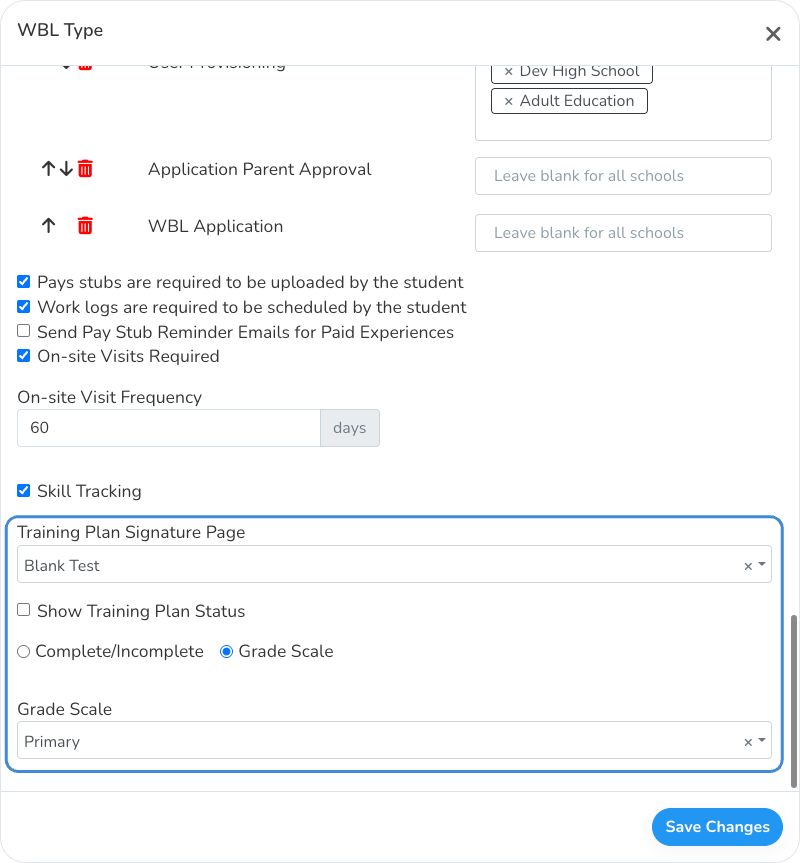
Save the WBL Type
Experiences of this type now show a skill progress bar under the student's name on the Work-Based Learning page. Click the bar to add skills, start training plans and send employer evaluations. See How do I add a Skill Set to a student experience?
Was this helpful?
Still need help? Ask the team