How can I take notes on a student's career exploration?
Last updated 6 days ago
1. Navigate to the career exploration page
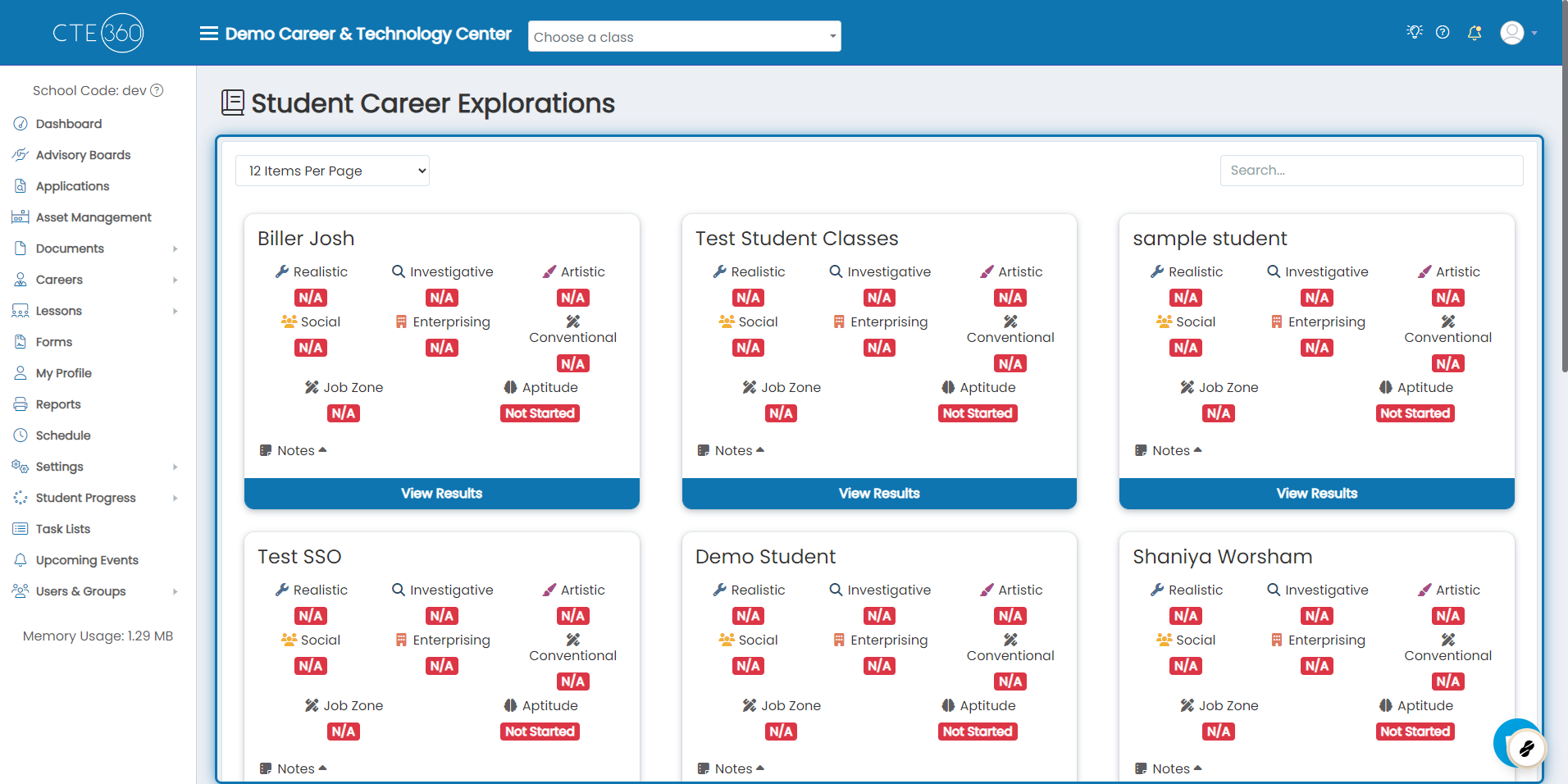
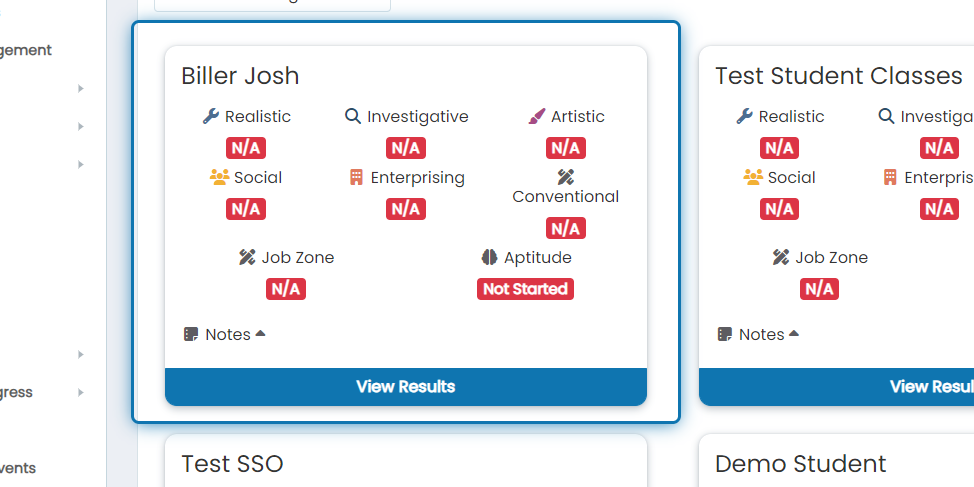
2. Find the student you'd like to take notes on
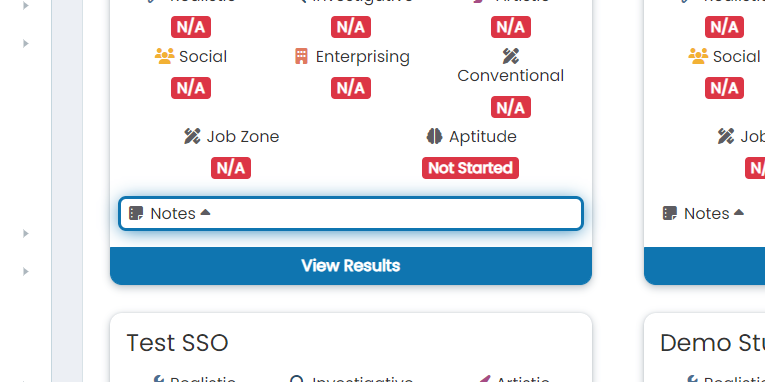
3. Click on Notes to expand the notes that are already present on the student
Note: if the icon to the left of "Notes" is green, that means that a note is already present on the student. If it's gray like it is in the following screenshot, that means there is no note found for the student.
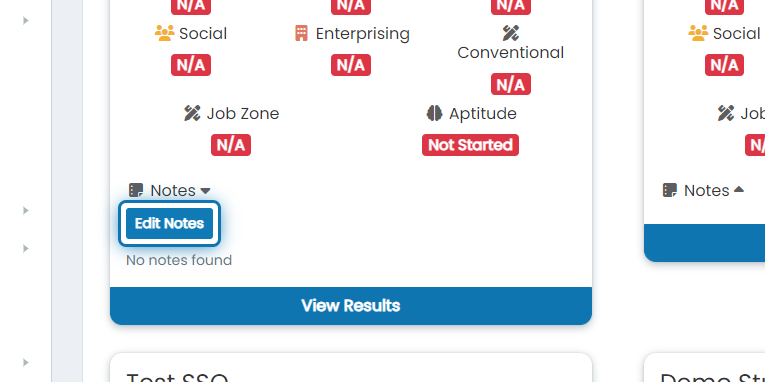
4. Click on Edit Notes
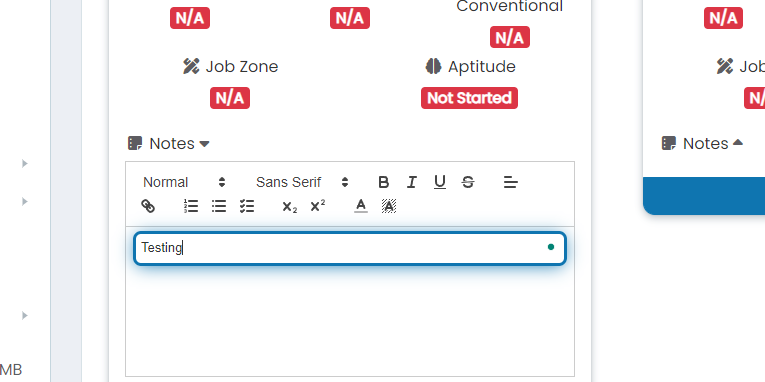
5. Type/edit the note
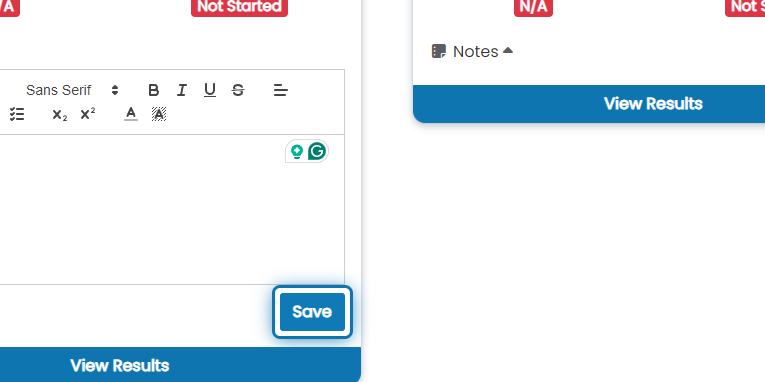
6. Click on Save
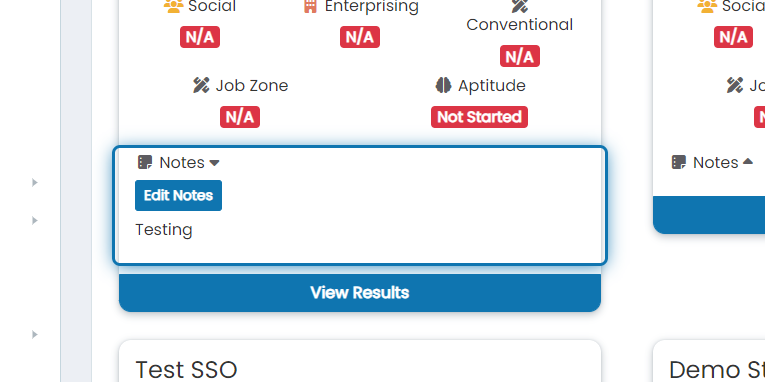
7. You will now see the new note you put on the student
Was this helpful?
Still need help? Ask the team