eSchoolData / CSIU SIS Integration Guide
Last updated 6 days ago
To pull data from the eSchoolData API
You’ll need to retrieve your URL to eSchoolData, the Client ID, and Client Secret.
Note: For the URL contact your eSchoolData representative - they will be able to give it to you. For CSIU clients, this will be: https://guru.csiu-technology.org/#/access/signin or you can click on the "guage" icon in the upper-right corner of your SIS.
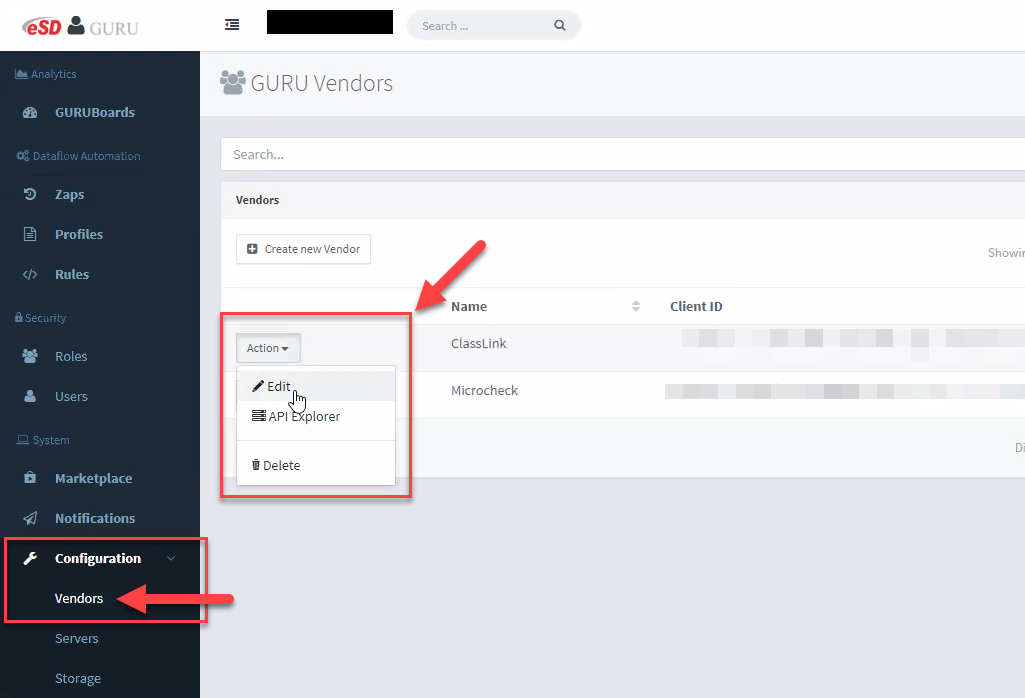
To obtain the Client ID and Client Secret, log into the eSchoolData admin console and navigate to Configuration and click on Vendors.
Click on Create New Vendor or, if you already have Eduready360 as a registered vendor, go to the edit page to view the necessary credentials.
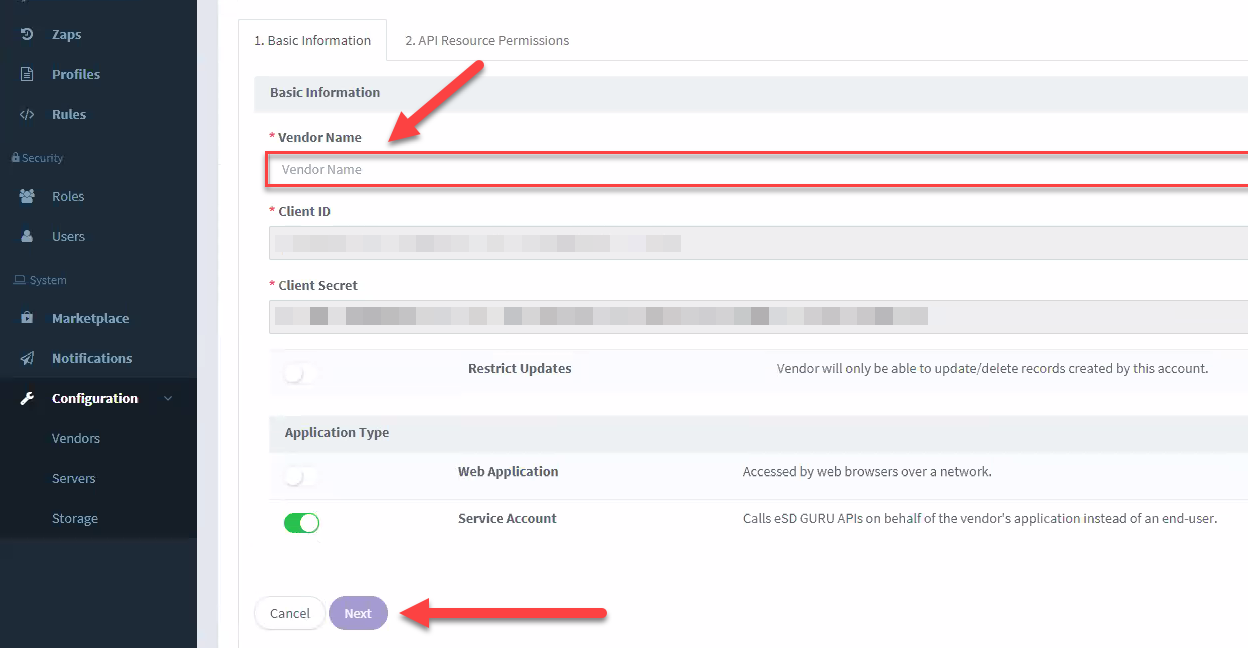
Enter Eduready360 as the vendor name.
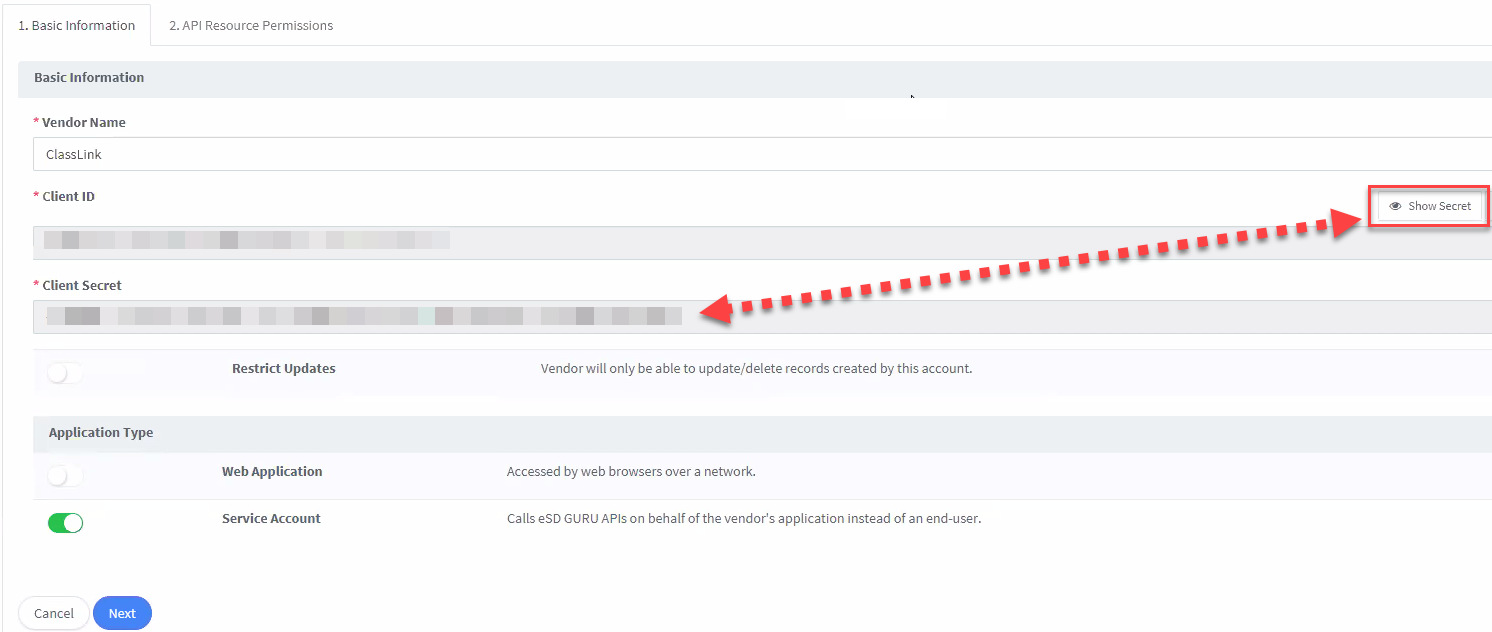
To show the Client Secret, click Show Secret to toggle visibility. Copy the Client ID and Client Secret and send this information to your Eduready360 representative.
Choose Web Application for Application Type and click on Next to continue.
Enable permissions for marking period terms, sections, school courses, teachers, students, student users, and section enrollments. Click Finish to save your changes.
Was this helpful?
Still need help? Ask the team