When attempting to Sign In with Google on the mobile app or web app, why do I see an error stating: "Sign In Failed" or "Access blocked"?
Last updated 8 months ago
Types of Sign in with Google errors
There are two types of errors that users may encounter when trying to log in with their school’s Google account. One allows users to "Request Access” to use Sign in with Google while the other requires your school’s IT department to manually add access.
Access blocked: Authorization Error
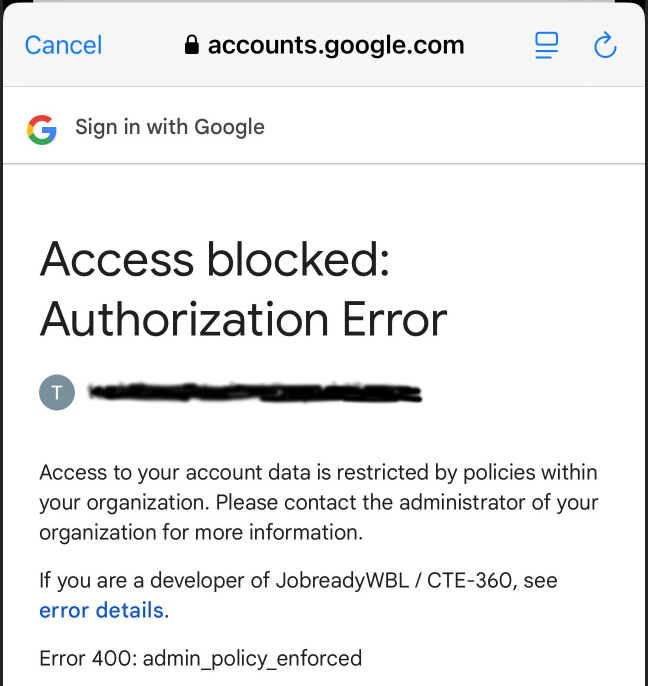
“Unable to sign in with Google for unknown user” on the Mobile App
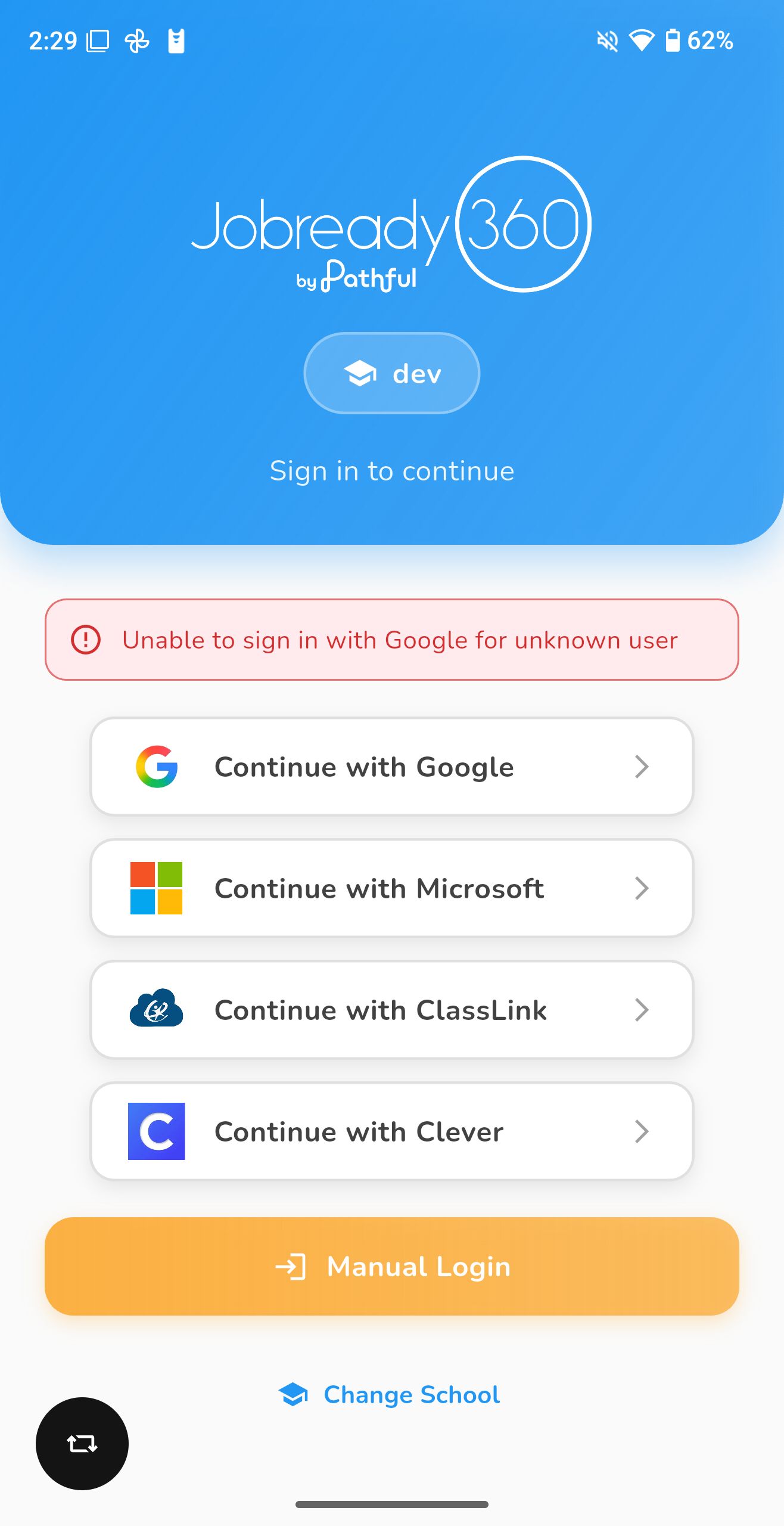
What do these errors mean?
If your Google Admin has restricted App Access Control settings defined for your domain, users may receive an error message stating, "Unable to sign in with Google for unknown user”.
This is usually a sign that your Google Admin has restrictions in place that prevent your user type from requesting access to new applications.
What do I do?
Sometimes users have the ability to “Request Access” to an application, sometimes it does not. It all depends on our school policy. If you are seeing the “Access Blocked: Authorization Error”, look on the page for a “Request Access” link. This will alert your IT department that you’ve requested access. You may also forward them this article so they know what to do next.
If you only see “Sign In Failed” or do not have a “Request Access” link, please forward this article to your school’s IT department.
How can I request access?
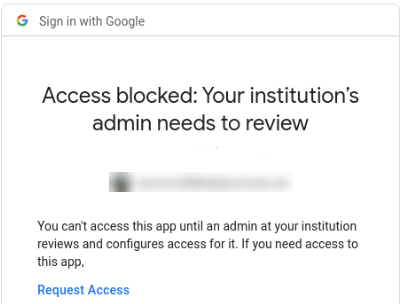
On the error page, the user may be given an option to Request Access. If so, click this to send a notification to your institution's Google Admin for them to allow access. You may want to also forward this article to them for assistance approving the application.
Instructions for the IT Department
How do I allow Jobready360 to use Google SSO for my school’s users?
1. Go to your Google Admin console
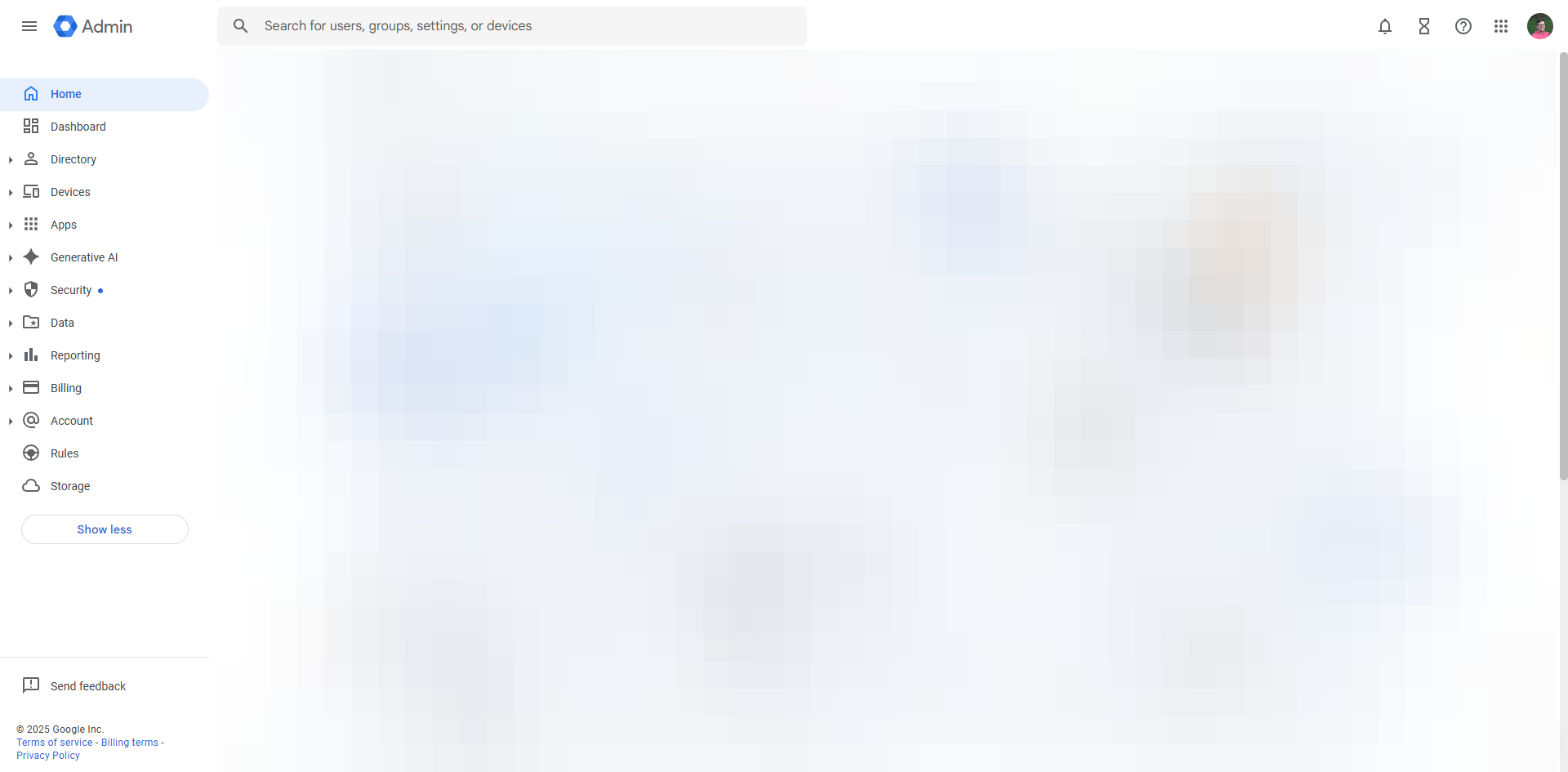
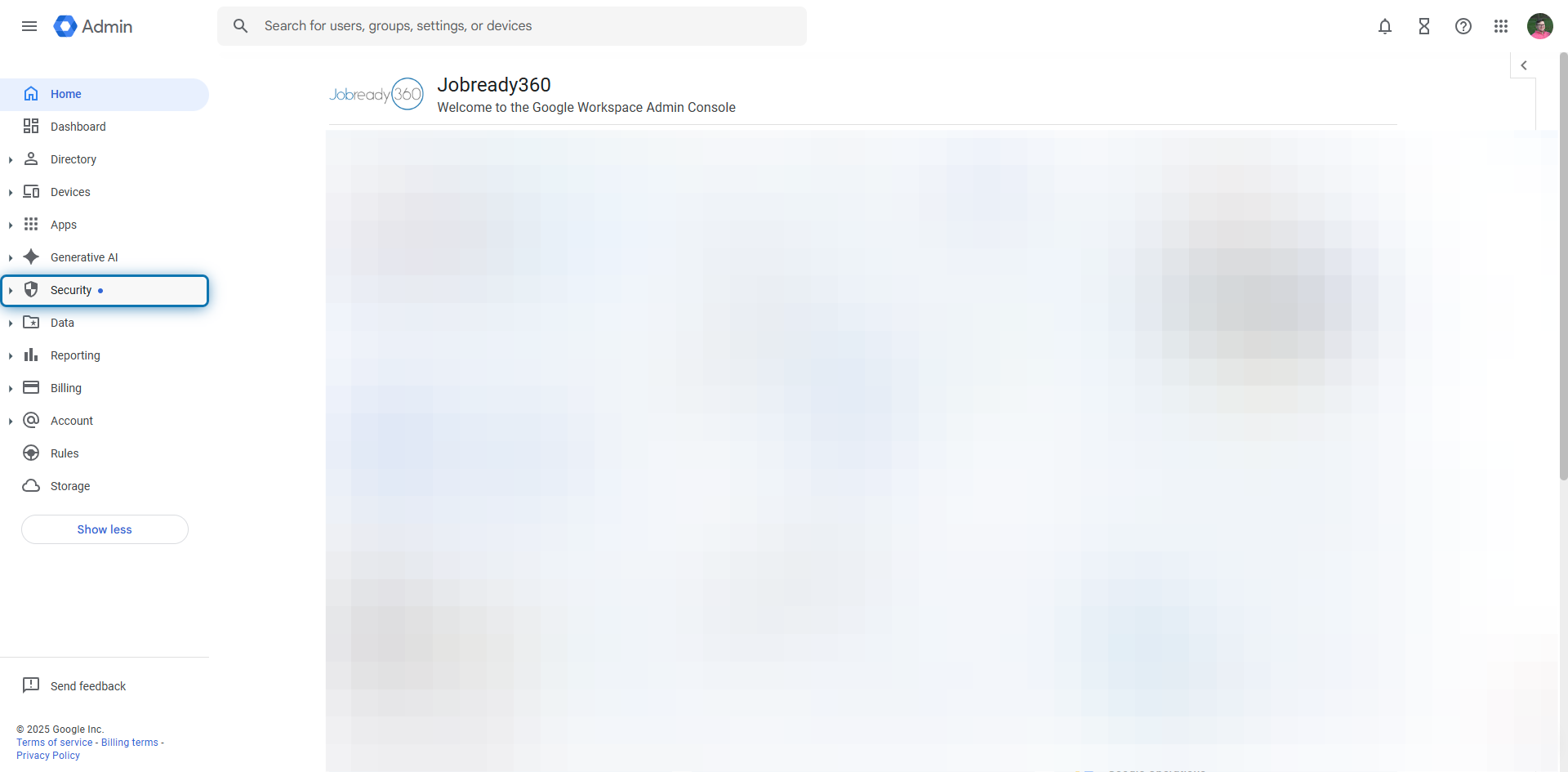
2. Expand Security
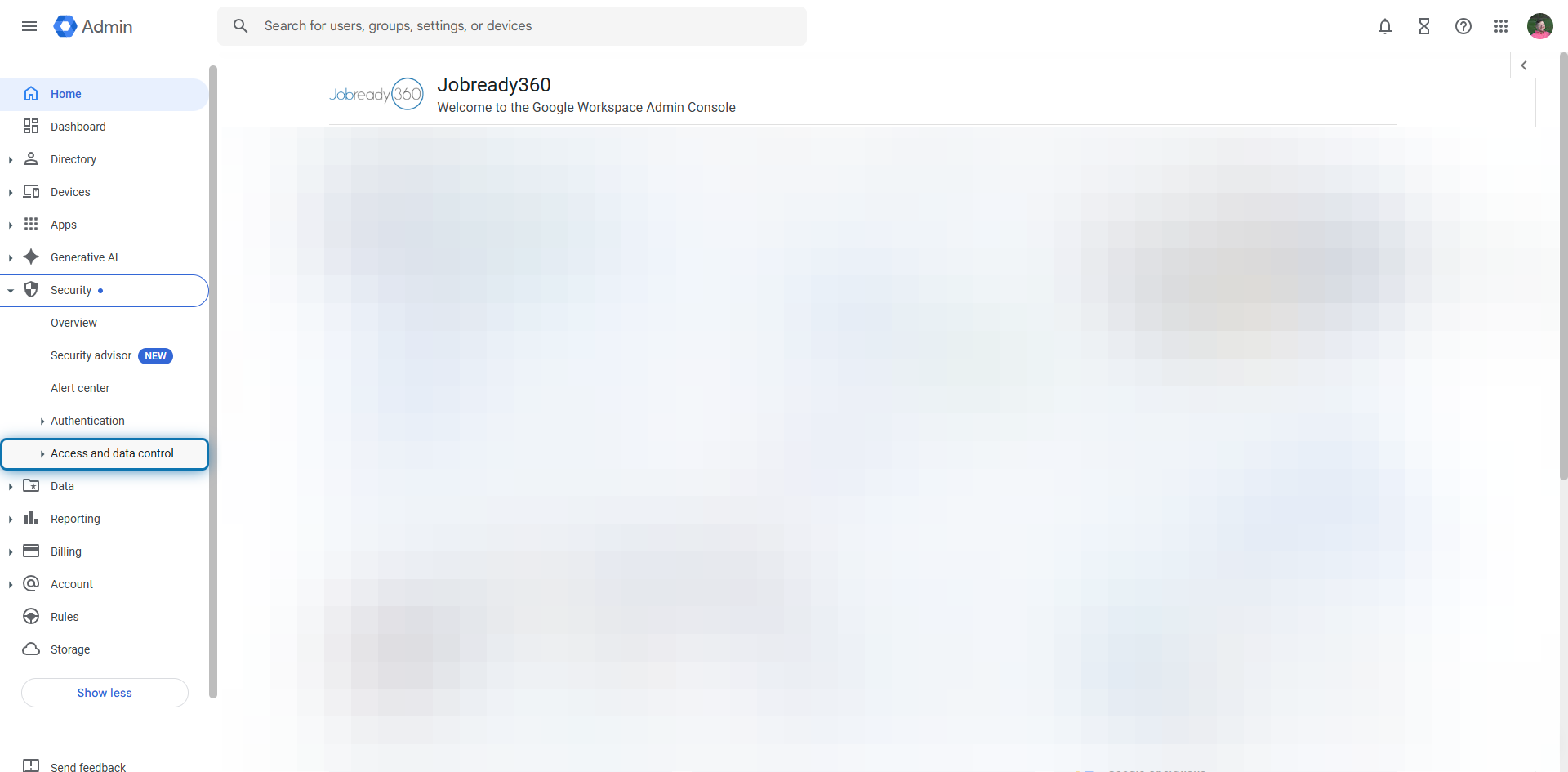
3. Expand Access and data control
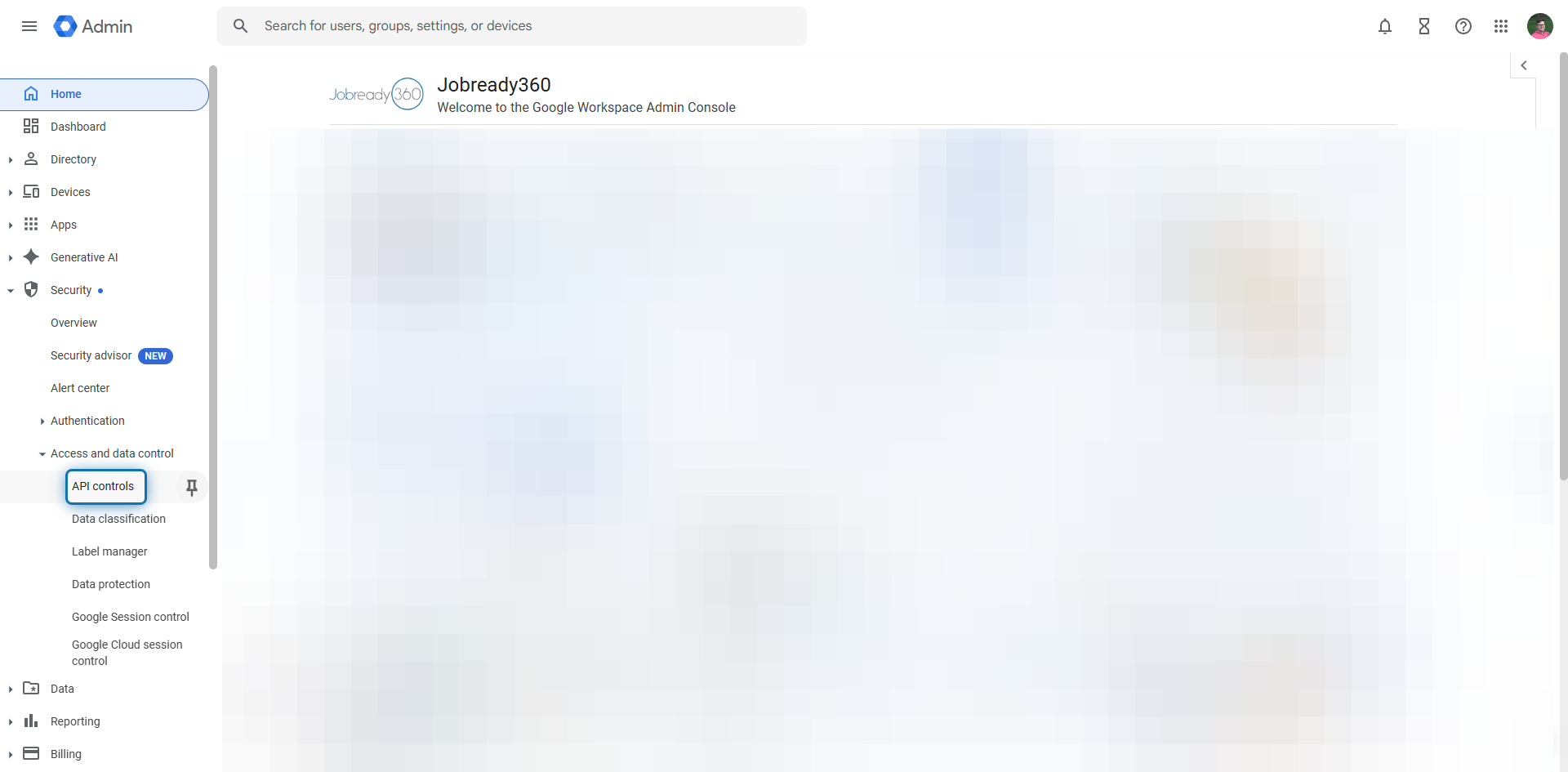
4. Click on API controls
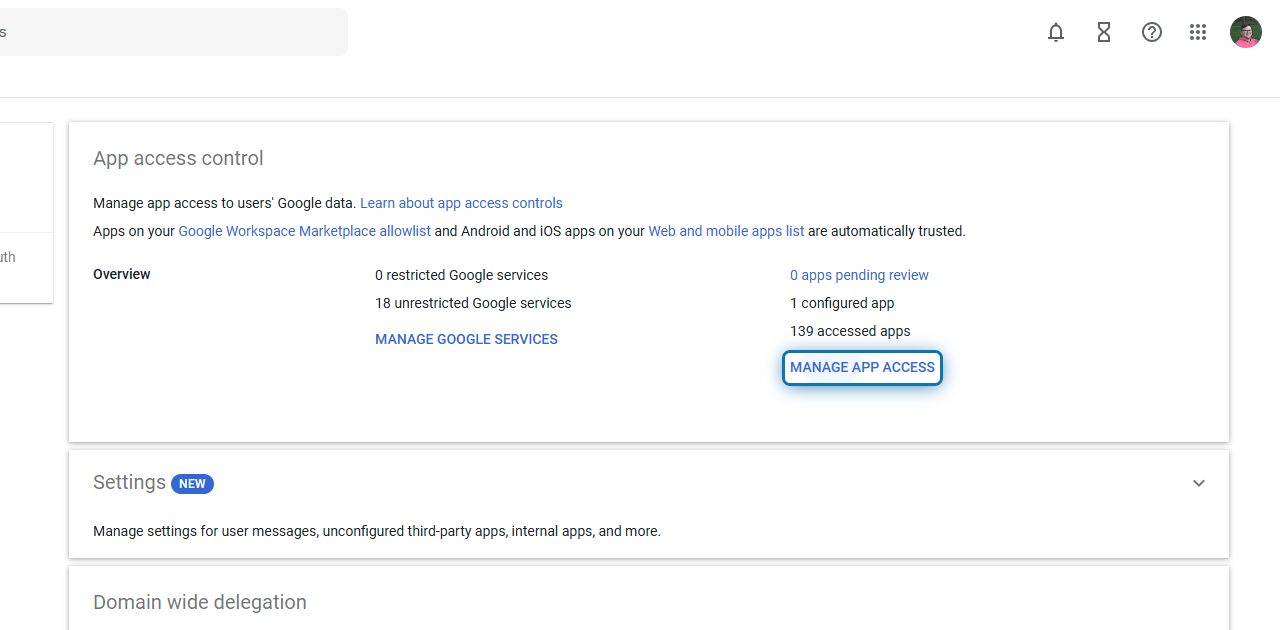
5. Click on MANAGE APP ACCESS
6. Click on Configure new app
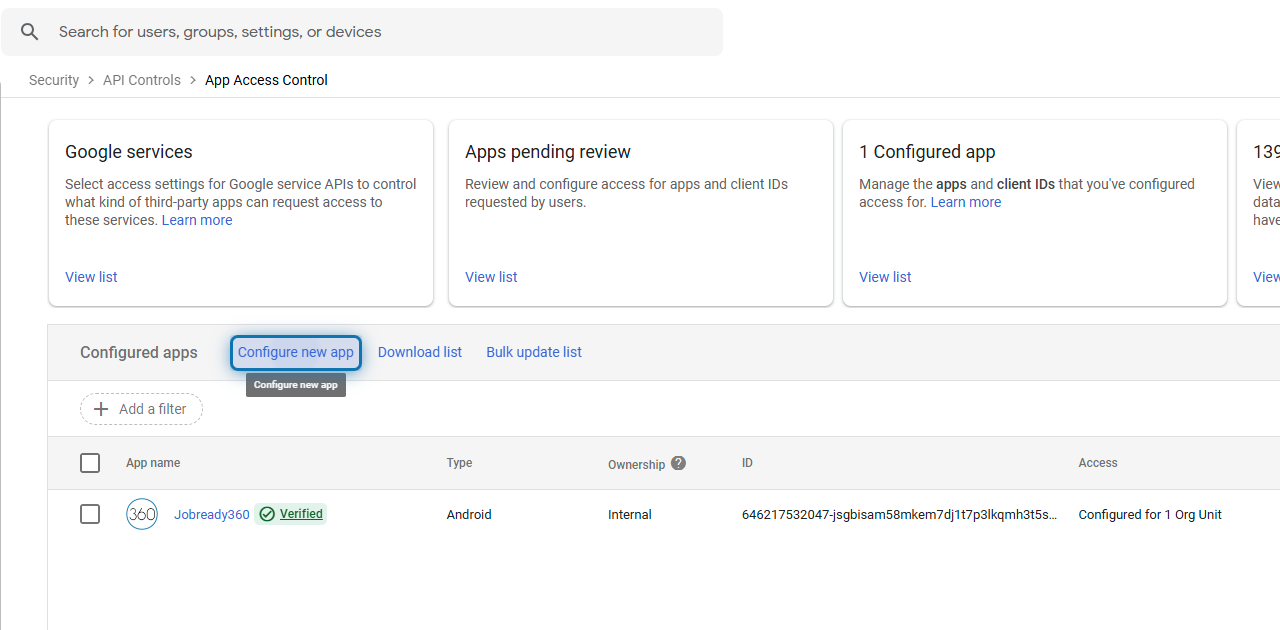
7. Search for Our Client IDs
iOS App:
Android App:
Web App:
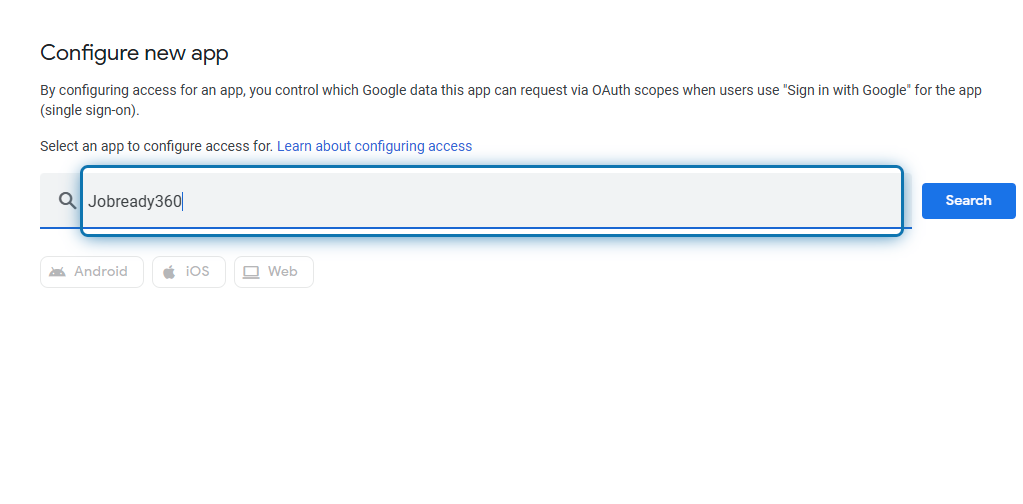
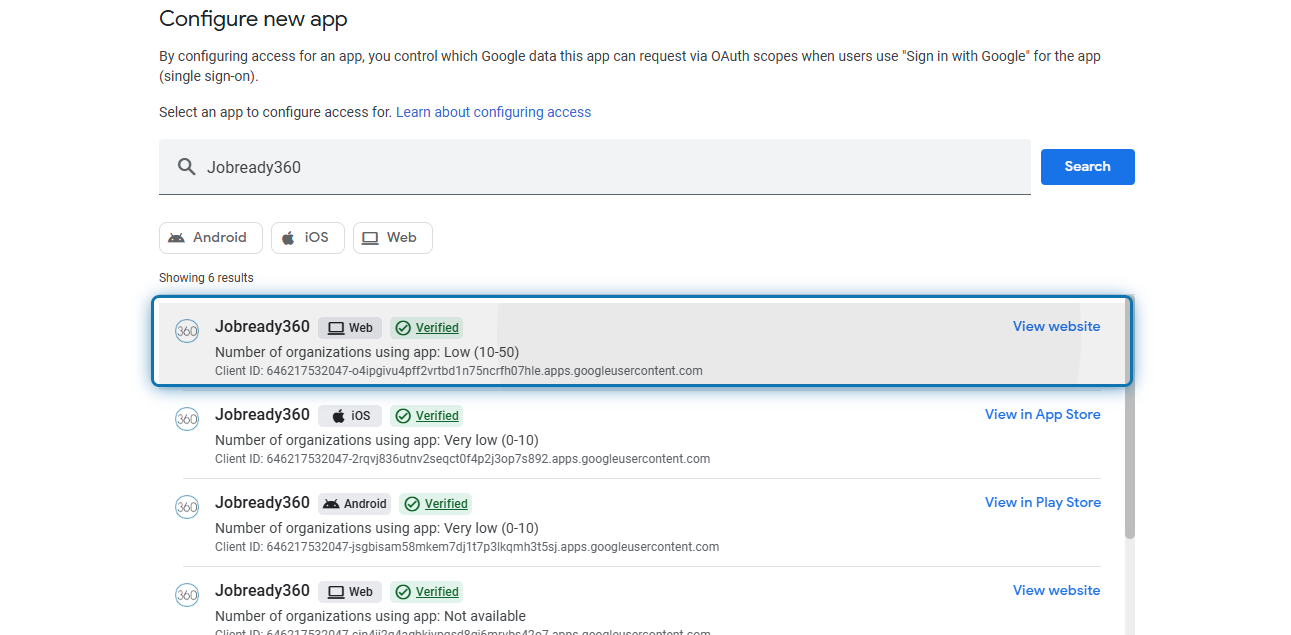
⚠️ NOTE: For full functionality of Jobready360, steps 8-12 will need to be completed for all 3 of our Client IDs
8. Select the first item in the list
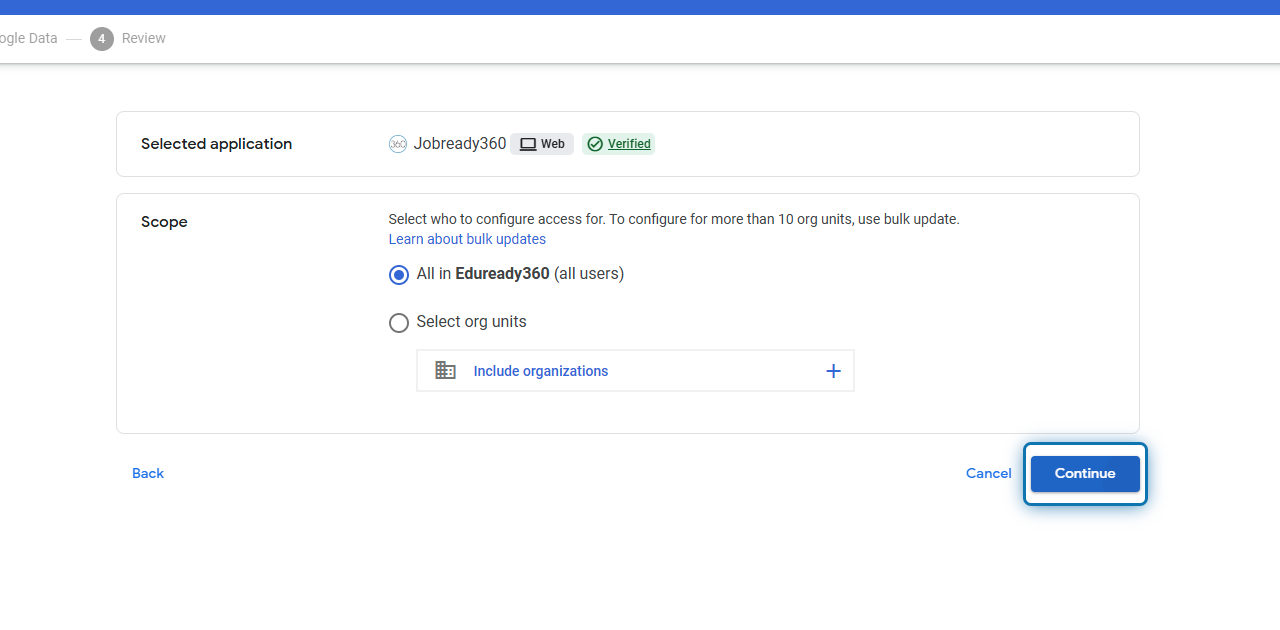
9. Configure your scope and click on Continue
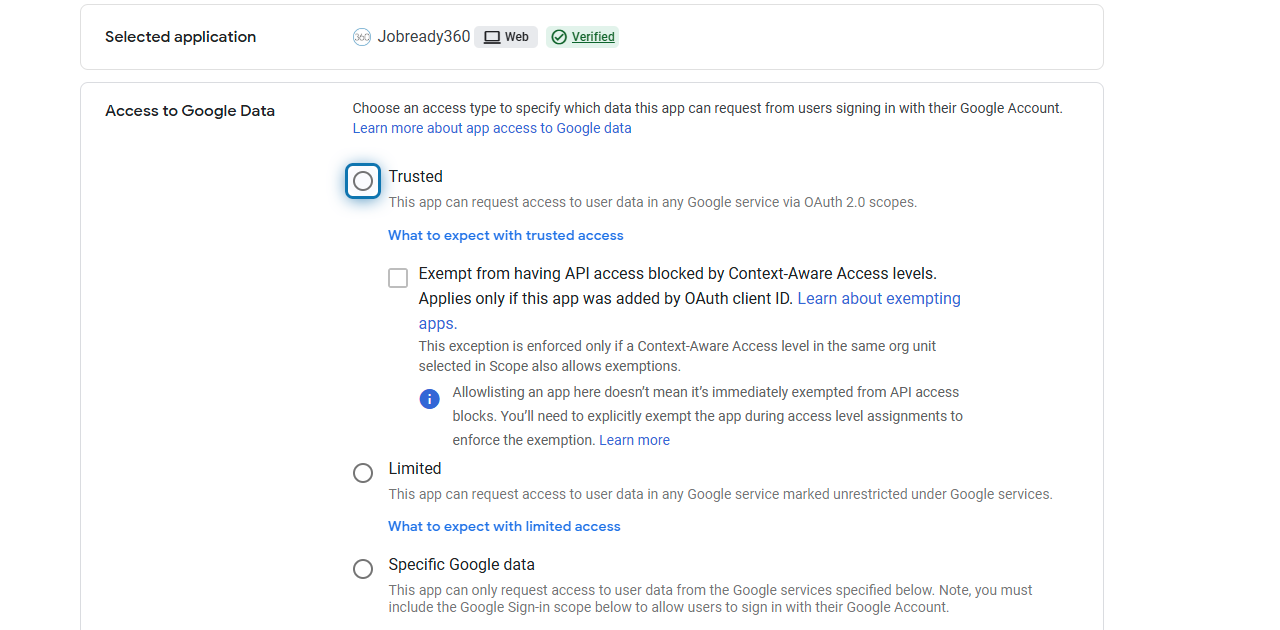
10. Configure your data sharing
In this example, we're setting the app as Trusted
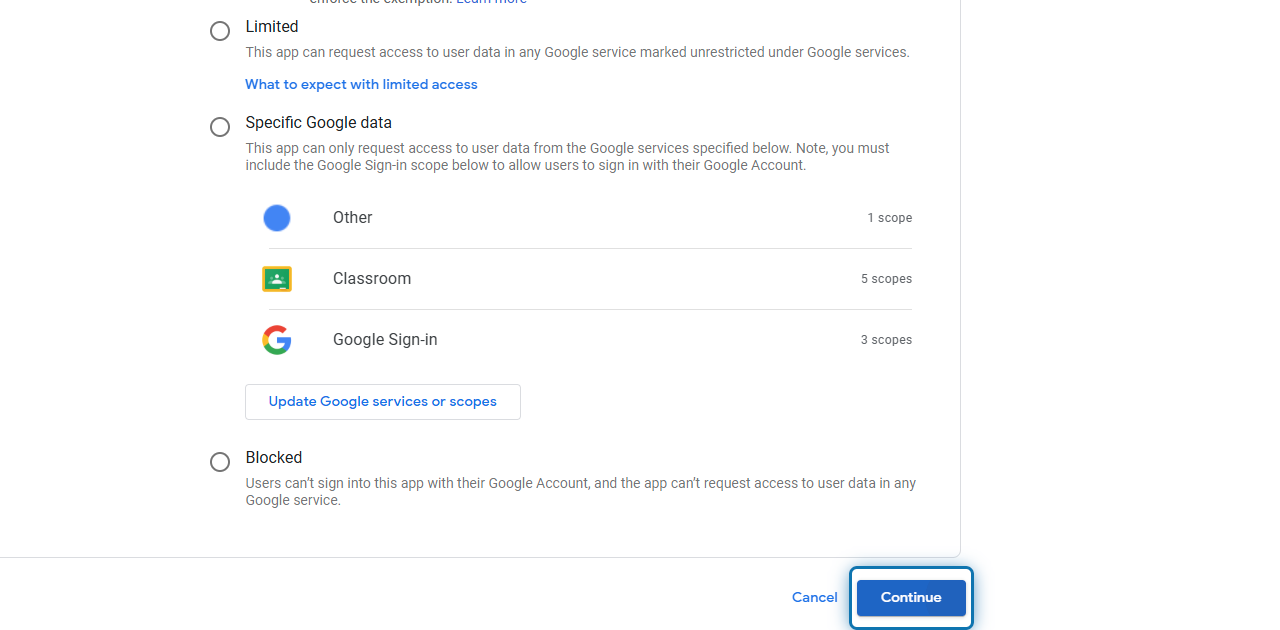
11. Click on Continue
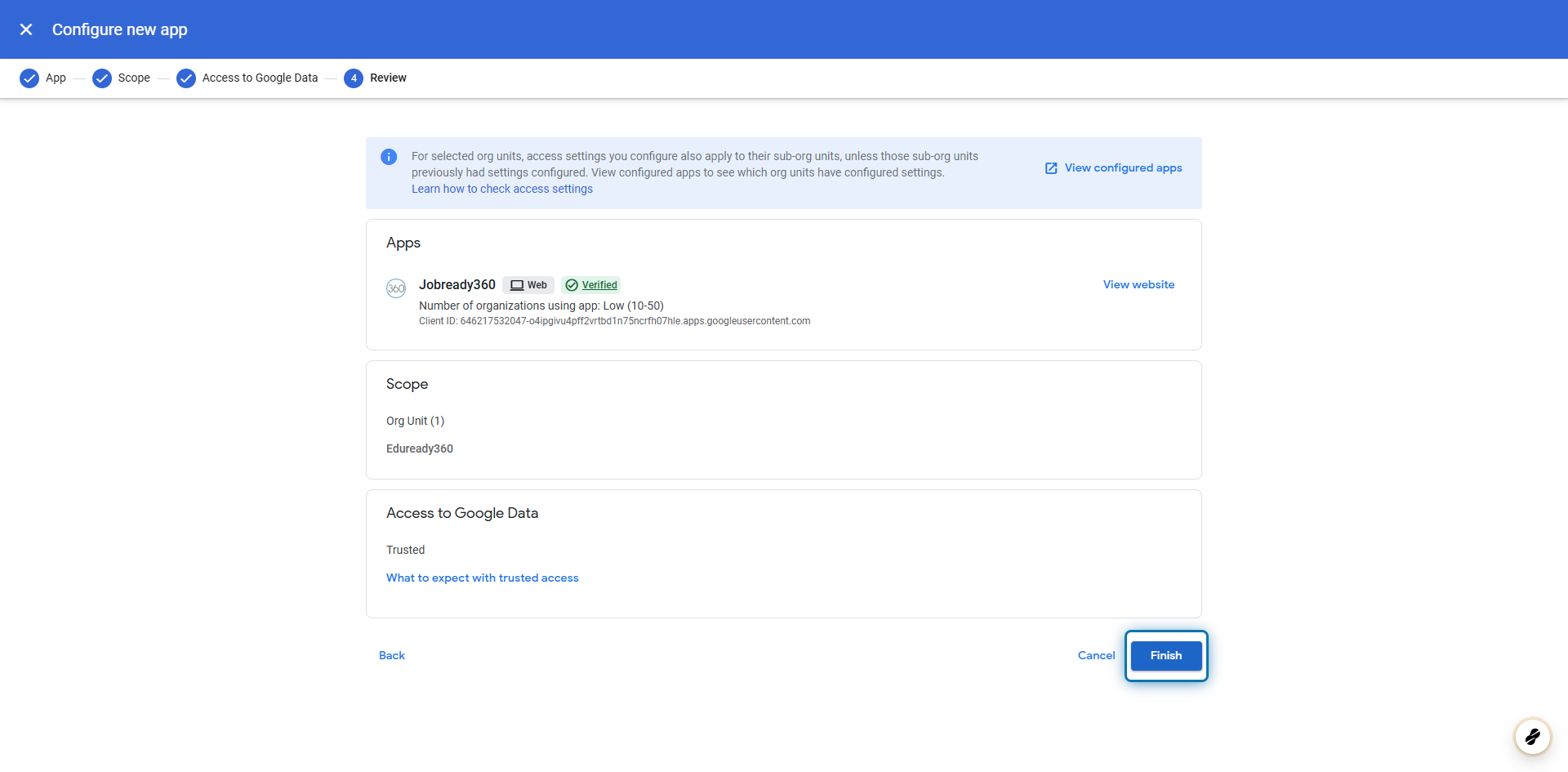
12. Review and click on Finish
Was this helpful?
Still need help? Ask the team