Can I create an experience based on a student's eligibility application?
When a coordinator places a student into a Work-Based Learning (WBL) experience from the Work-Based Learning Eligibility workflow, the system can automatically prefill the placement form using data the student already entered on their eligibility application. This article explains how that prefilling works and how to configure your eligibility forms so the right fields are captured.
Last updated 3 months ago
Overview
Place Student opens the standard New WBL Experience form with values pulled from the student's most recently completed eligibility submission for the selected WBL type. This will:
Show a summary of what was read from the eligibility form
Match an existing employer and employer contact in your database
Prefill placement fields such as job title, start/end dates, and hourly rate
Offer to create a new employer or contact if no match is found
You can use ‘Place Student’ from:
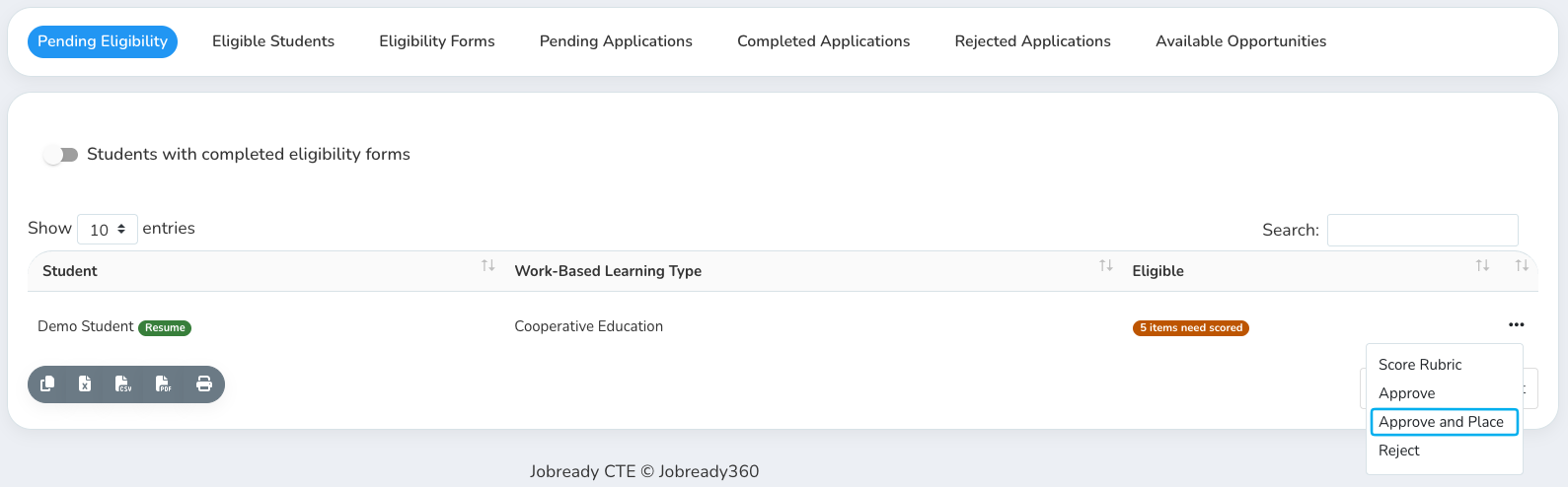
Pending Eligibility → action button (…) → Approve and Place (approves eligibility, then opens the prefilled placement form)
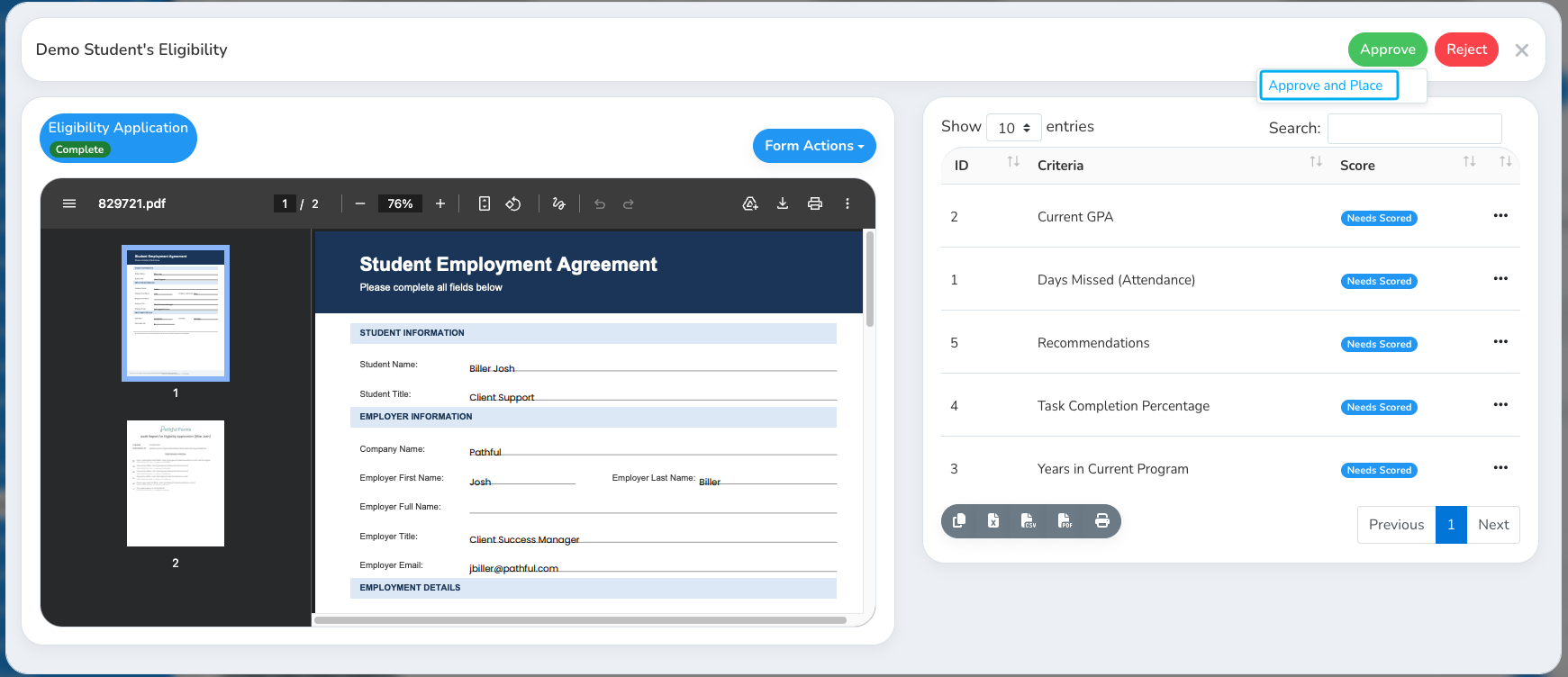
The eligibility rubric modal → hover over Approve → Approve and Place
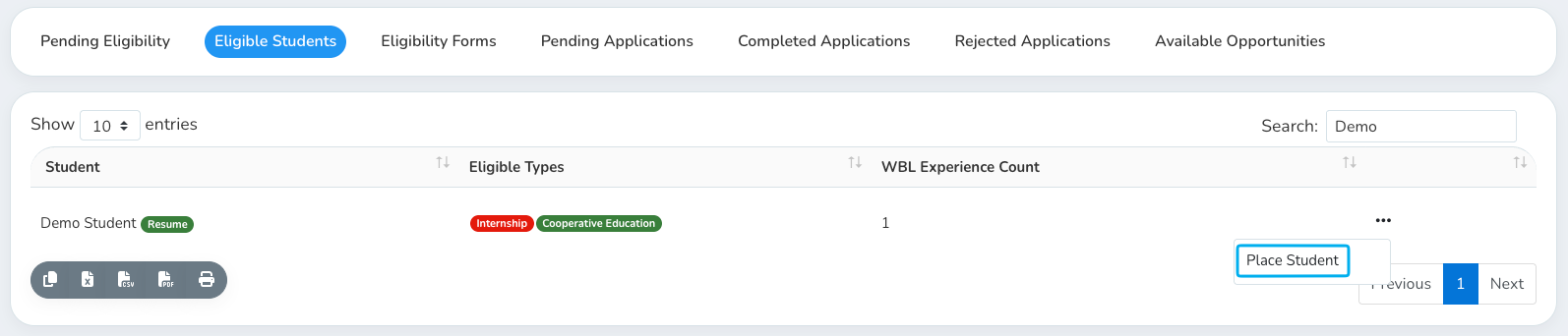
Student Eligibility → action button (…) → Place Student
Prerequisites
For prefilling to work:
The student must be eligible for the WBL type you are placing them into.
The student must have a completed eligibility application submission for that type.
The eligibility form must include fields with the correct prefill field names (see below).
The eligibility template must be linked to the WBL type under WBL Eligibility settings.
If no completed submission is found, you can still place the student manually; the form simply will not be prefilled.
Configuring Your Eligibility Form
Recommended: Use the form builder prefill names
The easiest approach is to assign prefill field names in the form builder when editing your eligibility template. These options automatically set the field name the system expects.
Important: The field name must be empty before setting the prefill in order for automatic naming to be applied.
When adding a field on an eligibility form:
Open the form template in the form builder.
Select the field that should feed into placement (employer name, contact email, start date, etc.).
Assign the appropriate prefill class from the class dropdown (labels appear as (Employer) Company Name, (WBL Exp.) Start On, and so on).
Save the template.
The form builder assigns field names. You do not need to rename fields manually when using these options.
Alternative: Hand-name fields with a prefix convention
If you are not using the form builder prefill classes, you can name fields manually using any of the field names listed in the next section.
Hyphens in field names are treated the same as underscores (employer-company-name = employer_company_name).
Supported Field Names
Employer / company
Employer contact
Placement details
How Employer Matching Works
When Place Student opens, the system reads the employer name from the eligibility form and tries to find a matching employer in your database:
Exact match — case-insensitive comparison of the full name
Normalized match — punctuation and extra characters are ignored (so
Company Namematches“Company" Name)Suggestions — if no exact match, similar employers are listed as clickable suggestions and loaded into the employer dropdown
When an employer is matched, the system also tries to match a contact at that employer by email first, then by first name.
If no employer match is found but employer data exists on the form, you can check create employer to add a new employer from the form data when you submit. The same option exists for contacts.
What Coordinators See in the UI
Summary panel
At the top of the placement form, a panel titled From eligibility form lists each value read from the submission with its field label (for example, Employer Name: Acme Corp).
A note explains that fields with a blue label below were prefilled from the eligibility form.
Blue labels on form fields
Form fields that were automatically filled show a blue pill-style label. If a coordinator changes a prefilled value, the blue highlight is removed for that field.
Changing the employer clears the contact prefill highlight, because the contact list is reset for the newly selected employer.
Tips for a Smooth Setup
Use form builder prefill classes whenever possible; they prefill the correct names automatically and are the most reliable option.
Collect employer name and contact email at minimum; these drive employer/contact matching.
Use consistent employer naming in your database and on forms (minor punctuation differences are handled, but very different names will not match).
Include placement dates and job title on the eligibility form if you want those fields prefilled on the experience record.
Test with a real submission — open Place Student for a student who has completed the eligibility form and confirm the summary panel and blue labels reflect your field names.