How do I update experiences when a Skill Set changes?
Changes to a Skill Set don't change the experiences that already use it. Bring the changes to one experience at a time, or to every active experience that uses the Skill Set at once.
Last updated About 3 hours ago
Note: Skill Tracking must be enabled on the WBL Type before following this guide. Please see How do I turn on Skill Tracking for a WBL Type? for more information.
Updating One Experience
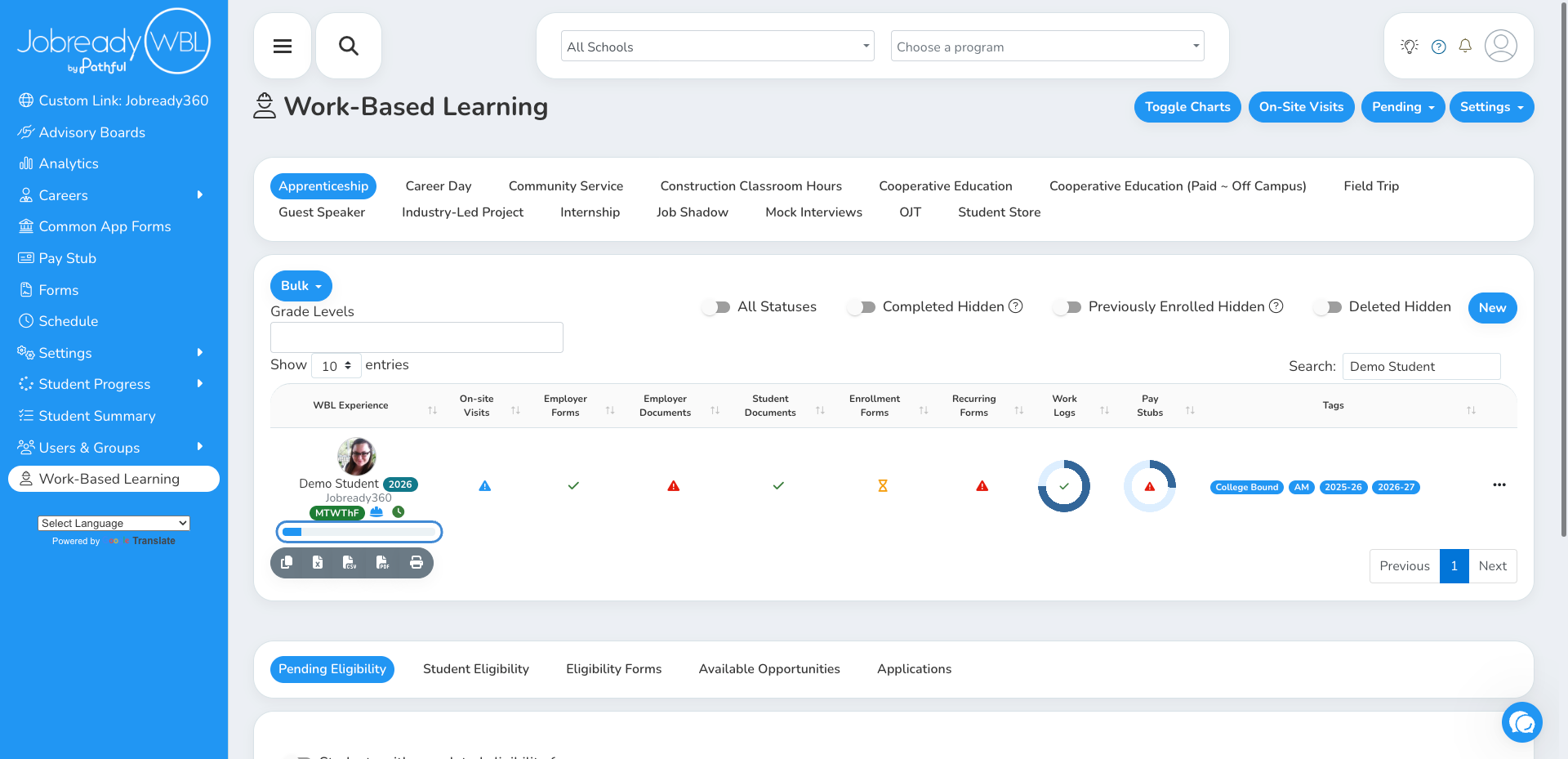
Click the Skill Progress bar under the student's name
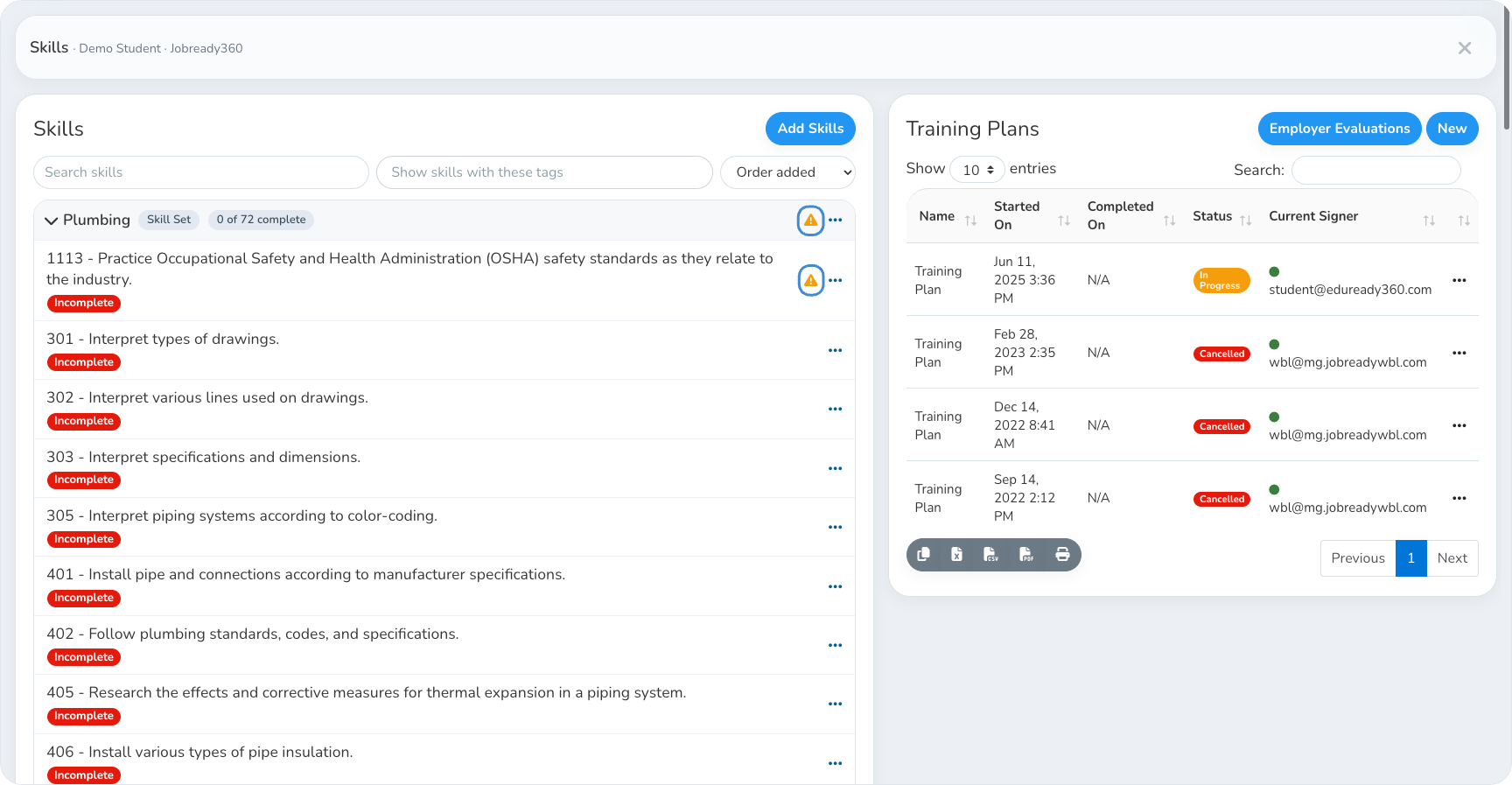
Click the orange warning icon
Click the icon on the group to see every change in the Skill Set, or the icon on a single skill to see only that skill.
The icon shows on a Skill Set's group when the Skill Set has changed since its skills were added to this experience. It also shows on each skill that changed.
Only changes to the Skill Set itself are flagged. Renaming or retagging a skill on this experience isn't treated as a change.
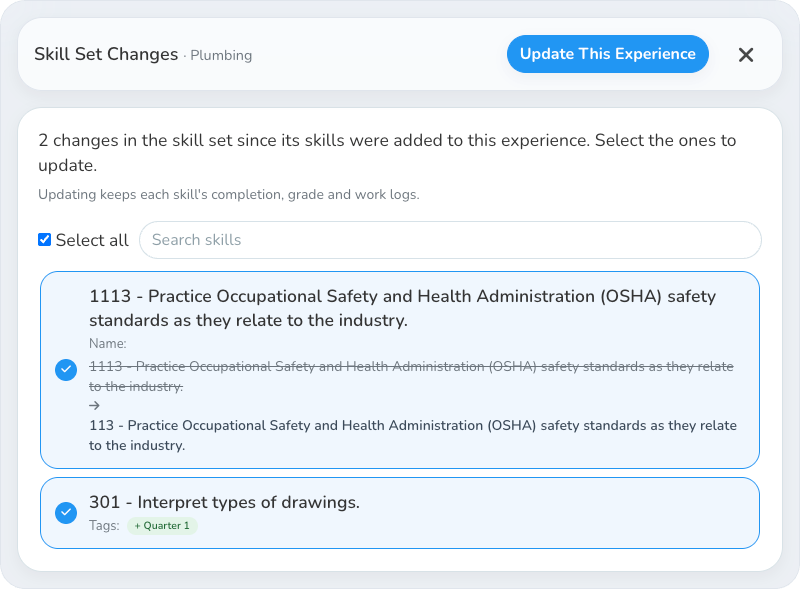
Review the changes
Each change shows as a card in Skill Set Changes. Every change starts selected. Click a card to leave it out, or use Select all. A skill that was removed from the Skill Set but already has a grade, completion or work logs starts unselected, so its progress isn't lost by accident. Use the search box to find a skill in a long list.
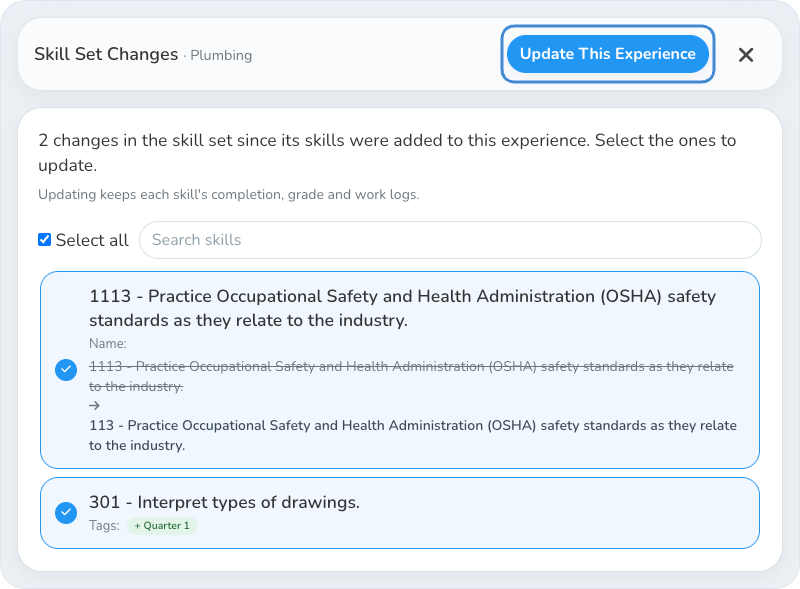
Click Update This Experience
Only the selected changes are made. Changes you leave out stay flagged, so you can come back to them later.
When you open a single skill's changes, the button is Update This Skill instead. If that skill was removed from the Skill Set, choose Remove Skill to delete it from this experience, or Keep Skill to keep it and stop flagging it.
Updating Every Active Experience
Open Skill Sets
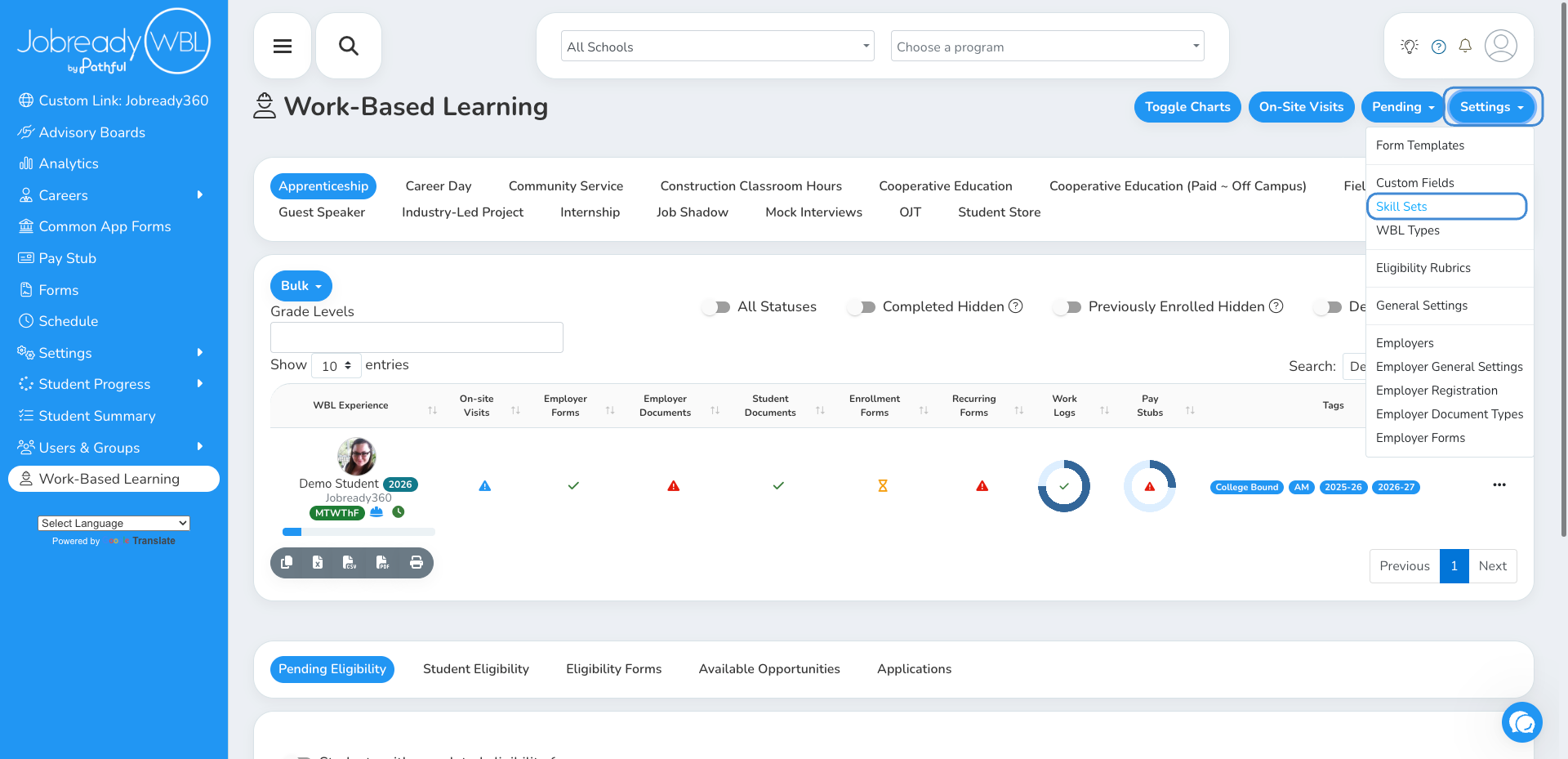
On the Work-Based Learning page, click Settings and choose Skill Sets.
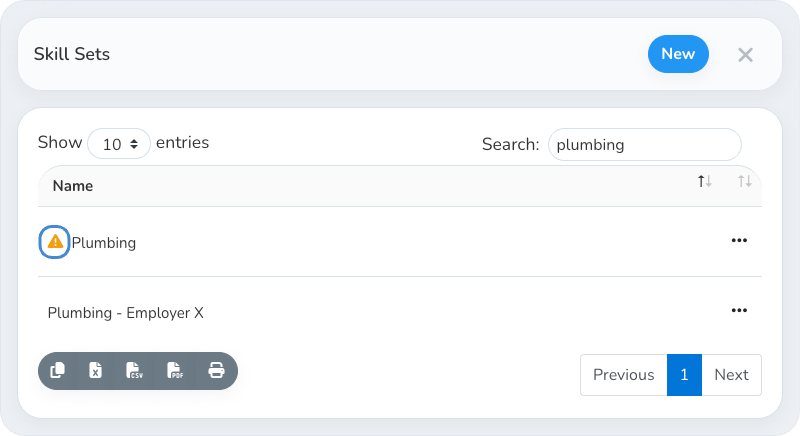
Find & click the orange warning icon
An orange warning icon in front of a Skill Set's name means some active experiences still have skills from before the Skill Set changed. Choose Skills from the Skill Set's action menu to see the same icon in front of each skill that changed.
Active experiences are ones that aren't complete and haven't ended. Experiences that haven't started yet count too.
Review the changes
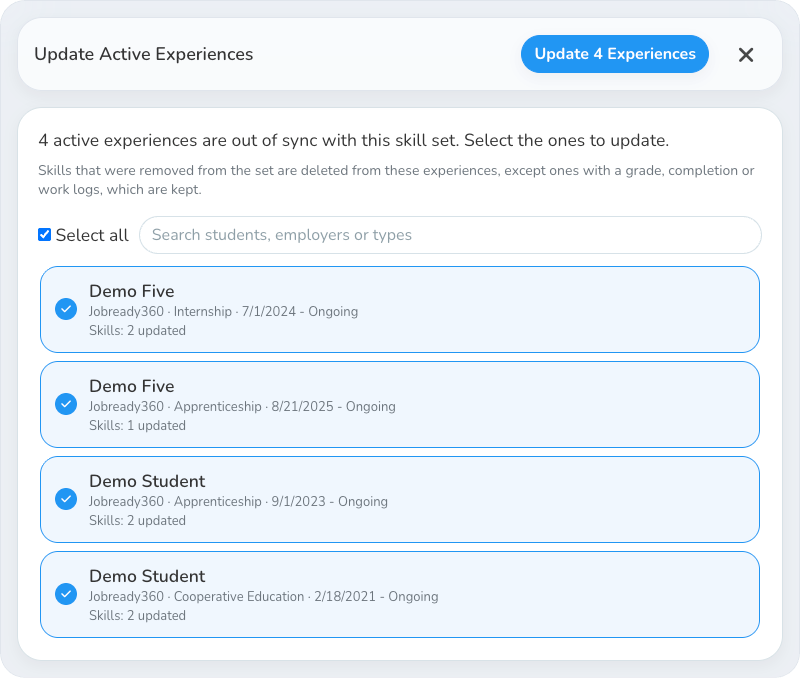
Update Active Experiences lists each out-of-sync experience with its student, employer, type and dates, and how many skills will be added, updated or removed. The icon on a Skill Set covers every change in the Skill Set. The icon on a single skill covers only that skill.
Every experience starts selected. Click one to leave it out, use Select all, or search by student, employer or type. Experiences for students you don't have access to are counted but not named.
Click Update
The experiences update in the background, and it can take a few minutes for every experience to show the changes. Experiences you left out keep their warning, so you can update them later here or one at a time from the experience.
Updating Right After You Edit a Skill Set
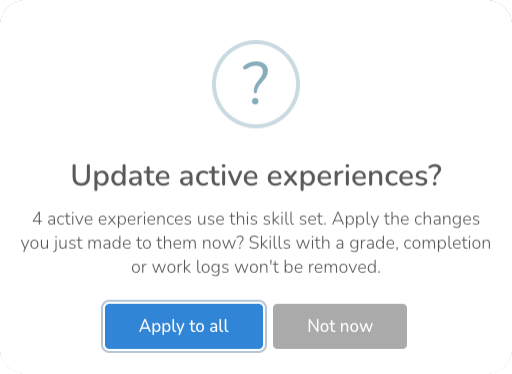
When you add, edit or delete skills in a Skill Set and then close its Skills window, you're asked whether to update the active experiences that use it.
Apply to all brings only the changes you just made to every active experience that uses the Skill Set. Skills with a grade, completion or work logs won't be removed.
Not now leaves the experiences as they are. They show the warning until someone updates them.
Was this helpful?
Still need help? Ask the team