How do I search for Work-Based Learning opportunities and express interest?
Last updated About 2 months ago
The Opportunity Search tab is where you browse real jobs, internships, and other Work-Based Learning opportunities that employers have posted. Opportunities appear as cards, with personalized recommendations and simple ways to tell your WBL coordinator what you're interested in.

Recommended for You
At the top of the search tab, you may see a Recommended for You carousel: "Based on your interests, experience, skills, and availability." These are opportunities picked as a good match for you, based on your career interests, favorited job titles, coursework, certifications, and work availability.
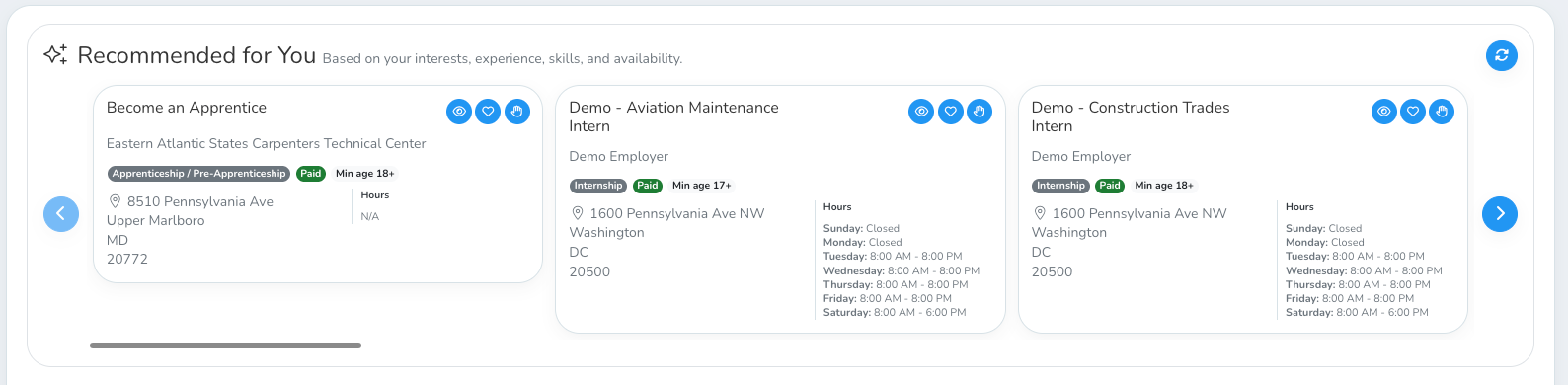
Click the refresh icon to get updated recommendations.
Use the arrows to move through the carousel.
Click the ? icon on a card to see Recommended because — a short, plain-language reason for that suggestion.
If you don't see recommendations, it's usually because your profile needs more information — try adding a few favorite job titles or completing your career-interest activities.
Searching and filtering
Below the recommendations, you can browse and filter all open opportunities. Each opportunity appears as a card showing:
The opportunity title and employer
Badges for the opportunity type, and whether it's Paid, Unpaid, or pay isn't specified
Location and weekly hours
Status badges once you've taken an action — Interested, Approved Placement, Resume/Email Sent, or Hired
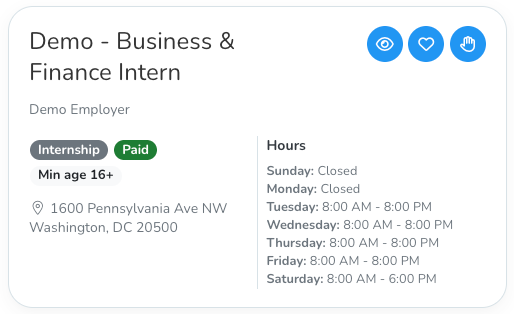
Two filter toggles help you narrow things down:
Interested only — shows opportunities you've marked as interested in
Favorited titles only — shows opportunities matching one of your favorite job titles
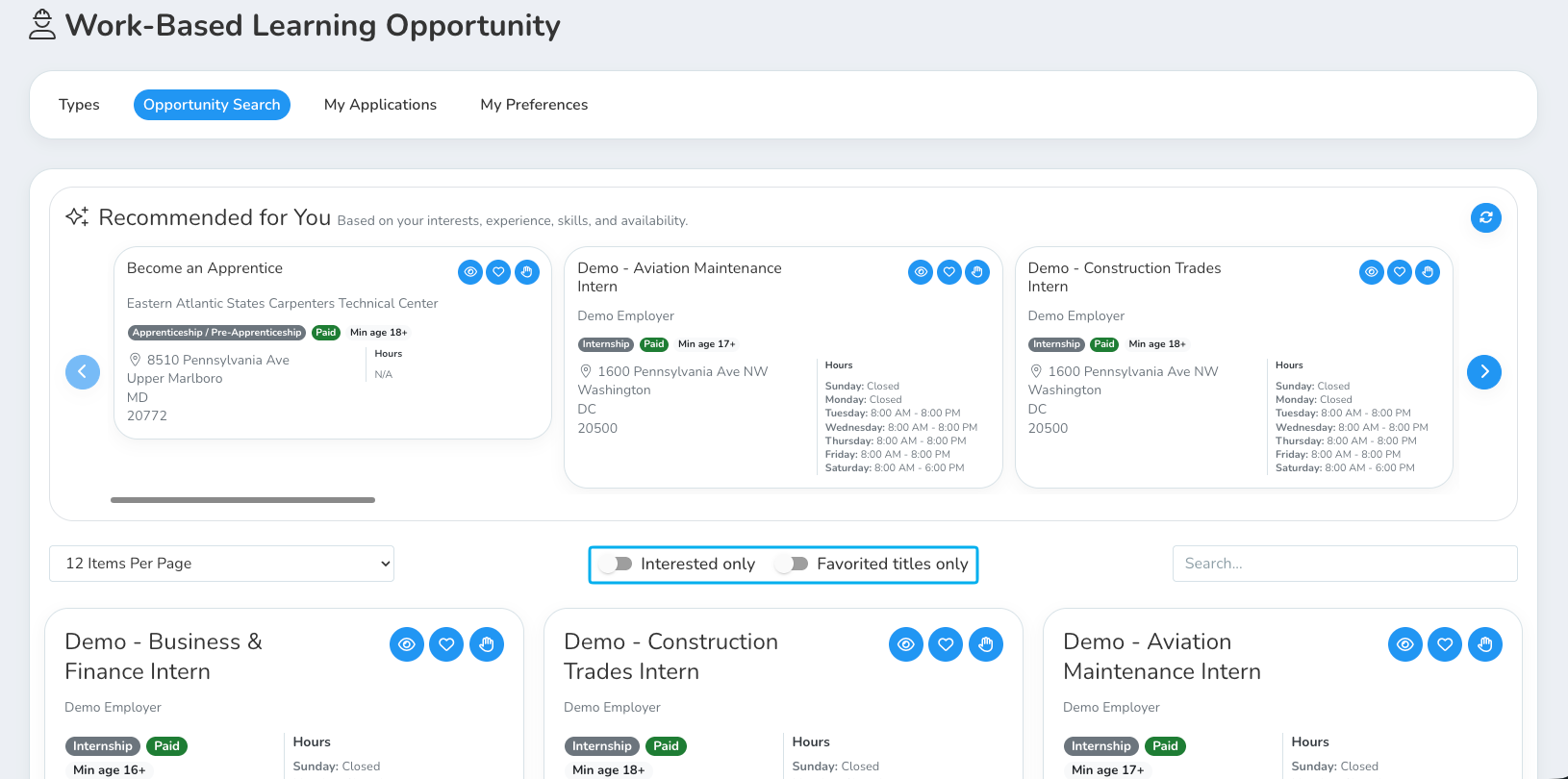
The icons on each card
Each card (and the expanded View More window) has two quick-action icons:

Clicking I'm Interested again removes your interest — but only while it's still just "interested." Once a coordinator has approved your placement, the interest button disappears because you've moved on to the next step.

What happens after I express interest?
If you haven't turned on auto-favoriting (see How do favorite job titles help match me with opportunities? ), a small popup may ask Favorite this job title? with options to say Yes, No, or Remember my choice so you're not asked every time.
Marking interest does not submit an application, but the opportunity will appear in My Applications with an Interested status. Your WBL coordinator reviews interested students and decides whether to approve you for that opportunity. Once approved, you'll get a notification and an Apply button will appear — see How do I apply for an opportunity, and what do the different statuses mean? for what happens next.