Other Document Portfolio Progress
Use this report to see how many files each student has uploaded to each section of the Other Documents tab in their portfolio. It's a quick way to find students who are missing documents.
Last updated About 8 hours ago
Available in: Jobready CTE, Jobready CCR, Jobready WBL
Before you run it
You need access to the Portfolio. This report only appears in your list if you can open student portfolios.
Check your school and class at the top of the page. The report is built for the school and class you have selected.
Filters
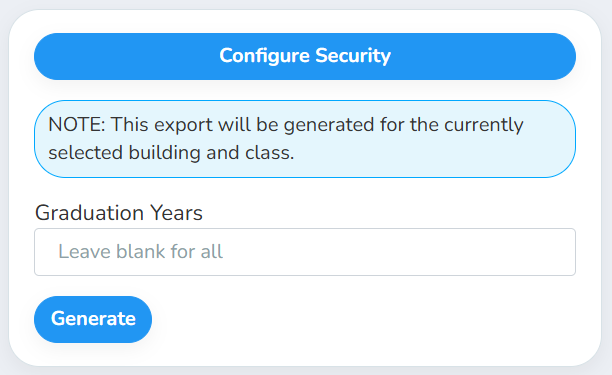
The only filter is optional. Leave it blank to include all current students.
What's in the file
One row per student, sorted by last name and then first name.
After those, there is one column for each section of the Other Documents tab, in alphabetical order. Each cell shows how many files the student has uploaded to that section. A 0 means they haven't uploaded anything there yet.
Good to know
Only enabled sections are included. Sections that have been disabled in Settings don't get a column, and files in them aren't counted.
A selected class means the student's most recent class. When you have a class selected, a student is included only if that class is the one they were most recently added to.
Current students by default. Without a graduation year, graduated students are left out. Deleted students are always left out.
Your access applies. The report only includes students you have access to, and it uses your selected school and class.
Student data: This report lists student names, state and SIS student numbers, classes, grade levels and how many portfolio files each student has uploaded.
Related reports
Career Planning Completion: see which career plan activities each student has finished
Was this helpful?
Still need help? Ask the team